Technical Indicator

Understanding Wilder's Volatility System for Effective Trading
MetaTrader4
Understanding Wilder's Volatility System for Effective Trading

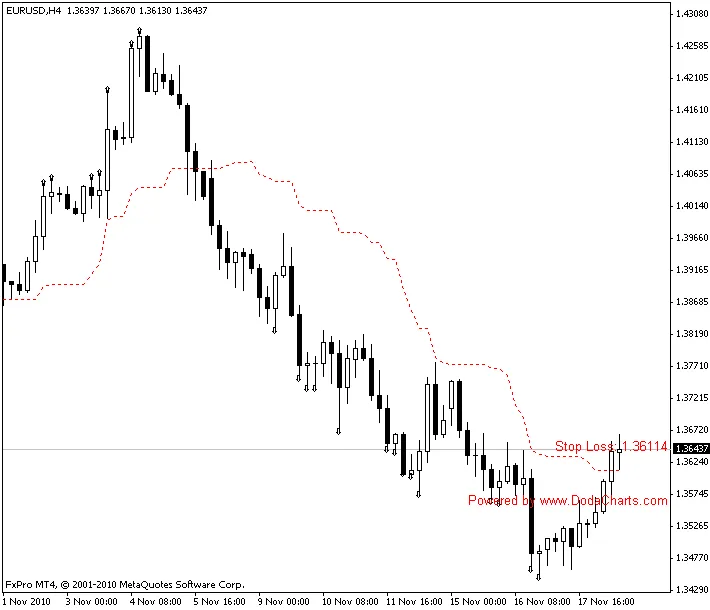
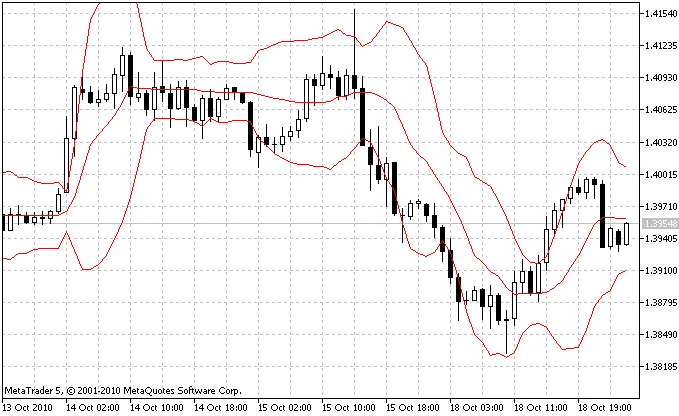
Wilder's Volatility System If you're looking to enhance your trading strategy, you might want to take a closer look at Wilder’s Volatility System. Developed by the legendary Welles Wilder, this system focuses on market volatility and helps traders gauge potential price movements. What is the True Range? At the heart of Wilder's Volatility System is the True Range, which is always a positive value. It’s calculated by taking the highest of three different price ranges: the current day's high minus the current day's low, the current day's high minus the previous day's close, and the current day's low minus the previous day's close. This approach ensures that even on days with minimal price movement, any significant shifts compared to the previous day are accurately reflected in the volatility measure. Interpreting the Volatility System Wilder’s Volatility System calculates a smoothed average of the True Range to determine overall market volatility. This indicator provides insights into price activity and directional movement, effectively showing how much a price fluctuates over time. By tracking the trend of volatility, you can see signs of increasing volatility when the trend line is rising, and decreasing volatility when it’s falling. However, keep in mind that Wilder’s Volatility System on its own doesn’t give trade signals. To make the most of it, you should combine it with other indicators. A common pairing is the Volatility Breakout System, which uses the Average True Range (ATR) as a foundation. In this system, you might open a long position when the price rises above its normal fluctuation range and a short position when it dips below that range. Why Use Wilder’s Volatility System? This system is invaluable for traders looking to assess market risk and identify potential buy and sell opportunities. More volatile markets can present greater risk/reward scenarios, which some traders might embrace for the chance at higher profits. Others, however, may prefer to steer clear of high-risk situations. Understanding how to navigate this volatility is key to successful trading. Helps assess market volatility Indicates potential trading opportunities Pairs well with other trading systems for optimal results

2010.11.18
Enhance Your Trading Charts with ClearView Indicators for MetaTrader 5
MetaTrader5
Enhance Your Trading Charts with ClearView Indicators for MetaTrader 5

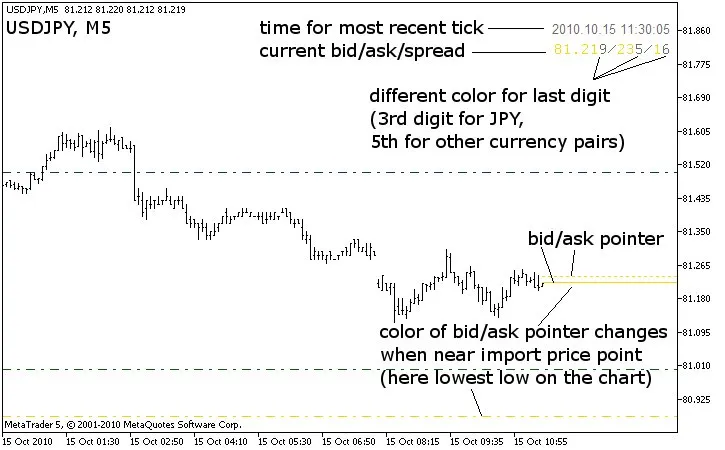
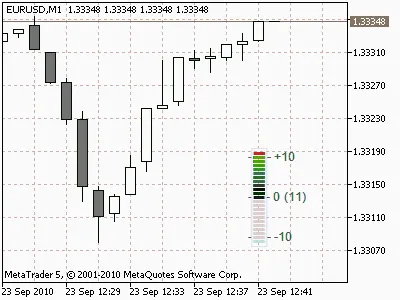
If you're looking to jazz up your trading charts, the ClearView indicators are just what you need. Say goodbye to the default grid and hello to a more insightful visual experience. This trio of indicators includes a handy template to load all three at once, making them perfect for both manual and hybrid trading. Even if you lean towards automated trading, these tools can provide valuable visual cues to optimize your strategy. Why are these indicators so effective? Well, traders often set targets and stops around round numbers—think 50, 100, 500, or even 1000 pips. These levels can act as significant support or resistance zones. By using ClearView indicators, you'll easily spot when the price is approaching these crucial points. When you load these indicators, give your terminal a moment to update the current chart history and fetch data from the monthly chart. The default color schemes are designed to work best on a black background, but feel free to tweak them to fit your style. ClearView_PricePointer This indicator tracks bid/ask prices with alerts at every 500 and 1000 pips, along with daily highs and lows. It displays crucial information like: Current and historical highs/lows printed upon loading Manual setting for historical highs/lows if your data provider doesn't have enough history Independent toggle for bid and ask lines Extended bid/ask lines to the start of the chart or just to the latest bar Color changes for bid/ask lines when approaching significant price points Customizable pips before color change (set in 4-digit pips) Different color for the last digit in bid/ask/spread for clarity Location settings for displaying bid/ask/spread/time NOTE: Shift your chart for better visibility by enabling 'Chart shift' in the properties. ClearView_RoundNumberMarker This indicator marks significant pips—every 50, 100, 500, and 1000—along with chart highs/lows. Key features include: Choice of bright or dim colors for visibility Lines can be drawn as background (recommended) or foreground Similar high/low printing options as PricePointer Manual setting for historical highs/lows Marks significant points as support/resistance when hit by price Customizable duration for marking previous high/low (default is 1 day) Control over which timeframe markers appear to avoid clutter Object descriptions for clarity on what each marker represents ClearView_PeriodSeparator This tool helps you visually separate trading periods—days, weeks, months, and custom sessions. Features include: Color options for visibility Background or foreground line drawing Custom start/end times for marking trading hours Control over which timeframe markers are displayed Future projection of session markers for time management ClearView_ChartTemplate This handy template quickly loads all three indicators above. NOTE: It searches for indicators in the default folder /MQL5/Indicators. Check out the images below to see how these indicators perform. Keep in mind that they look best against a black background, so some colors may not pop as much in these examples. But don’t worry—you can always adjust the colors in the indicator properties to match your preferred background. ClearView_PricePointer ClearView_RoundNumberMarker ClearView_PeriodSeparator

2010.10.20
Unlocking Trading Success with QQE and QQE MTF Indicators for MetaTrader 5
MetaTrader5
Unlocking Trading Success with QQE and QQE MTF Indicators for MetaTrader 5

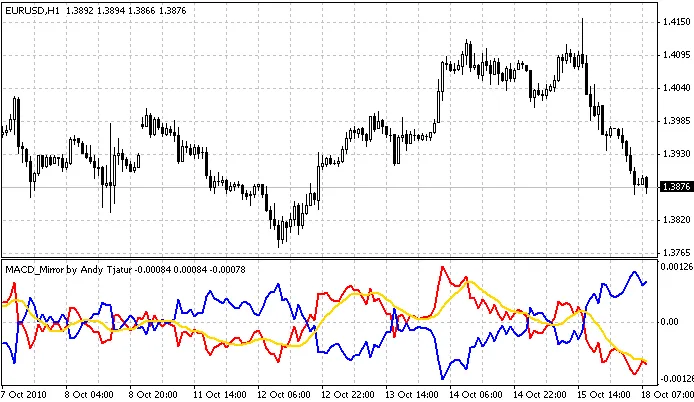
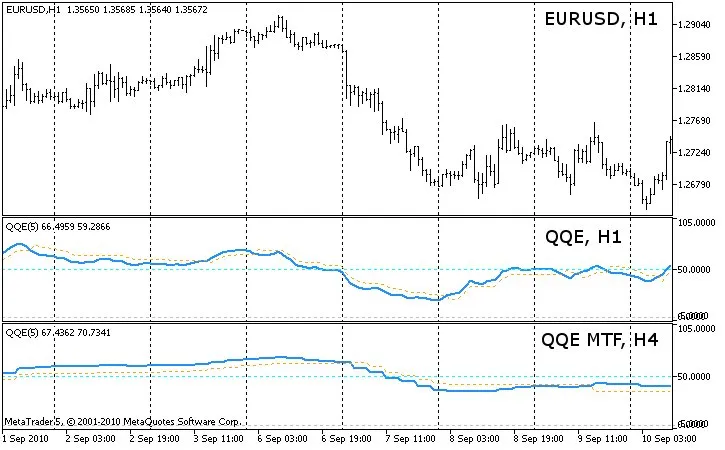
Real Author: traderak20, based on QQE.mq5 by EarnForex Copyright © 2010, with contributions from Tim Hyder (2008) and Roman Ignatov (2006) If you're looking to elevate your trading game, the QQE and QQE Multi-Timeframe (MTF) indicators are essential tools in your arsenal. The QQE, or Qualitative Quantitative Estimation, is derived from two main indicators: Moving Average (MA) on the Relative Strength Index (RSI) The difference between the MA on RSI and the MA of the Average True Range (ATR) of the MA of RSI BUY Signal: This occurs when the blue line crosses above the level 50 after crossing the yellow line from below. SELL Signal: This happens when the blue line crosses below the level 50 after crossing the yellow line from above. The QQE MTF indicator can be utilized across any timeframe, whether it’s a higher or lower timeframe than your current chart. This flexibility allows you to tailor your strategy effectively. Compared to the original QQE, the QQE MTF offers an additional setting for a second timeframe to be used in calculations, enhancing your analytical capabilities. However, keep in mind that when using the QQE MTF on a timeframe that's lower than your current chart's timeframe, not all values can be displayed. Instead, the indicator will adapt based on the price type you've selected to deliver the most relevant data. Here are a couple of practical examples: Timeframe 1 = 5 minutes, Timeframe 2 = 1 minute (using Close price series): For each bar on Timeframe 1, the indicator will display the most recent bar from Timeframe 2 that closed on or before the Close time of the bar on Timeframe 1. This applies to both closed bars and the current open bar. Similarly: Timeframe 1 = 5 minutes, Timeframe 2 = 1 minute (using Open price series): For each bar on Timeframe 1, the indicator shows the latest bar from Timeframe 2 with an opening time on or before the Open time of the bar on Timeframe 1. This is particularly useful if you trade based on the opening of new bars. Feel free to mix and match any timeframes, even if they don’t sync up perfectly. For instance, you can use a 5-minute timeframe alongside a 12-minute timeframe. The indicator will ensure they stay aligned for accurate analysis. For a more visual explanation, check out the MACD Histogram MC_MTF indicator, which includes a helpful Excel sheet. Note: When switching between timeframes, give it a few seconds for the price data to load. If the indicator doesn’t appear, try refreshing the chart manually. To get the QQE MTF working, make sure to place both qqe_mtf.mq5 and qqe.mq5 in the \MQL5\Indicators folder. If you want to toggle error messages for troubleshooting, check the source code: bool  ShowErrorMessages=false      // turn on/off error messages for debugging Update History for QQE: 2010 09 26: v02 Code has been revised to enhance compatibility with MetaTrader 5; Corrected erroneous values at the chart's start; Update History for QQE MTF: 2010 09 26: v02 Improved value display on smaller timeframes; Changed buffers to EMPTY_VALUE instead of 0 after: if(convertedTime<tempTimeArray_TF2[0]); Optimized the code; Removed PLOT_DRAW_BEGIN from OnInit() - inherited from single timeframe indicator; Moved ArraySetAsSeries of buffers and arrays into OnInit().

2010.09.29

First Previous 330 331 332 333 334 335 336 337 338 339 340 Next Last