System Trading

Unlock Trading Success with Patterns EA for MetaTrader 5
MetaTrader5
Unlock Trading Success with Patterns EA for MetaTrader 5

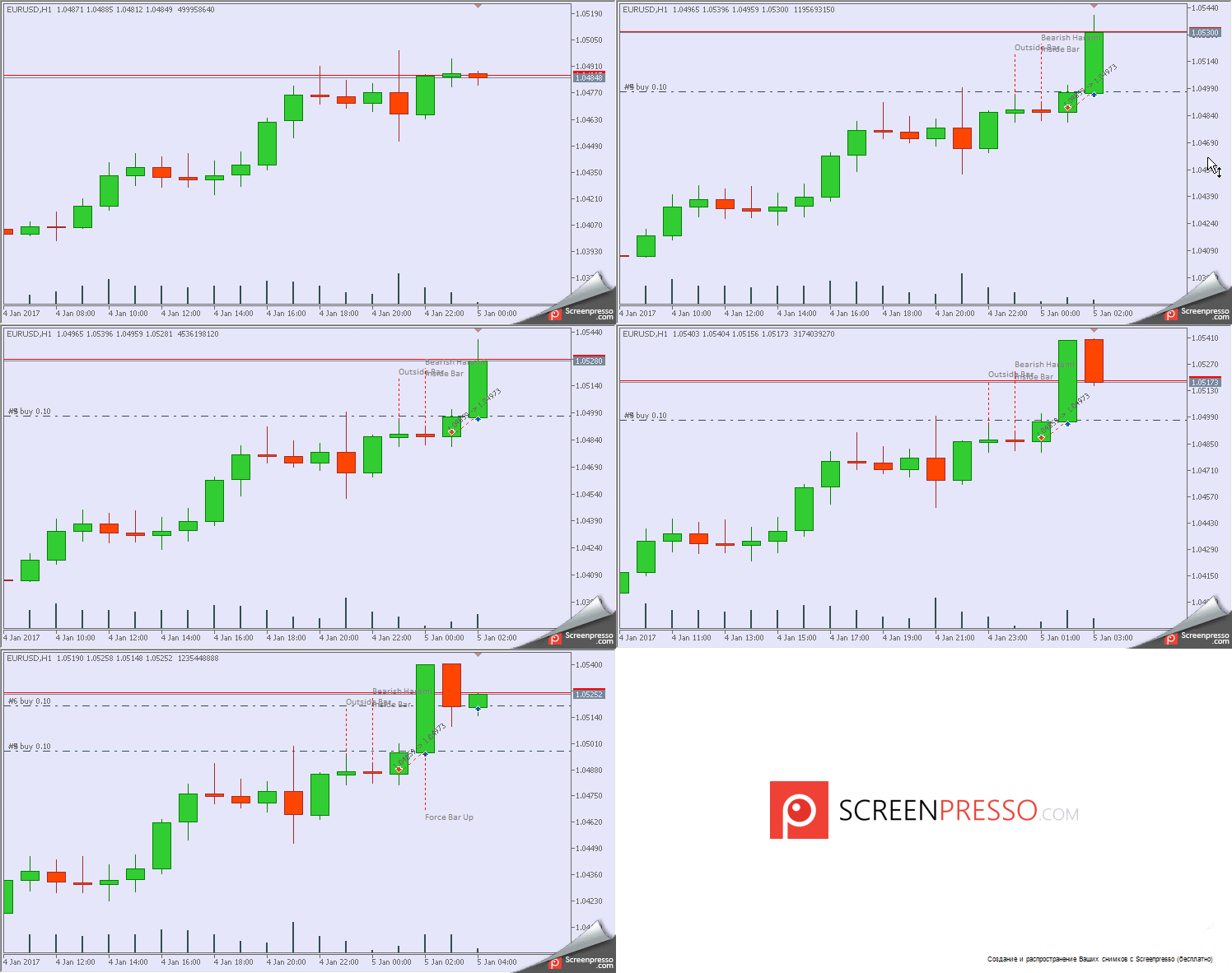
If you're looking to level up your trading game, the Patterns EA for MetaTrader 5 is a powerful tool you won't want to miss. This Expert Advisor employs a comprehensive indicator that identifies thirty popular candlestick patterns, making it easier for you to spot trading opportunities. With the Patterns EA, you can utilize various trading strategies when opening positions. You have the flexibility to enable or disable position openings for each pattern separately or for groups of patterns, including one-bar, two-bar, and three-bar candlestick formations. Important: This EA is specifically designed for hedging accounts. If you try to run it on a netting account, you'll receive a warning message, and the EA will be unloaded. Don’t worry about needing the separate indicator; everything is built into the EA itself. The calculations and pattern searches are handled within a dedicated class linked to the EA, ensuring a seamless experience. You can set your stop loss and take profit levels in points, which will apply uniformly across all your positions. If you input invalid values, the EA will automatically adjust them to the minimum StopLevel allowed for your trading symbol. The EA is smart enough to adjust the lot size if you specify an incorrect value. If the lot size is too large, it will be recalibrated to ensure that a position can be opened. And if your account balance doesn’t cover even the minimum lot, the signal will simply be skipped. Note: This Expert Advisor is intended for educational purposes. The Patterns EA comes packed with 75 configurable parameters. Here are the highlights of the top 15 specifications: Enable One-bar patterns - activate one-bar candlestick patterns; Enable Two-bar patterns - activate two-bar candlestick patterns; Enable Three-bar patterns - activate three-bar candlestick patterns; Maximum pips distance between equal prices - set the max distance for price comparison; Draw Pattern and Descriptions - display patterns and their descriptions on the chart; Font size - customize the font size for pattern descriptions; Texts color - choose the text color for descriptions; Font name - select the font for pattern descriptions; Experts magic number - assign a unique identifier for the EA’s positions; Mode of opening positions - choose your preferred position opening mode; Lots - specify the volume for positions to be opened; Stop loss in points - set the stop loss in points (not applicable if 0); Take profit in points - set the take profit in points (not applicable if 0); Slippage of price - define the maximum slippage when opening a position; Multiplier spread for stops - apply a spread multiplier when calculating stop distances. The remaining 60 parameters allow you to toggle various patterns and position types based on your trading strategy. * The accuracy for comparing in the pattern search means that prices are deemed equal if the difference is less than the specified number of points. ** Six modes for opening positions are available: Any position Always one position (swing) Only one Buy position Many Buy positions Only one Sell position Many Sell positions *** For Stop Loss and Take Profit orders, there is a minimum distance for placing such orders, known as StopLevel. If the StopLevel is zero, it indicates a floating level, meaning that the minimum distance is often equal to the spread, and sometimes even double the spread may not suffice. This parameter allows you to define a custom multiplier for the spread used in calculating minimum distances for stop orders. Example: Mode of opening positions set to 'Always one position.' The 'Outside' pattern triggers a Sell. Default values are applied to all other settings.

2018.04.19
N Candles v6: Your Go-To EA for MetaTrader 5 Trading
MetaTrader5
N Candles v6: Your Go-To EA for MetaTrader 5 Trading

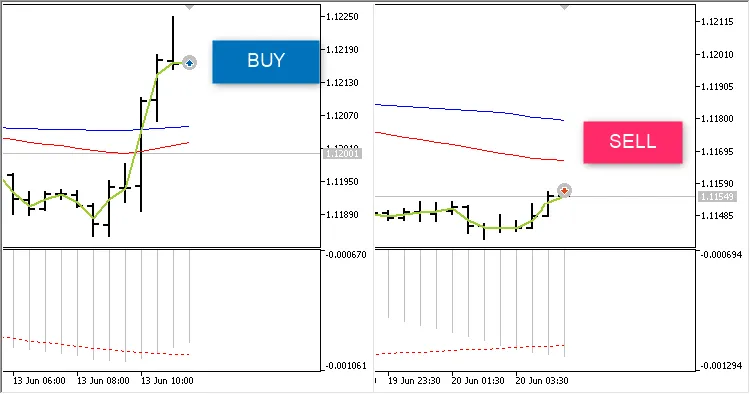
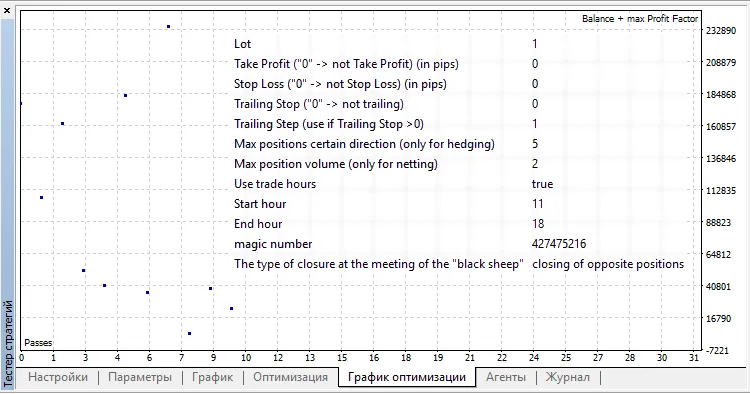
Hey fellow traders! If you're looking for a reliable Expert Advisor (EA) to help you navigate the markets, the N Candles v6 could be just what you need. This EA specializes in identifying a sequence of identical candlesticks, making it easier to capitalize on trending movements. It buys during bullish candlesticks and sells during bearish ones, ensuring your strategy aligns with market momentum. The N Candles v6 also checks whether your account is netting or hedging. In its programming, it utilizes several key trade classes, namely CPositionInfo, CTrade, CSymbolInfo, and CAccountInfo. Version 1: N Candles. Version 2: N Candles v2. Version 3: N Candles v3. Version 4: N Candles v4. Version 5: N Candles v5. What's New in Version 6 This latest version introduces new closing options when a 'black sheep' is encountered: Close all positions. Close positions that oppose the 'black sheep'. Close positions that move in the same direction as the 'black sheep'. Understanding the "Black Sheep" Concept So, what’s this 'black sheep' all about? Imagine the EA is on the lookout for five identical candlesticks. If it finds five bullish candlesticks in a row and opens a Buy position, any subsequent candlestick that isn’t bullish is deemed a 'black sheep'. This feature helps you manage trades better during unexpected market shifts. Input Parameters N identical candles in a row - Set the number of identical candlesticks you want to track. Lot - Define the position volume. Take Profit - Specify the take profit value (not used if set to 0). Stop Loss - Set your stop loss value (not used if set to 0). Trailing Stop - Input the trailing stop value (not used if set to 0). Trailing Step - Set the trailing step value (not used if set to 0). Max positions in one direction (for hedging) - Limit the number of positions allowed in one direction on hedging accounts. Max position volume (for netting) - Set the maximum volume for open positions on netting accounts. Use trade hours - Enable or disable a time filter. Start hour - Specify when trading should begin. End hour - Specify when trading should stop. Magic number - A unique identifier for the EA. Closure type for 'black sheep' - Choose the closing strategy to apply when a 'black sheep' is detected. In this version, you can opt to disable Take Profit, Stop Loss, and Trailing Stop. In such cases, your positions will close based on the 'black sheep' parameter. Here’s an example of testing on the D1 timeframe, covering the period from April 18, 2017, to February 10, 2018, in Every Tick mode: Symbol Pass Result Profit Expected Payoff Profit Factor Recovery Factor Sharpe Ratio Custom Equity DD % Trades AUDJPY 0 234,868.07 26,677.92 592.84 3.06 2.23 0.42 0 17.42 45 EURCHF 2 182,707.90 21,403.45 548.81 2.56 0.97 0.34 0 26.12 39 AUDUSD 3 176,864.42 23,113.10 462.26 2.42 1.40 0.33 0 23.34 50 USDJPY 1 161,759.58 16,625.68 573.30 2.43 0.66 0.38 0 44.97 29 GBPUSD 4 106,435.34 15,526.40 378.69 1.62 0.61 0.20 0 29.82 41 USDCHF 5 51,537.85 445.34 11.42 1.02 0.02 0.02 0 31.45 39 USDCAD 6 40,360.28 -3,701.81 -88.14 0.87 -0.15 -0.04 0 35.79 42 EURCAD 7 38,152.04 -4,512.05 -132.71 0.84 -0.17 -0.06 0 42.95 34 #AA 9 34,847.02 -1,795.40 -51.30 0.72 -0.52 -0.12 0 6.95 35 EURJPY 8 23,499.63 -14,049.99 -326.74 0.65 -0.26 -0.18 0 62.68 43 EURUSD 10 4,307.27 -28,962.60 -851.84 0.20 -0.95 -0.59 0 60.81 34

2018.04.19

Mastering Channel Trading Strategies with MetaTrader 5
MetaTrader5
Mastering Channel Trading Strategies with MetaTrader 5

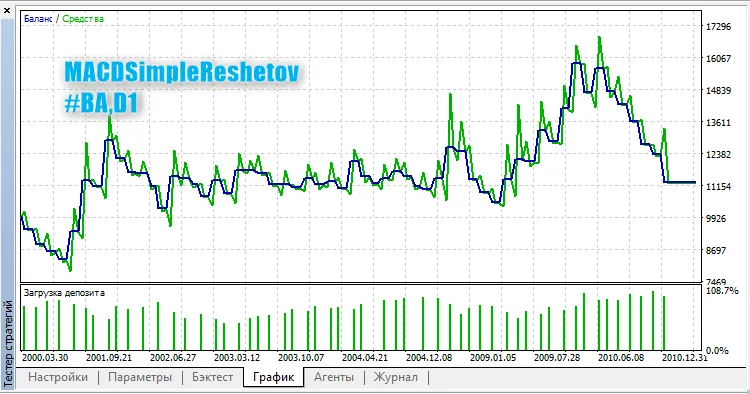
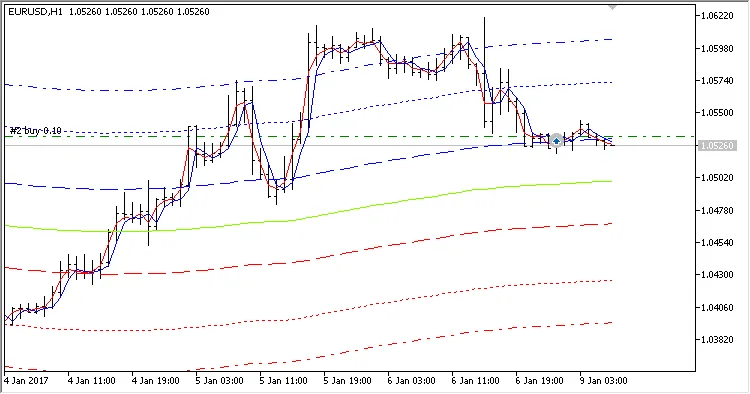
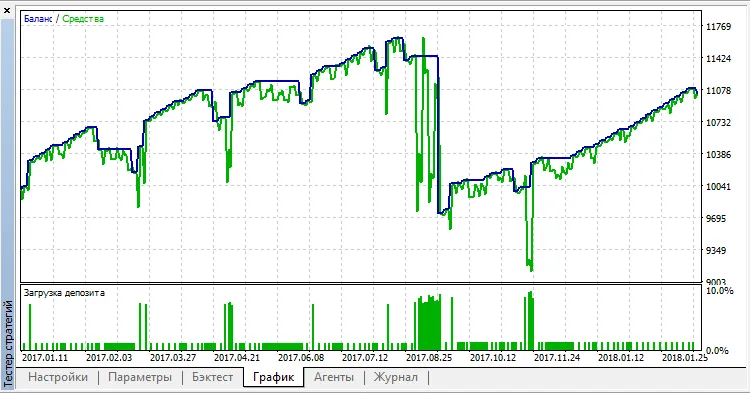
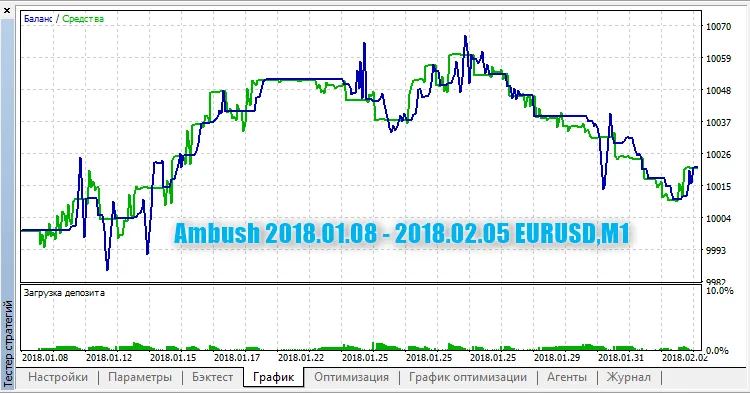
Author of the Idea: Scriptor, MQL5 Code Creator: barabashkakvn. When it comes to trading channels, using the right settings is crucial. This Expert Advisor (EA) is designed to function optimally on the H1 timeframe, specifically for the EUR/USD pair. You can also customize its operation hours through the From hour and To hour parameters. The EA operates within a channel defined by a combination of indicators—specifically, one Moving Average and three Envelopes, each with varying heights. It employs two short-term Moving Averages set to a period of 2, one based on Close prices and the other on Open prices. The EA features separate settings for stop loss, take profit, and trailing stops for both BUY and SELL positions, giving you greater control over your trades. Input Parameters Lots - Defines the volume of the position to open; Stop Loss BUY (in pips) - Sets the stop loss for BUY trades; Stop Loss SELL (in pips) - Sets the stop loss for SELL trades; Take Profit BUY (in pips) - Sets the take profit for BUY trades; Take Profit SELL (in pips) - Sets the take profit for SELL trades; Trailing Stop BUY (in pips) - Sets the trailing stop for BUY trades; Trailing Stop SELL (in pips) - Sets the trailing stop for SELL trades; Use trade hours - Option to enable specific trading hours; From hour - Designates the start of trading hours; To hour - Designates the end of trading hours; Magic number - A unique identifier for the EA. Keep in mind that trading without a stop loss can expose you to significant drawdown risks, as illustrated below:

2018.03.01
Mastering Trailing Stops and Take Profit with MT5: Your Go-To EA Guide
MetaTrader5
Mastering Trailing Stops and Take Profit with MT5: Your Go-To EA Guide

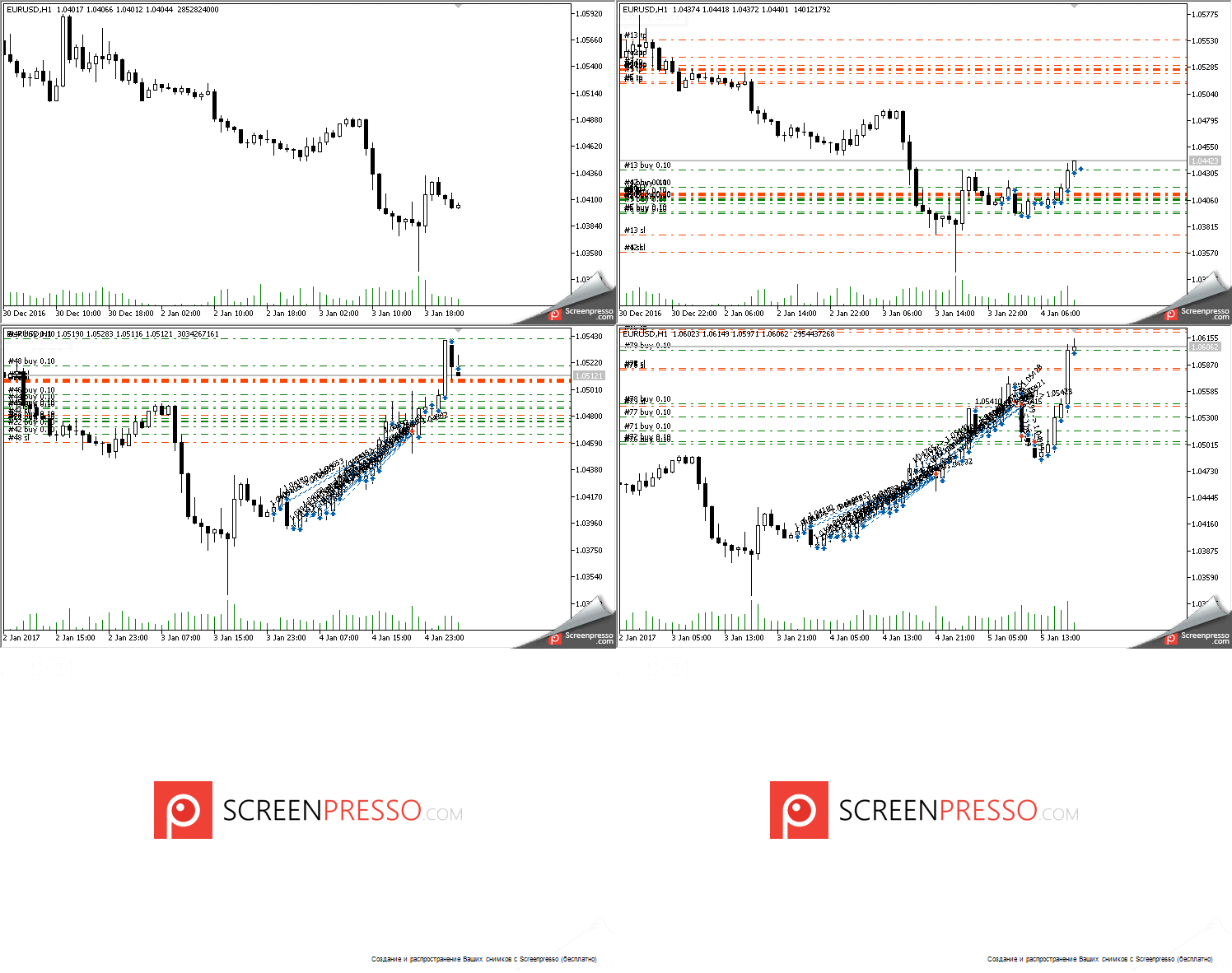
Hey traders! If you're on the lookout for a straightforward way to manage your stop loss and take profit orders, you're in the right spot. Today, we're diving into a nifty tool designed specifically for MetaTrader 5 that simplifies this process for you. Just a heads up: this EA is tailored for hedging accounts only. So, how does it work? Whenever you open a new position, the EA first checks for any existing stop orders. If it doesn’t find one, it automatically sets a stop order based on the distance you've specified in your EA settings. Once that's done, it starts adjusting your take profit and/or stop loss as the price moves beyond your set distance. You’ve got flexibility with the position types – whether it’s any, buy, or sell. You can also specify the symbol for the position (any or a specific one), along with the magic number or position ticket. Plus, if you want to trail in the losing area, there's an option for that too. If you don’t opt for this mode, stop orders won’t trail in the losing zone. You can also set a breakeven value in your parameters. To test how the trailing feature works, the EA can open positions on each new bar, but keep in mind that this can only be done in the Strategy Tester. The EA comes packed with 12 input parameters: Initial StopLoss size in points (0 - no stop) - Sets a stop loss if one isn’t already present. If this is set to 0, no stop loss will be placed; Initial TakeProfit size in points (0 - no take) - Adds a take profit order if one isn’t already there. Set this to 0 for no take profit; TrailingStop size in points (0 - no trail) - This defines how far the stop loss is from the price; set to 0 to disable trailing; TrailingTake size in points (0 - no trail) - Defines the trailing distance for take profit. Set to 0 to disable trailing; Positions type - Choose which types of positions to trail; Positions symbol ("" - any symbol) - Specify the symbol for trailing or leave it empty for all symbols; Positions magic number (0 - any magic) - Set the magic number for positions to trail; Position ticket (0 - all tickets) - Specify which ticket to trail; Trailing Step - Defines how far the price must move before the stop order is modified according to your settings; Trailing in the unprofitable zone - Enable or disable trailing in losing areas; Breakeven in points - Sets the breakeven value where a losing area starts; Spread multiplier - A multiplier used to calculate the correct distance for stop orders. For Stop Loss and Take Profit orders (and pending orders), there's a minimum distance allowed, known as StopLevel. This means these orders can’t be placed closer than this set distance to the price. If StopLevel is 0, it doesn’t mean it’s nonexistent – it just means it’s floating. In this case, the minimum distance is typically equal to the spread, but sometimes even double the spread isn't enough. This parameter lets you set a custom multiplier for the spread to ensure proper placement of stop orders. Fig.1 Initial StopLoss=600, initial TakeProfit=1200, TrailingStop=300, take profit trailing is disabled, trailing in the loss area is disabled.

2018.03.01
Mastering the Trend Me Leave Me EA for MetaTrader 5
MetaTrader5
Mastering the Trend Me Leave Me EA for MetaTrader 5

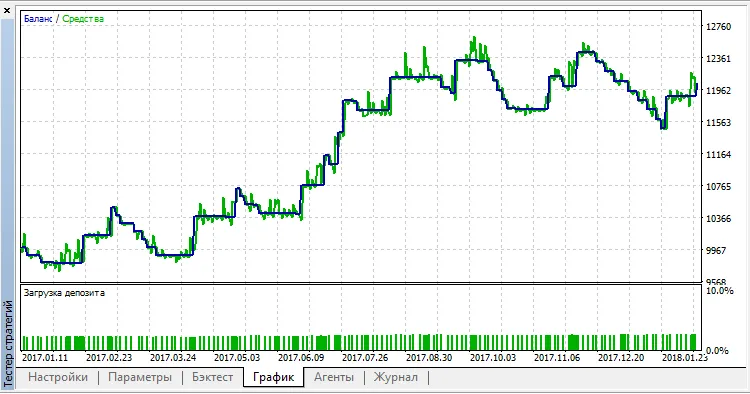
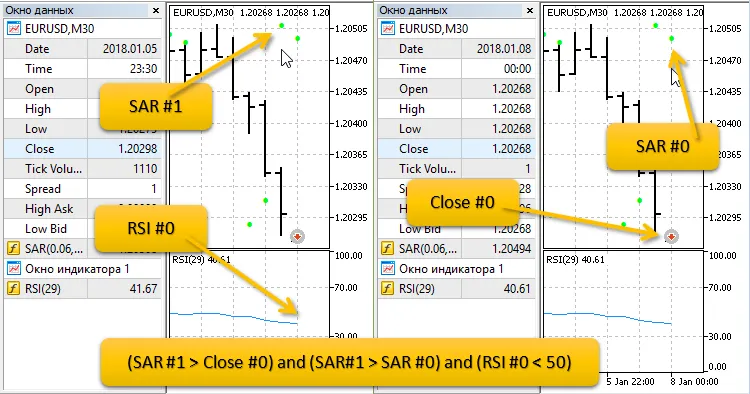
Creator of the Idea: Scriptor, MQL5 Code Author: barabashkakvn. The Trend Me Leave Me Expert Advisor is designed to manage a single position, making it suitable for netting accounts. The EA determines the direction of the next trade based on the last closed position—whether it was a BUY or SELL—and how that position was closed, either by hitting Stop Loss or taking Profit. How It Works: If the last trade was closed with Take Profit, the next trade will be in the same direction; If it was closed with Stop Loss, the next trade will be in the opposite direction. The type of closing is determined in OnTradeTransaction() using the ENUM_DEAL_REASON. Initially, you check the transaction type in OnTradeTransaction(): TRADE_TRANSACTION_DEAL_ADD - This indicates a deal added to history, resulting from order execution or account balance adjustments. Next, the DEAL_REASON property is evaluated. If the Breakeven parameter is set to a non-zero value, the EA will attempt to move the position to breakeven if conditions allow. After establishing the trade direction in OnTradeTransaction(), the EA checks the following conditions: For a BUY position, the SAR indicator on the current bar must be less than the Close of that bar, and the ADX on the current bar must be below 20. For a SELL position, the SAR indicator on the current bar must be greater than the Close of that bar, with the ADX also below 20; Input Parameters Stop Loss (in pips): Set your Stop Loss value; Take Profit (in pips): Set your Take Profit value; Risk per Trade (%): Define your risk percentage for each trade; Breakeven (in pips): Set your breakeven value; ADX: Averaging Period: Specify the ADX indicator parameter; SAR: Price Increment Step - Acceleration Factor: Set the SAR indicator parameter; SAR: Maximum Value of Step: Set the maximum step for the SAR indicator. Default parameters are set for EURUSD, M30 from 2017-01-08 to 2018-02-05.

2018.03.01
Mastering the EMA Cross Contest Hedged System for MetaTrader 5
MetaTrader5
Mastering the EMA Cross Contest Hedged System for MetaTrader 5

The brains behind this idea: Scriptor, with the MQL5 code crafted by barabashkakvn. This system is all about spotting the intersection of two Moving Averages based on data from two bars to generate trading signals: You can specify the current bar in the Trade bar setting: choose either bar #0 or bar #1. When Use MACD is set to true, our Expert Advisor (EA) will also factor in the position of the main MACD line in relation to zero, based on the Trade bar setting. If a signal pops up and you don’t have any open positions, the EA will open a position and set four hedging orders at a distance defined by the Hedge level, with a lifespan equal to Expiration pending orders: Buy Stop orders are placed for a BUY position, while Sell Stop orders are set for a SELL position. Positions can be closed with an opposite signal if you’ve turned on the Close the opposite positions feature. For instance, any SELL positions will be closed when a BUY signal appears. Once your positions are live, a Trailing Stop with a specified Trailing Step will kick in to help lock in profits. Input Parameters Lots - the volume of the position to open; Stop Loss (in pips) - your Stop Loss value; Take Profit (in pips) - your Take Profit value; Trailing Stop (in pips) - the trailing value; Trailing Step (in pips) - the trailing step value; Hedge level (in pips) - distance between pending orders; Close the opposite positions - option to close opposite positions; Use MACD - option to include MACD; Expiration pending orders (seconds) - time until pending orders expire; MA short: averaging period - fast MA calculation setting; MA long: averaging period - slow MA calculation setting; Trade bar - the number of the bar to trade on; Magic number - unique identifier for the EA. Here’s a quick example of testing with EURUSD on the M30 timeframe:

2018.03.01
Show Pips: Your Go-To Indicator for MetaTrader 5
MetaTrader5
Show Pips: Your Go-To Indicator for MetaTrader 5

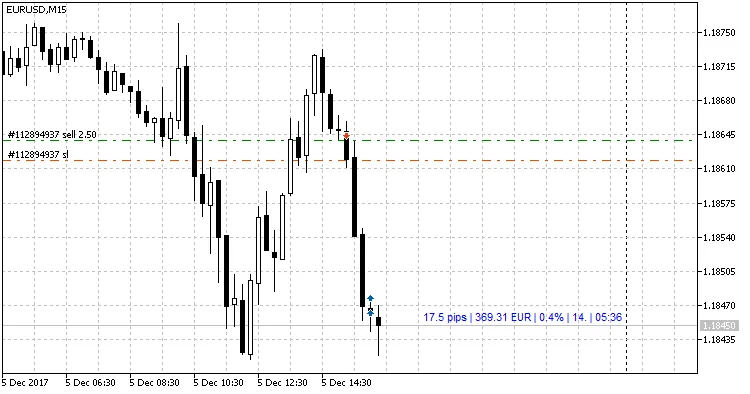
If you’re trading on MetaTrader 5, the Show Pips indicator is a must-have tool to keep your finger on the pulse of your account's performance. This handy indicator provides real-time data, including your profit in pips, as well as the corresponding percentage and currency values. Plus, it shows the current spread for your trading pair and counts down the time until the bar closes in your chosen timeframe. You have the flexibility to choose where the information displays: Next to the price (it moves along with it); As a comment in the upper left corner of the chart; In a designated corner of your screen. Need to customize how the info looks? You can also pick from various data separators: | / . \ # What’s great about this indicator is its user-friendly design. You can easily toggle off any information you don't need in the settings. Parameters Type of appearance: Choose how the info line looks. There are three options: Follow the price: Moves with the price; As comment: Displays as a comment; In selected corner of the screen: Shows in your chosen corner. Graph corner for attachment: If you choose 'In selected corner of the screen', this lets you pick which corner to use; Show profit?: Toggle to display your profit in the account currency; Show profit in percentages?: Toggle to show profit as a percentage; Show spread?: Toggle to display the current spread; Show time to bar closure?: Toggle to see how much time is left until the bar closes; Text color: Set the color of the text; Profit color: Set the color for when you have floating profit; Loss color: Set the color for when you have floating loss; Separator: Choose the line data separator (options: "|", "/", ".", "\", or "#"); Y coordinate: Set the Y coordinate if you're using 'In selected corner of the screen'; Indent in bars: Set how far from the current bar the info should appear (if 'Follow the price' is selected); Font size: Adjust the size of the text; Font: Choose your preferred text font. You can grab the MetaTrader 4 version of this indicator here. Display Examples

2018.01.22
Boost Your Trading with the Dealers Trade v 7.74 MACD EA for MetaTrader 5
MetaTrader5
Boost Your Trading with the Dealers Trade v 7.74 MACD EA for MetaTrader 5

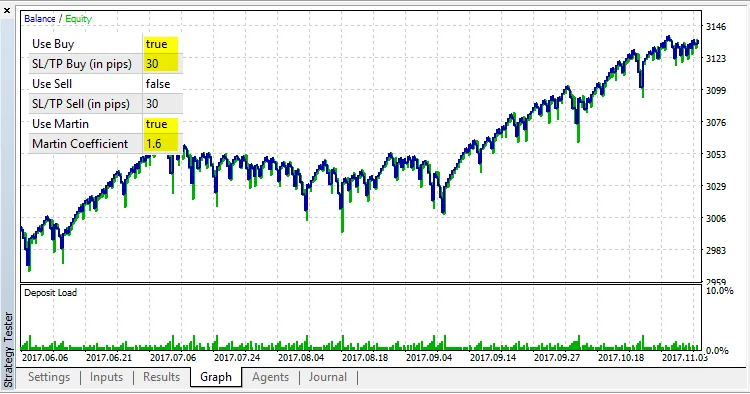
Author of the concept: Alexander, creator of the mq5 code: barabashkakvn. The Dealers Trade v 7.74 EA leverages the iMACD (Moving Average Convergence/Divergence) indicator to make trading decisions. As your positions increase, the lot size will scale up following a Martingale strategy, which can amplify both your potential profits and risks. This Expert Advisor is tailored for use on H4 and D1 timeframes, making it a solid choice for those who prefer swing trading. Managing Your Position Volume: You can set the initial lot size manually; Alternatively, it can be auto-calculated based on a percentage of your free margin. You also have the option to cap: The maximum number of open positions; The maximum lot size. Profit Protection: If enabled, the EA will safeguard your profits. If your total profit exceeds a specified threshold and you have at least as many positions as your protected amount, the EA will close the most profitable position. For instance, if your overall profit is $52 with four open positions and you've set a protected amount of "3," one position will be closed to maintain a minimum of three open trades. Input Parameters Lots (if use "Risk") - Position volume (if close max profit position - Enables profit protection, closing the most profitable position; Number of open items if "Account protection" = "true" - Defines the number of positions to keep protected; Reverse condition - Reversing trade signals; MACD: fast ema period - Fast EMA period for MACD; MACD: slow ema period - Slow EMA period for MACD; Max volume of position - Sets the maximum allowed position size; Lot coefficient - Multiplier for the lot size; as more positions are opened, the lot size increases.

2018.01.22
Mastering the 3MACross EA for MetaTrader 5: Your Ultimate Trading Companion
MetaTrader5
Mastering the 3MACross EA for MetaTrader 5: Your Ultimate Trading Companion

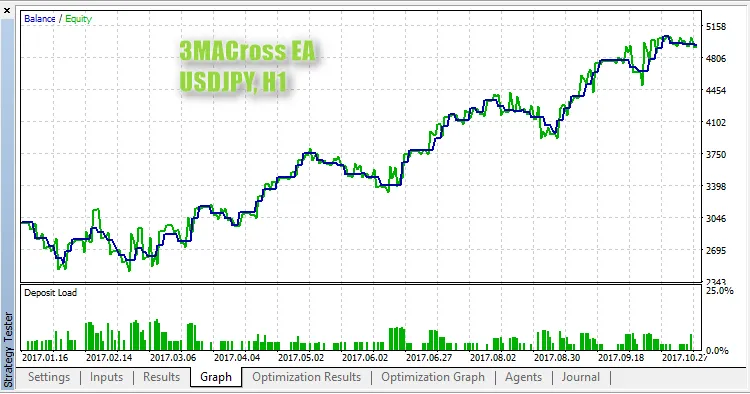
Author of the idea: bobby, mq5 code author: barabashkakvn. The 3MACross EA is a powerful trading tool designed for MetaTrader 5, utilizing two key indicators: MA Cross 3MACross Alert WarnSig and Price Channel. When it comes to managing your trades, this EA offers three flexible options for setting your stop loss (SL) and take profit (TP): Trailing Stop: This is greater than zero. When activated, a traditional trailing stop function applies to your open positions. Auto SL/TP: Set to 'true'. This option automatically determines the SL and TP levels based on the Price Channel indicator. BreakEven: This is greater than zero. Once a position hits the specified BreakEven profit level, it automatically adjusts to the BreakEven point. It's crucial to note that you can only select one of these three options at a time. For instance, if you set BreakEven to 15, then Trailing Stop must be set to zero and Auto SL/TP to false (these defaults apply in the EA settings). Additionally, you have two choices for setting your position volume: a fixed lot size defined by Lots or a risk percentage based on your available margin Risk in percent for a deal from a free margin. You can only choose one; if Lots is set to zero or less, the EA will use the risk percentage method. For optimal results, the EA is pre-optimized for USDJPY on the H1 timeframe, which are the default settings used in the EA: Input Parameters Trade Parameters: Lots: (if use risk from free margin) - defines the position volume; Stop Loss: set your stop loss level; Take Profit: set your take profit level; Trailing Stop: set your trailing stop level; Risk: define risk per trade as a percentage of free margin; Auto SL/TP: enable stop loss and take profit based on the Price Channel indicator; Trade at Close Bar: if 'true', the EA will trade on the closed bar #1; if 'false', it will trade on the current bar #0; BreakEven: define your break-even point; Max Open Positions: set the maximum number of positions allowed in one direction. MA Cross 3MACross Alert WarnSig Indicator Parameters: First Moving Average Parameters: Period: specify the period of the first MA; Shift: set the shift for the first MA; Method: select the method for the first MA. Second Moving Average Parameters: Period: specify the period of the second MA; Shift: set the shift for the second MA; Method: select the method for the second MA. Third Moving Average Parameters: Period: specify the period of the third MA; Shift: set the shift for the third MA; Method: select the method for the third MA. crossesOnCurrent: alertsOn: alertsMessage: alertsSound: alertsEmail: Price Channel Indicator Parameters: InpChannelPeriod: define the calculation period (number of bars).

2018.01.22
BeerGodEA: Your Go-To Trading System for MetaTrader 5
MetaTrader5
BeerGodEA: Your Go-To Trading System for MetaTrader 5

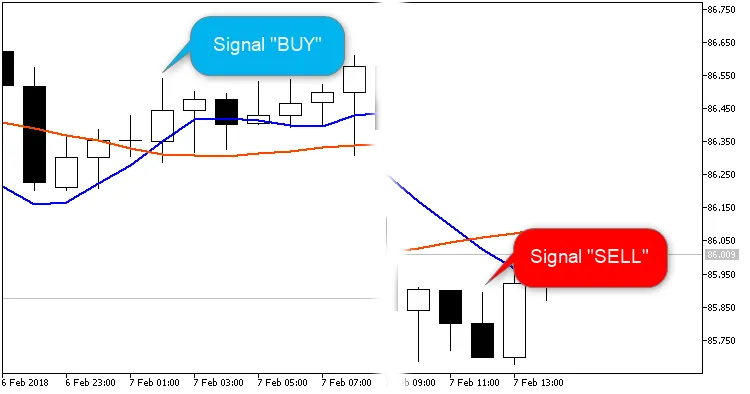
Author of the Idea: Vladimir, MQ5 Code Creator: barabashkakvn. Looking for a reliable trading tool? Meet BeerGodEA, an Expert Advisor designed to help you make informed trading decisions on MetaTrader 5. This EA generates signals to open positions based on price movements across the iMA (Moving Average) and, importantly, tracks the specified number of minutes since the bar opened. What’s even better? The system ensures that all Sell positions are closed before a Buy position is opened, and vice versa. This way, you can keep your trading strategy clean and straightforward. Performance Results Check out the results of our tests conducted in 'Every Tick' mode across various symbols: Symbol Pass Result Profit Expected Payoff Profit Factor Recovery Factor Sharpe Ratio Custom Equity DD % Trades USDJPY 1 127,383.44 3,789.75 18.76 1.26 0.76 0.10 0 82.80 202 EURUSD 7 67,028.45 2,663.10 11.84 1.16 0.48 0.08 0 84.70 225 AUDCAD 5 19,623.87 1,016.30 4.89 1.09 0.43 0.06 0 71.95 208 EURAUD 3 -178,181.47 -2,038.52 -185.32 0.28 -0.65 -0.30 0 88.24 11 USDCAD 6 -11,734.63 -2,724.33 -42.57 0.75 -0.67 -0.01 0 94.32 64 CADJPY 4 -26,012.44 -2,775.03 -115.63 0.42 -0.86 -0.17 0 94.41 24 AUDNZD 2 -8,300.29 -2,791.89 -39.88 0.49 -0.78 -0.16 0 94.50 70 GBPUSD 0 1.7977E+308 -3,287.60 -30.16 0.81 -0.42 -0.04 0 104.17 109 Whether you're a seasoned trader or just starting, BeerGodEA could be the missing piece in your trading strategy. Happy trading!

2018.01.22
Unlock Profits with N Candles v5: Your Go-To EA for MetaTrader 5
MetaTrader5
Unlock Profits with N Candles v5: Your Go-To EA for MetaTrader 5

Are you ready to take your trading to the next level? Meet N Candles v5, the Expert Advisor designed for MetaTrader 5 that spots N identical candlesticks in a row. This EA isn't just about making trades; it buys on bullish candlesticks and sells on bearish ones. Plus, it takes into account your account type—whether you're netting or hedging. The magic happens behind the scenes with the CPositionInfo, CTrade, CSymbolInfo, and CAccountInfo trade classes utilized in the code. Version 1: N Candles. Version 2: N Candles v2. Version 3: N Candles v3. Version 4: N Candles v4. What's new in version 5? The exciting new "working time" parameter! This feature allows you to set specific trading hours, so the EA will only execute trades during your designated "working hours" and stay inactive the rest of the time. Input Parameters N identical candles in sequence - Set the number of identical candlesticks you want to look for. Lot - Define your position volume. Take Profit - Set your profit target. Stop Loss - Determine your risk threshold. Trailing Stop ("0" means no trailing). Trailing Step (use if Trailing Stop >0). Max positions in one direction (only for hedging) - Limit the number of positions for hedging accounts. Max position volume (only for netting) - Cap the volume of positions for netting accounts. Enable trade hours - Toggle the time filter on/off. Start hour - Set your trading start hour. End hour - Set your trading end hour.

2018.01.22
Maximize Your Trading Potential with the Exp_CMO_Duplex System for MetaTrader 5
MetaTrader5
Maximize Your Trading Potential with the Exp_CMO_Duplex System for MetaTrader 5

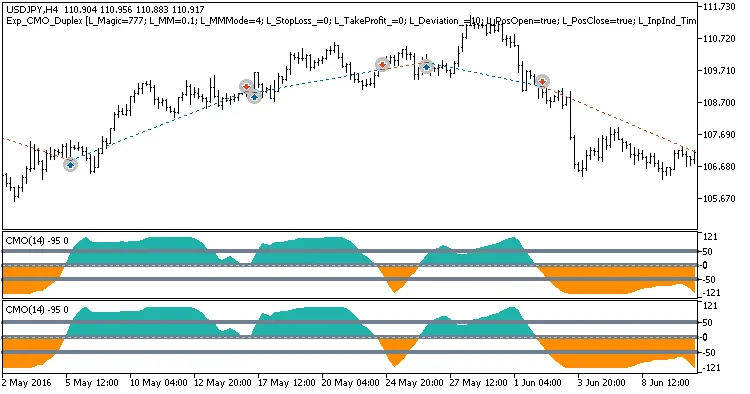
Hey fellow traders! Today, I want to dive into an exciting trading system that could give your trading strategy a serious boost: the Exp_CMO_Duplex for MetaTrader 5. This system features two identical setups based on the crossover of the CMO indicator and the zero line, allowing for both long and short trades. You can customize it in a variety of ways within a single Expert Advisor (EA). Understanding the Input Parameters The input parameters for this EA can be grouped into two main categories: Parameters starting with 'L' - These are used to manage long positions. Parameters starting with 'S' - These handle short positions. Long Position Parameters //+----------------------------------------------+ //| EA's input parameters for long positions     | //+----------------------------------------------+ input uint    L_Magic=777;          //L magic number input double  L_MM=0.1;             //L share of a deposit per trade input MarginMode L_MMMode=LOT;      //L lot setting mode Short Position Parameters //+----------------------------------------------+ //| EA's input parameters for short positions    | //+----------------------------------------------+ input uint    S_Magic=555;          //S magic number input double  S_MM=0.1;             //S share of a deposit per trade input MarginMode S_MMMode=LOT;      //S lot setting mode Each system uses a unique magic number, making them independent of each other. Remember, the financial markets aren’t always a mirror image. You might need different parameters for trading in a bull market compared to a bear market. To fine-tune the EA, start by testing one system at a time and disable the other using the designated switchers. Setting Permissions input bool    L_PosOpen=true;       //L permission to enter long positions input bool    L_PosClose=true;      //L permission to exit long positions Do the same for the second system. For the EA to function correctly, make sure you add the compiled CMO.ex5 indicator file to <terminal_data_folder>\MQL5\Indicators. The tests shown below were conducted using the default input parameters of the EA. Please note that Stop Loss and Take Profit were not utilized during these tests. Testing Results Fig.1. Examples of deals on the chart with symmetrical settings Here are the testing results for 2016 on the USDJPY H4: Fig. 2. Testing results chart Fig.2. Examples of deals on the chart with non-symmetrical settings

2018.01.22
First Previous 20 21 22 23 24 25 26 27 28 29 30 Next Last