System Trading

Mastering the Previous Candle Breakdown EA for MetaTrader 5
MetaTrader5
Mastering the Previous Candle Breakdown EA for MetaTrader 5

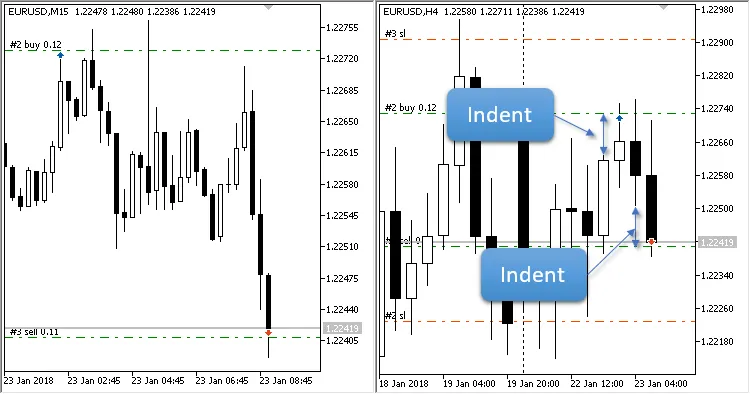
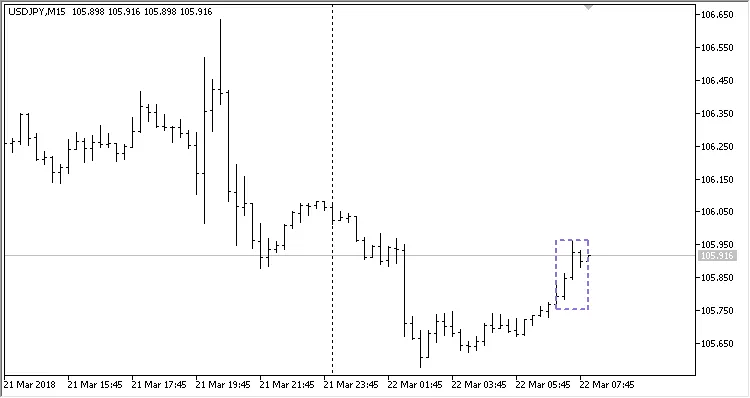
Hey fellow traders! Today, I'm excited to share some insights on an enhanced version of the Previous Candle Breakdown EA for MetaTrader 5 that can take your trading game to the next level. This updated EA comes packed with new features that make it even more user-friendly. Here’s a quick rundown of the added parameters: Start Time (Hour) - The hour when trading begins. Start Time (Minute) - The minute when trading kicks off. End Time (Hour) - The hour when trading stops. End Time (Minute) - The minute when trading ends. One of the cool features is that the trailing stop now operates at every tick, giving you a better chance to lock in profits as the market moves. The EA is designed to monitor any timeframe, from 1 minute to 1 month. It checks for a breakdown of the previous candle in the specified timeframe. Plus, you can enable two filters using Moving Averages to help refine your strategy. Note: For the filters to work, make sure that the averaging periods for both Fast: av. period and Slow: av. period are set above zero. Another great addition is the trailing stop feature, which adjusts the Stop Loss to breakeven on the first modification. This gives you peace of mind when the trade goes your way! When it comes to position sizing, you’ve got options. You can set a fixed lot size (with Lots above zero and Risk set to zero) or let the EA calculate it dynamically based on your risk percentage per trade (with Risk above zero and Lots set to zero). Important: Avoid scenarios where: Both Lots and Risk are above zero; Both Lots and Risk are set to zero. Once you hit your target profit, the EA can automatically close all positions when the profit goal is achieved. It ensures that no more than one position in each direction is opened based on the Previous Candle Breakdown strategy. Fig. 1. Current timeframe: M15, breakdown is set to H4 Input Parameters Previous Candle Breakdown - The timeframe of the candle to be analyzed; Indent from High or Low - The distance from the High and Low of the broken candle; Fast: av. period - Averaging period for the Fast Moving Average; set to zero to disable this filter; Fast: horizontal shift - Horizontal adjustment for the Fast Moving Average; Fast: type of price - The type of price used for the Fast Moving Average calculation; Slow: av. period - Averaging period for the Slow Moving Average; set to zero to disable this filter; Slow: horizontal shift - Horizontal adjustment for the Slow Moving Average; Slow: type of price - The type of price used for the Slow Moving Average calculation; Fast and Slow: smoothing type - The averaging type for both Fast and Slow; Stop Loss - Set your stop loss level; Take Profit - Set your take profit level; Trailing Stop - Activates trailing, moving to breakeven on the first Stop Loss modification; Trailing Step - The step value for the trailing stop; Lots - Fixed lot size (set Risk to zero); Risk - Dynamic lot size based on risk percentage per trade (set Lots to zero); Maximum number of positions in one direction - Limit your positions in one direction; Close all positions when profit is achieved - Automatically close positions once profit is reached.

2018.10.26
Maximize Your Trading with the Exp Trend Manager Plus for MetaTrader 5
MetaTrader5
Maximize Your Trading with the Exp Trend Manager Plus for MetaTrader 5

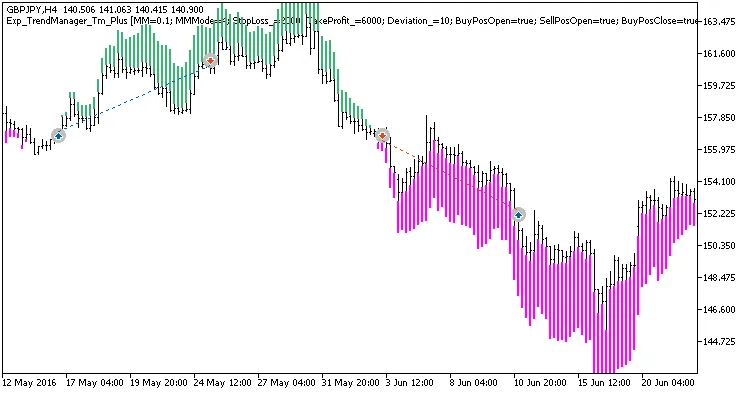
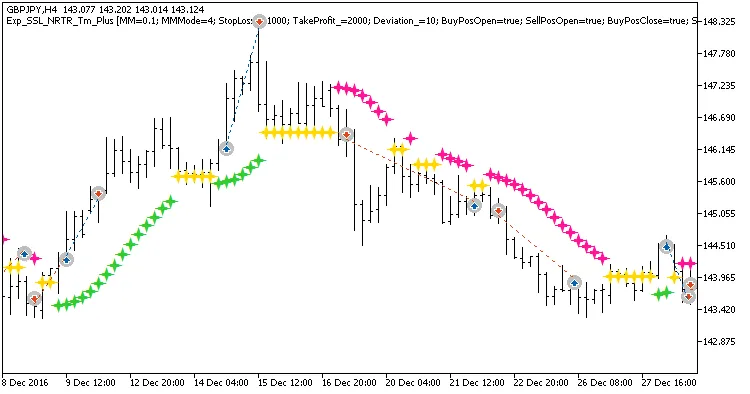
If you’re looking to enhance your trading game, the Exp Trend Manager Plus might just be the tool you need. This trading system leverages the TrendManager indicator and allows you to set a specific holding time for your positions. Here’s how it works: How It Works The system generates trade signals based on the closing of a bar. When the color of the indicator bar changes or a new bar appears after a gap, a signal is triggered. If you’ve set a fixed holding time, the position will automatically close once that time limit is reached. input bool   TimeTrade=true;      //Enable time-based position exit input uint   nTime=12000;         //Position holding time in minutes Getting Started For the EA to function correctly, make sure the compiled TrendManager.ex5 indicator file is saved in your <terminal_data_directory>\MQL5\Indicators folder. Additionally, keep in mind that the library file TradeAlgorithms.mqh is essential for using EAs with brokers that have a nonzero spread. It also allows you to set Stop Loss and Take Profit when opening a position. You can find other versions of this library at Trade Algorithms. The testing shown below utilized the default Expert Advisor's input parameters with stops: Fig. 1. Examples of trades on the chart Here are the testing results for GBPJPY on the H4 timeframe over the year 2017: Fig. 2. Test results chart

2018.10.26
Mastering TP SL Trailing: Your Guide to Expert Trading on MetaTrader 5
MetaTrader5
Mastering TP SL Trailing: Your Guide to Expert Trading on MetaTrader 5

The idea behind this strategy - Sergey EfimenkoCode author - barabashkakvn When trading, setting up your stop loss (SL) and take profit (TP) is crucial. This EA (Expert Advisor) is designed to adjust these settings for you automatically, but it only kicks in for profitable trades. If the Only zero values option is set to 'true', the EA will look for positions where either the stop loss or take profit is set to zero. When it finds one, here’s what happens: If it’s a BUY position: The stop loss is set to the current price (Bid) minus the stop loss amount. The take profit is set to the current price (Bid) plus the take profit amount. If it’s a SELL position: The stop loss is set to the current price (Ask) plus the stop loss amount. The take profit is set to the current price (Ask) minus the take profit amount. On the flip side, if the Only zero values option is 'false', the EA will not adjust any stop loss or take profit parameters. This EA is designed to work with all positions for the current symbol, so it doesn’t matter if you’re using unique magic numbers. Want to see how it all comes together? You can uncomment the following lines in your code:    ExtStopLoss    = InpStopLoss     * m_adjusted_point;    ExtTakeProfit  = InpTakeProfit   * m_adjusted_point;    ExtTrailingStop= InpTrailingStop * m_adjusted_point;    ExtTrailingStep= InpTrailingStep * m_adjusted_point; //m_trade.Buy(2.0); //m_trade.Sell(1.0); //---    return(INIT_SUCCEEDED);   } Then, run the EA in the strategy tester to see it in action!

2018.10.26
Mastering the Breadandbutter2 EA for MetaTrader 5: A Trader's Guide
MetaTrader5
Mastering the Breadandbutter2 EA for MetaTrader 5: A Trader's Guide

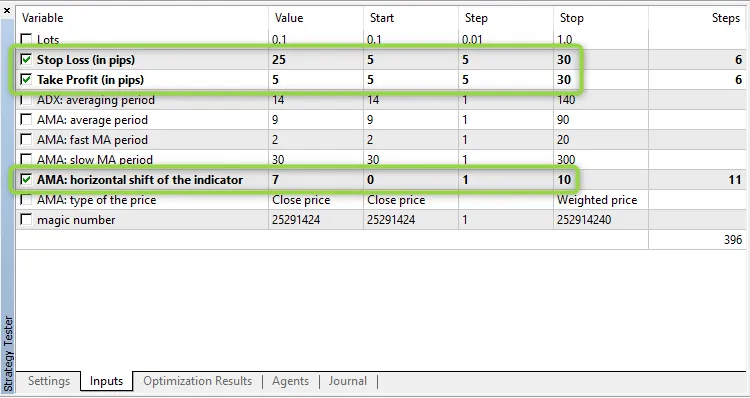
Meet the Creator: Scriptor MQL5 Code Contributor: barabashkakvn The Breadandbutter2 is an expert advisor (EA) designed for MetaTrader 5 that leverages the iADX (Average Directional Movement Index) and iAMA (Adaptive Moving Average) indicators. This EA kicks into gear when a new bar forms, and it smartly closes any opposing positions upon receiving a trading signal. Finding the Optimal Parameters When it comes to tuning the parameters for your specific currency pair and timeframe, you have two avenues: Manual Tuning: You can adjust the "<" and ">" operators in the signal equations:    if(adx_0<adx_1 && ama_0>ama_1)      {       ClosePositions(POSITION_TYPE_SELL);       double sl=(InpStopLoss==0)?0.0:m_symbol.Ask()-ExtStopLoss;       if(sl>=m_symbol.Bid()) // incident: the position isn't opened yet, and has to be already closed         {          PrevBars=0;          return;         }       double tp=(InpTakeProfit==0)?0.0:m_symbol.Ask()+ExtTakeProfit;       OpenBuy(sl,tp);       return;      }    if(adx_0>adx_1 && ama_0<ama_1)      {       ClosePositions(POSITION_TYPE_BUY);       double sl=(InpStopLoss==0)?0.0:m_symbol.Bid()+ExtStopLoss;       if(sl<=m_symbol.Ask()) // incident: the position isn't opened yet, and has to be already closed         {          PrevBars=0;          return;         }       double tp=(InpTakeProfit==0)?0.0:m_symbol.Bid()-ExtTakeProfit;       OpenSell(sl,tp);       return;      } Automatic Tuning: This method allows the EA to automatically select the stop loss, take profit, and the horizontal shift for the AMA indicator.

2018.10.26
Unlock Trading Success with NeuroNirvamanEA 2 for MetaTrader 5
MetaTrader5
Unlock Trading Success with NeuroNirvamanEA 2 for MetaTrader 5

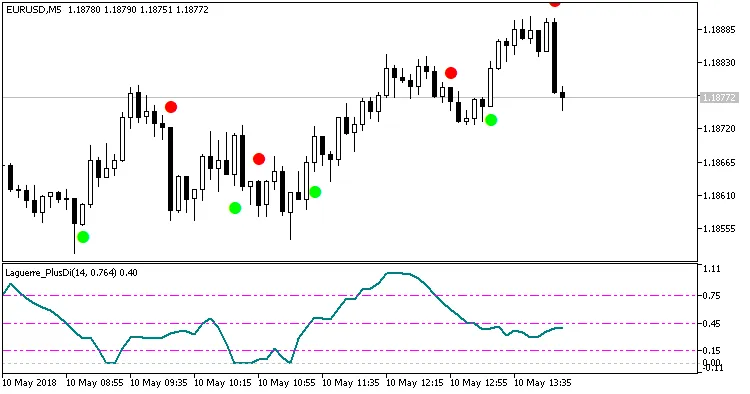
Introducing NeuroNirvamanEA 2! This is the next evolution of the original NeuroNirvamanEA. The updated EA now features a customizable trading time window, allowing you to set your trading hours from Start Hour:Start Minute to End Hour:End Minute.This trading system leverages a straightforward neural network. It’s similar to the code behind MTC Combo, providing you with powerful trading capabilities.The EA incorporates two key indicators: Laguerre_PlusDi (shown in a separate window) and SilverTrend_Signal (displayed on the main chart):Before diving in, make sure to complete all three optimization stages!All optimization steps should be conducted in "1 minute OHLC" mode.Step 1Set the parameter Pass to 1—this is crucial. During this step, ensure you're optimizing the parameters (take note of the columns for "Start", "Step", and "End")Step 2Set the parameter Pass to 2—this is vital. Uncheck all parameters that were optimized in Step 1. In this step, focus on optimizing new parameters (again, pay attention to the "Start", "Step", and "End" columns).Step 3Set the parameter Pass to 3—this is essential. Uncheck all parameters that were optimized during Step 2. Focus on the new parameters for this final optimization step (and yes, keep an eye on the "Start", "Step", and "End" columns).Once you finish optimizing, set the Pass parameter back to 3 and uncheck the parameters optimized in Step 3. Your EA is now ready to hit the markets!

2018.10.26
Unlocking Trading Success with MySystem for MetaTrader 5
MetaTrader5
Unlocking Trading Success with MySystem for MetaTrader 5

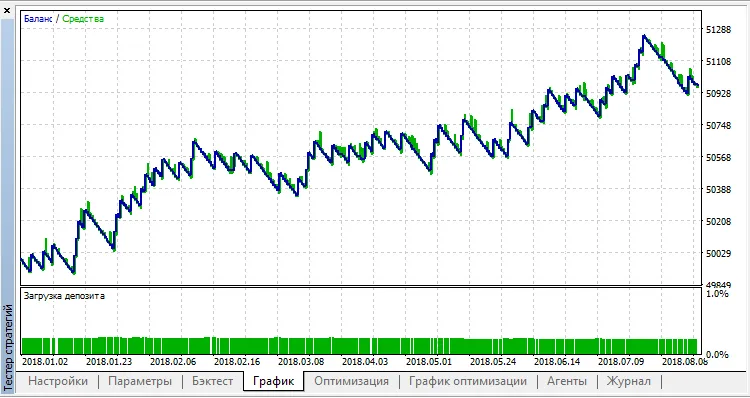
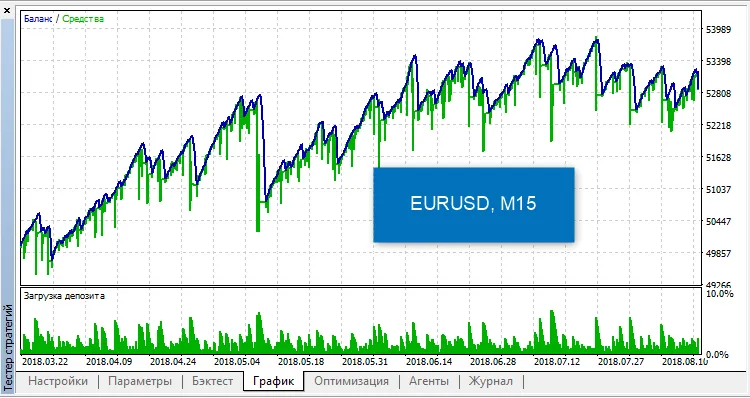
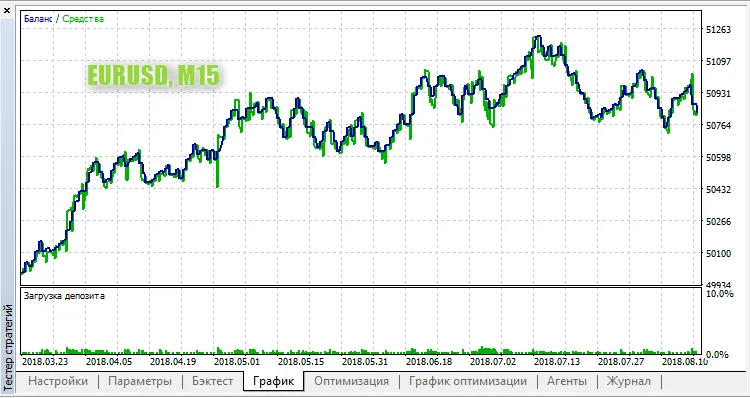
The brain behind the idea: CollectorMQL5 code creator: barabashkakvnMySystem is a robust EA that kicks into gear with every new bar. It utilizes signals from the iBullsPower (Bulls Power) and iBearsPower (Bears Power) indicators, but only if there are no open positions from the EA. This is determined by the current symbol and the unique EA identifier known as the magic number.These indicators come with a single setting: Bulls and Bears: averaging period. The algorithm for forming trading signals pulls data from two bars—the current bar and the next bar (current + 1)—and averages their values.   double prev = ((bears[1]+bulls[1])/2.0);    double curr = ((bears[0]+bulls[0])/2.0); If the average value from the previous bar is lower than that of the current bar, it will trigger a BUY order:      if(prev<curr && curr<0)         {          //ClosePositions(POSITION_TYPE_SELL);          double sl=(InpStopLoss==0)?0.0:m_symbol.Ask()-ExtStopLoss;          if(sl>=m_symbol.Bid()) // incident: the position isn't opened yet, and has to be already closed            {             PrevBars=0;             return;            }          double tp=(InpTakeProfit==0)?0.0:m_symbol.Ask()+ExtTakeProfit;          OpenBuy(sl,tp);          return;         } Conversely, if the average from the previous bar surpasses the current one, a SELL order will be executed:      if(prev>curr && curr>0)         {          //ClosePositions(POSITION_TYPE_BUY);          double sl=(InpStopLoss==0)?0.0:m_symbol.Bid()+ExtStopLoss;          if(sl<=m_symbol.Ask()) // incident: the position isn't opened yet, and has to be already closed            {             PrevBars=0;             return;            }          double tp=(InpTakeProfit==0)?0.0:m_symbol.Bid()-ExtTakeProfit;          OpenSell(sl,tp);          return;         } Here's a quick look at how MySystem performs on the EUR/USD pair in a 15-minute timeframe:

2018.10.26
Unlocking Trading Success with the XDeMarker Histogram Vol EA for MetaTrader 5
MetaTrader5
Unlocking Trading Success with the XDeMarker Histogram Vol EA for MetaTrader 5

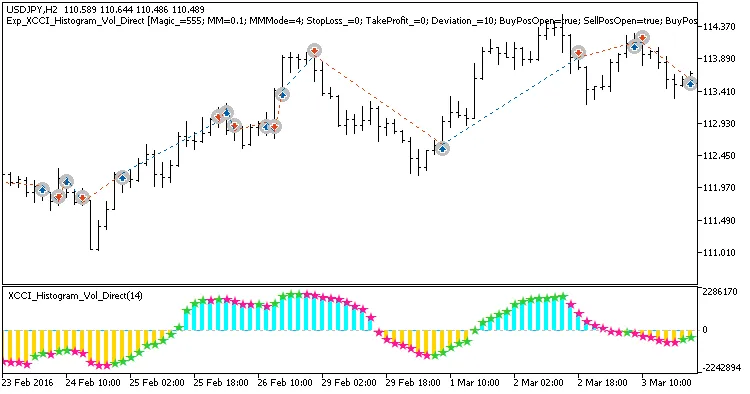
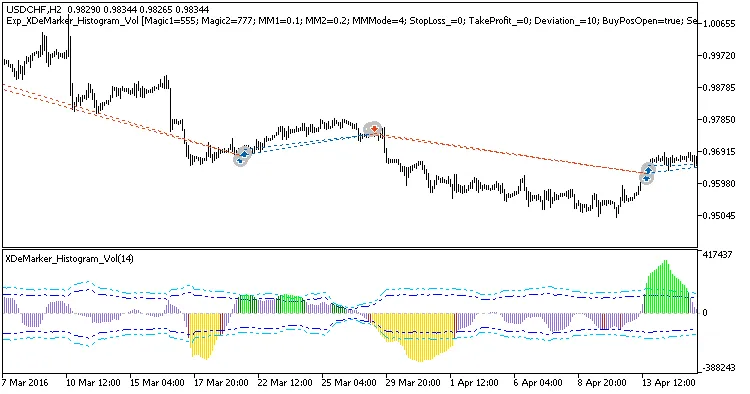
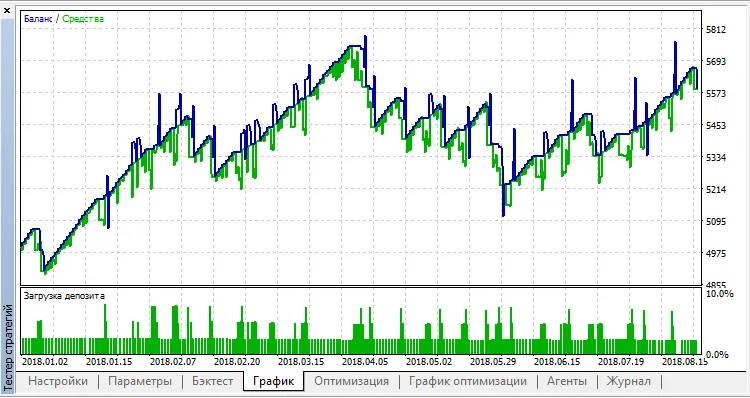
Welcome to another deep dive into trading systems! Today, we're exploring the XDeMarker Histogram Vol EA, a powerful trading assistant for MetaTrader 5. This system generates signals based on the closing of a bar, particularly when there's a breakthrough of overbought or oversold levels. Each level is unique, with its own magic number and size for breakthroughs, allowing you to fine-tune your trading strategy. input uint Magic1=555;            // Magic number for standard signal orders input uint Magic2=777;            // Magic number for strong signal orders input double MM1=0.1;             // Deposit share for normal signal trades input double MM2=0.2;             // Deposit share for strong signal trades To ensure the EA operates smoothly, make sure you have the compiled XDeMarker_Histogram_Vol.ex5 indicator file saved in your <terminal_data_directory>\MQL5\Indicators folder. The tests below utilized the default input parameters for the Expert Advisor, and it’s worth noting that Stop Loss and Take Profit settings were not applied during testing. Fig. 1. Examples of trades on the chart Here are the testing results for USDCHF on the H2 timeframe for the year 2017: Fig. 2. Test results chart

2018.10.26
Unlocking Proffessor v3: Your Go-To EA for MetaTrader 5
MetaTrader5
Unlocking Proffessor v3: Your Go-To EA for MetaTrader 5

Author of the Idea: Vitaly MQL5 Code Author: barabashkakvn Let’s dive into the Proffessor v3 Expert Advisor (EA) for MetaTrader 5. This trading strategy is straightforward yet effective. You initiate a BUY or SELL position, and protect it with a pending Stop order set at a distance known as Delta 1. Next, a grid of Limit or Stop pending orders is created, spaced out by Delta 2. You can configure how many pending orders you want in each direction using the Max Lines setting. The pending orders—Buy Limit, Sell Limit, Buy Stop, and Sell Stop—are managed through a single PendingOrder function, which takes in the order type (order_type), volume (volume), stop loss (sl), and take profit (tp). //+------------------------------------------------------------------+ //| Pending order | //+------------------------------------------------------------------+ void PendingOrder(ENUM_ORDER_TYPE order_type,double volume,double price,double sl,double tp)   {    sl=m_symbol.NormalizePrice(sl);    tp=m_symbol.NormalizePrice(tp);    if(m_trade.OrderOpen(m_symbol.Name(),order_type,volume,0.0,       m_symbol.NormalizePrice(price),m_symbol.NormalizePrice(sl),m_symbol.NormalizePrice(tp)))      {       if(m_trade.ResultOrder()==0)         {          Print("#1 ",EnumToString(order_type)," -> false. Result Retcode: ",m_trade.ResultRetcode(),                ", description of result: ",m_trade.ResultRetcodeDescription());          PrintResultTrade(m_trade,m_symbol);         }       else         {          Print("#2 ",EnumToString(order_type)," -> true. Result Retcode: ",m_trade.ResultRetcode(),                ", description of result: ",m_trade.ResultRetcodeDescription());          PrintResultTrade(m_trade,m_symbol);         }      }    else      {       Print("#3 ",EnumToString(order_type)," -> false. Result Retcode: ",m_trade.ResultRetcode(),             ", description of result: ",m_trade.ResultRetcodeDescription());       PrintResultTrade(m_trade,m_symbol);      } //---   } Once you hit the Profit Close target, it’s time to close all positions and wipe out any pending orders. On the flip side, if you find yourself losing more than the set Loss Close (which can be disabled by setting it to 0.0), you can also close all positions and delete the pending orders. The EA’s operations—opening positions and setting protective pending orders—are executed within a designated time frame, from Start Hour to End Hour. The Start Hour can be less than, equal to, or even exceed the End Hour. Main Idea The core of this EA is its analysis of the ADX value on the Work TimeFrame. When the ADX falls below 40, it signals a flat market, prompting the placement of Limit pending orders. If the ADX is above 40, Stop pending orders take precedence. If the DI+ is higher than DI-, the EA goes for a buy; otherwise, it opts for a sell. The optimal settings for the two parameters are: Current Bar ADX ranging from 0 to 2 (with a step of 1), and Work TimeFrame set from M1 to H1. For EURUSD, with Current Bar ADX at 0 and Work TimeFrame set to H1: For USDJPY, with Current Bar ADX at 2 and Work TimeFrame set to M1: When working with EURUSD, if the Current Bar ADX is 0 and Loss Close is set to "0.0": And for USDJPY, with Current Bar ADX at 2 and Loss Close also set to "0.0":

2018.10.26

Mastering Ketty: Your Go-To EA for MetaTrader 5 Trading
MetaTrader5
Mastering Ketty: Your Go-To EA for MetaTrader 5 Trading

The Brains Behind the Idea: Andrey Code Creator: barabashkakvn Ketty is an Expert Advisor (EA) designed to work with pending Buy Stop and Sell Stop orders, specifically tailored for the MetaTrader 5 platform. Utilizing the well-known strategy among British traders, Ketty plays into the idea of being “stop level hunters.” This means that the initial market movement at the opening of the London session may not always be reliable. Here’s how to execute the buying strategy: Wait for the London session to kick off and monitor the price until it dips to a new range low, at least below the Open price by the Channel Breakthrough value (this range is the price movement between the Frankfurt and London openings). Once the pair reverses, it should hit a new high. Set a pending buy order with a volume of Lots positioned Order Price Shift above the range high. Remember to immediately set your stop loss (Stop Loss) and take profit (Take Profit) levels. To calculate the channel range accurately, strictly consider the time from Channel Start Hour:Channel Start Minute to Channel End Hour:Channel End Minute. Look for the high and low points within this timeframe and use these values, along with the start and end times, to visualize the channel: A pending order should be placed within the specified time range from Placing Order Start Time (hours) to Placing Order End Time (hours). If this time window closes and the pending order hasn’t been activated, it’s best to cancel that order. Example: GBPUSD on M15:

2018.10.26
Unlocking the Power of Sprut: Your Ultimate MetaTrader 5 EA Guide
MetaTrader5
Unlocking the Power of Sprut: Your Ultimate MetaTrader 5 EA Guide

The brain behind the idea - AndreyCode Creator - barabashkakvn 🚨 Heads up! By default, grid trading is completely DISABLED. This means that the options for Use buy stop, Use buy limit, Use sell stop, and Use sell limit are all set to "false". Before diving in, you'll need to choose your preferred grid type (pending order type) and fine-tune the best parameters: step, volume, and so on. The EA utilizes a grid system made up of pending Stop and Limit orders. Key Grid Features: You can set the first pending grid order at a specified Firstxxxx price or at a certain DeltaFirstxxxx distance from the current price. If Firstxxxx is greater than zero, the DeltaFirstxxxx parameter won't come into play. Conversely, if Firstxxxx is zero, then the DeltaFirstxxxx parameter will take effect. Here's what you can customize: Toggle pending order types: Buy stop (Use buy stop), Buy limit (Use buy limit), Sell stop (Use sell stop), and Sell limit (Use sell limit). Set distinct steps for pending Stop and Limit orders (Step stop and Step limit). Adjust the volume for the first pending Stop and Limit order (Volume stop and Volume limit). Maintain an equal volume ratio for pending Stop and Limit orders (Coefficient stop and Coefficient limit). Disable stop loss (Stop Loss) and take profit (Take Profit) by setting those parameters to "0.0". Both stop loss (Stop Loss) and take profit (Take Profit) can be turned off by simply entering "0.0" for those parameters. The lifespan of a pending order in minutes (Expiration) can also be specified; if you set it to "0", it won't be applied. Closing all open positions and removing pending orders can happen in two scenarios: When profit hits the Profit Close threshold. When losses reach or exceed the Loss Close limit.

2018.10.26
Maximize Your Trading Success with the MA Rounding Candle System for MetaTrader 5
MetaTrader5
Maximize Your Trading Success with the MA Rounding Candle System for MetaTrader 5

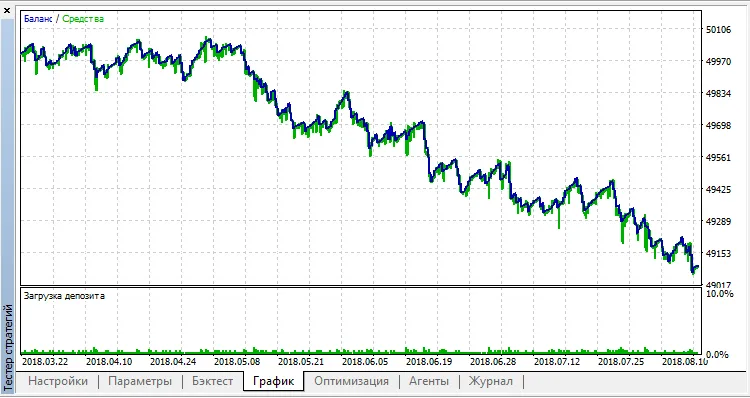
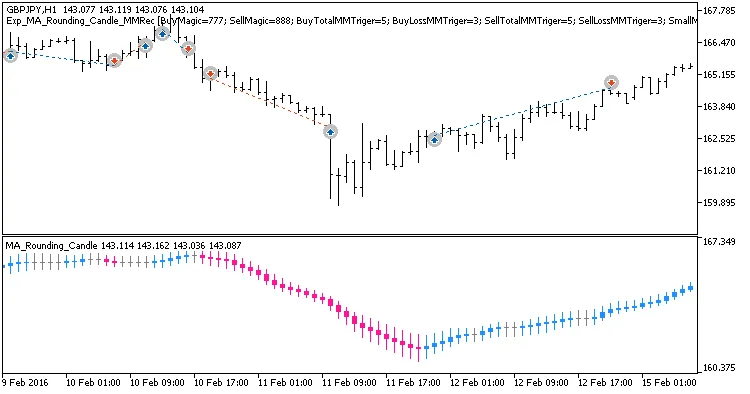
Hey fellow traders! If you're looking to boost your trading strategy, let me introduce you to an exciting system based on the MA Rounding Candle indicator. This system is designed to adapt your trade volume based on the performance of your previous trades, giving you a smart way to manage risk while maximizing profit potential. The beauty of this trading system is how it generates signals. It waits for a bar to close and checks if there's been a trend change, which is indicated by a shift in candle color. Simple, yet effective! Managing Trade Volumes To help you fine-tune your trading approach, the Expert Advisor (EA) comes with a customizable block of input variables for managing the volume of your open positions: input uint    BuyTotalMMTriger=5; // Last 5 Buy trades to calculate stop loss input uint    BuyLossMMTriger=3;  // Losing Buy trades to reduce volume input uint    SellTotalMMTriger=5;// Last 5 Sell trades to calculate stop loss input uint    SellLossMMTriger=3; // Losing Sell trades to reduce volume input double  SmallMM_=0.01;      // Position size in case of loss input double  MM=0.1;             // Normal trading position size input MarginMode MMMode=LOT;      // Method for lot value determination With these settings, if you have three losing trades in the last five, the EA will open the next trade in the same direction with a volume of 0.01 lots. If you have fewer than three losses, the volume will be 0.1 lots. This way, you can stay in the game without risking too much! Getting Started For the EA to run smoothly, make sure you have the compiled files for the indicators MA_Rounding.ex5 and MA_Rounding_Candle.ex5 in your <terminal_data_directory>\MQL5\Indicators folder. During testing, default input parameters with stops were used, and the results were promising. Check out the examples of trades generated by the system: Fig. 1. Examples of trades on the chart Testing Results on GBPJPY Here’s a snapshot of the testing results for GBPJPY on the H1 timeframe throughout 2017: Fig. 2. Test results chart

2018.10.25
First Previous 10 11 12 13 14 15 16 17 18 19 20 Next Last