
If you're looking to level up your trading game, the MTF MACD (Multi-Timeframe Moving Average Convergence Divergence) indicator is worth a closer look. This powerful tool builds on the classic MACD, a popular technical analysis indicator developed by Gerald Appel back in the 1960s. Essentially, the MACD highlights the difference between a fast and slow exponential moving average (EMA) of closing prices, along with a signal line that represents the simple moving average (SMA) of the main indicator value. While MACD is great for spotting trends, it can struggle in sideways markets.
MetaTrader comes equipped with a standard MACD indicator, but it’s limited to the current timeframe. To get a broader view of the market trends, you’ll want to tap into the MTF MACD. This version allows you to select a higher timeframe, enabling the MACD to generate values from that timeframe. Keep in mind that since these values are based on bars, the indicator lines may appear a bit rough when using higher timeframes.
MTF MACD Settings
Here’s a breakdown of the key settings you can tweak:
- TimeFrame: This parameter sets the higher timeframe for the MACD calculations. The default is 0, which refers to the current timeframe. If you want to specify other timeframes, here’s the mapping: 1=M1, 5=M5, 15=M15, 30=M30, 60=H1, 240=H4, 1440=D1, 10080=W1, 43200=MN1.
- FastEMA: Set to a default value of 12, this represents the fast exponential moving average.
- SlowEMA: The default value is 26, which indicates the slow exponential moving average.
- Signal: Default is set at 9, this is your signal line, calculated as a simple moving average.
- Applied_price: By default, it uses the Close price (0) for MA calculations. You can also choose other types: 0-CLOSE, 1-OPEN, 2-HIGH, 3-LOW, 4-MEDIAN, 5-TYPICAL, 6-WEIGHTED.
- Shift: The default value here is 0, which means no shift. This parameter shifts the entire indicator by the specified number of bars from the set timeframe to the right on your chart.
Example:
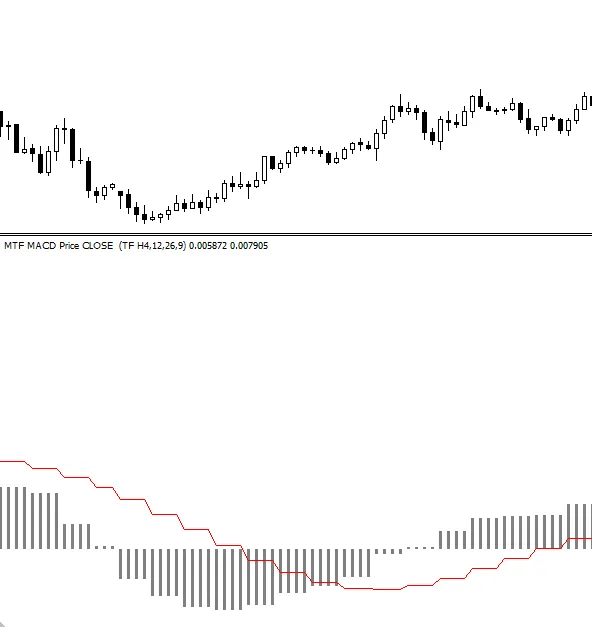
Here’s a snapshot of the MTF MACD in action.
Related Posts
- Unlocking MetaCOT 2: Your Ultimate CFTC Indicator Toolkit for MT4
- Mastering the MACD Candle Indicator for MetaTrader 4
- How to Use the Change Chart Symbol Menu for MetaTrader 4
- Mastering the Open Range Breakout Indicator for MetaTrader 5
- Unlock Trading Success with Custom MACD: Real-Time Alerts for Your Phone