
Change Chart Symbol Menu 1.00
If you’re looking to switch up your chart symbols quickly, the Change Chart Symbol Menu is a handy tool for MetaTrader 4. This indicator operates as a menu on the menu bar. Just click the Symbol Menu to open or close your symbol list, and select your desired symbol to change the chart display.
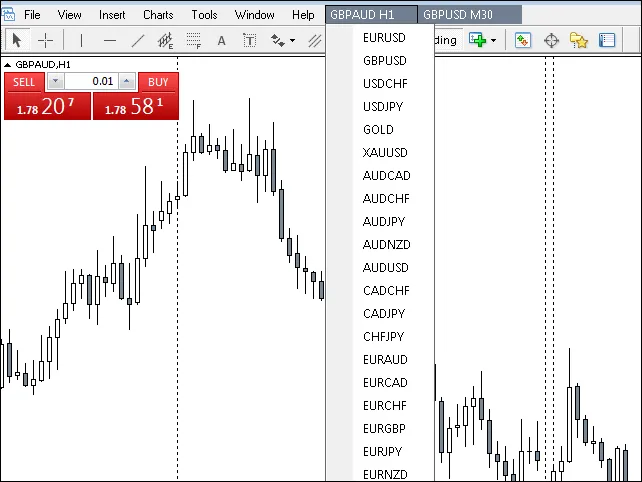
Tested successfully in MT4 Build 625.
Please read ALL information
To use this indicator, you will need the files mt4gui.dll and mt4.mgh. These files are crucial for the indicator’s functionality. As of 05-04-2014, the updated versions are mt4gui2.dll and mt4gui2.mgh. Without these, the indicator won’t work. Both files are free but require a license key for every computer using the .dll file. The mt4gui2.mgh file is included with the indicator download for easy updates. The mt4gui2.dll needs to be downloaded from its source - Download here.
When you first load the indicator, a popup will ask for your name and email (don’t worry, no spam—just occasional update notifications; using an alias is advisable). After submitting, you’ll receive a License Key via email to enter into the popup. There’s no cap on the number of free licenses you can get.
- Required: Place the .dll in the
MQL4/Libraryfolder. - Required: Place the .mgh in the
MQL4/Includefolder. - Required: Place the Change Chart Symbol Menu in the
MQL4/Indicatorsfolder. - Optional: Add Chart Symbol to the
MQL4/Indicatorsfolder.
Remember, the .dll and .mgh files are updated regularly to support new MT4 builds. For more details, check the Updating and How to Edit Code Example sections below.
If your chart symbols differ from the standard six-letter formats like EURUSD, such as EURUSDSB or EURUSD_uk, please refer to "Notes: Suffix -1 and Suffix -2".
Notes:
- Suffix - 1: If you’re using variants like EURUSDSB or EURUSD_uk, you’ll need to enter the suffix (case sensitive, e.g., SB, _uk) in the suffix section under the Indicator Inputs Tab.
- Suffix - 2: For future symbols like Usa500Dec13 or SoybnsJan14, input the full names (case sensitive) in the Inputs sections marked as SPARE. Don’t add these to the suffix section.
- You can change any symbol directly from the Indicator Inputs tab.
- Add additional symbols by changing SPARE to your desired symbol in the Inputs Tab. Remember, if you’ve added a suffix in the Indicator Input Tab, don’t include it in the added symbol name to avoid duplication (e.g., EURUSD_uk_uk).
Be sure to check your Expert Advisors settings by navigating to Tools → Options → Expert Advisors.
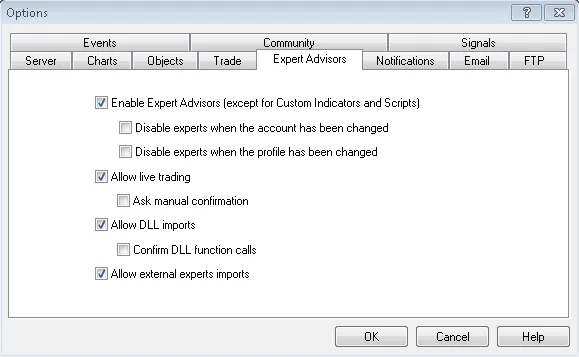
Possible Reasons for Symbol Change Failures:
- When the indicator first loads, changing the symbol requires two clicks. After that, a single click will suffice.
- Check that you’re on the right chart. The Symbol Menu name should include the chart timeframe for easy identification.
- Broker symbols might have suffixes. Ensure you’ve entered the suffix via the Indicator Inputs Tab.
- Review your Expert Advisor settings.
- Note: If the indicator stops working, the .dll file (even with the same name) might be outdated. Delete the old .dll and download the latest version.
Updating: 3 Simple Steps
As of April 2014, the updated files are mt4gui2.dll and mt4gui2.mgh. Eventually, these may be updated to mt4gui3.dll and mt4gui3.mgh.
1. Download the latest .dll file from the source - Download here. Make sure to delete the old .dll file.
The .mgh file can be easily updated—see step 2.
Alternatively, you can copy the .mgh code from the source (not downloadable) and paste it into MT4 MetaEditor. Open MT4 MetaEditor → File → New → Include[*.mgh] → Name → Finish → Copy the .mgh code into the code window → Save As (ensure the save path is MQL4/Include and use the current update name).
2. The code in mt4gui2.mgh calls the .dll file and needs to be updated:
Change from:
#import "mt4gui2.dll"
To:
#import "mt4gui3.dll"
or "the current update name.dll".
Note: After making changes in the mt4gui2.mgh file, save it as the current update name.mgh in the MQL4/Include folder.
3. In the Change Chart Symbol Menu.mq4, update the .mgh file reference:
Change from:
#include <mt4gui2.mqh>To:
#include <mt4gui3.mqh>or <the current update name.mgh>.
For a detailed code editing guide, click here and scroll down to the "Follow These Steps" section.
User Preference Editing in MT4 MetaEditor
- To permanently add a suffix, enter the required suffix between the quotation marks in the first line of the code below.
- To change or rearrange the symbol list, modify only the uppercase symbol names between the quotation marks in the code.
- As long as the symbol list remains at thirty, no other code needs changes. If you’re new to this, remember to compile as your last action; the edited code won’t take effect until it’s compiled.
- If you shorten the list by deleting symbols, you must also remove the corresponding code further down.
extern string Suffix = "";

extern string Symbol_1 = "EURUSD";
extern string Symbol_2 = "GBPUSD";
extern string Symbol_3 = "USDCHF";
extern string Symbol_4 = "USDJPY";
extern string Symbol_5 = "GOLD";
extern string Symbol_6 = "XAUUSD";
extern string Symbol_7 = "AUDCAD";
extern string Symbol_8 = "AUDCHF";
extern string Symbol_9 = "AUDJPY";
extern string Symbol_10 = "AUDNZD";
extern string Symbol_11 = "AUDUSD";
extern string Symbol_12 = "CADCHF";
extern string Symbol_13 = "CADJPY";
extern string Symbol_14 = "CHFJPY";
extern string Symbol_15 = "EURAUD";
extern string Symbol_16 = "EURCAD";
extern string Symbol_17 = "EURCHF";
extern string Symbol_18 = "EURGBP";
extern string Symbol_19 = "EURJPY";
extern string Symbol_20 = "EURNZD";
extern string Symbol_21 = "GBPAUD";
extern string Symbol_22 = "GBPCAD";
extern string Symbol_23 = "GBPCHF";
extern string Symbol_24 = "GBPJPY";
extern string Symbol_25 = "GBPNZD";
extern string Symbol_26 = "USDCAD";
extern string Symbol_27 = "SPARE";
extern string Symbol_28 = "SPARE";
extern string Symbol_29 = "SPARE";
extern string Symbol_30 = "SPARE";




Comments 0