
The Graphical Calculator is a handy tool designed specifically for traders to streamline the order calculation process. With this indicator, you can easily set up three key lines on your chart: OPEN, STOP, and PROFIT. These lines represent the price levels where you plan to open a trade (OPEN), set a Stop Loss (STOP), and take profit (PROFIT).
If these lines aren’t already present on your chart, don’t worry! The indicator will create them automatically, positioning them near the current market price. To ensure accurate calculations, you’ll need to configure a few settings in the indicator properties:
- Set the volume for opening positions using calc_lots.
- Input the commission amount (comission) for Futures and CFDs, which is calculated in dollars per lot for Futures and as a percentage per share for CFDs. Remember, if one lot in CFD equals 100 shares, set the stock_in_lot parameter to 100.
- For symbols that calculate profits in euros or pounds (like FDAX or FTSE), make sure you have the EURUSD or GBPUSD pairs displayed in your Market Watch. This will allow the indicator to pull the necessary rates automatically.
- For cross-currency pairs (like GPBJPY), ensure the corresponding USD pairs (like USDJPY) are also open in the Market Watch.
Once you’ve positioned your SL and TP lines, the indicator will automatically display the potential profits (in dollars) for your TP, losses for your SL, and the required margin for the specified lot size in the upper left corner of the chart. Plus, it will draw a StopOut line that will activate once it’s reached.
To recalculate values, simply drag the lines around on your chart. It's that easy!
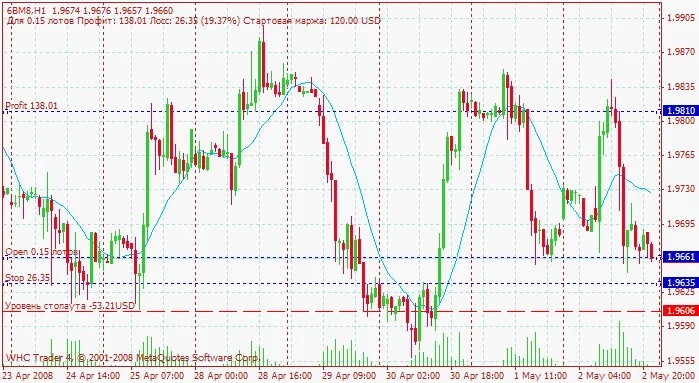
Calculator's Appearance in the Chart
Recommendations:
- Values are updated with each new tick. If you're working with low-liquidity securities or during breaks between trading sessions, right-click on the chart and select "Update" to refresh the values.
- To identify your lines easily, enable "Show object descriptions" in the chart properties.
- The lines created by the indicator are standard graphical objects, so you can customize their color, thickness, and hatch type by accessing the "Object List" from the right-click menu on the chart.
Related Posts
- Unlocking MetaCOT 2: Your Ultimate CFTC Indicator Toolkit for MT4
- Unlocking the Power of Master Tools for MetaTrader 4
- Unlock Trading Insights with Volume Profile + Range v6.0 for MetaTrader 5
- Visualize Current Trends Across All Time Frames with This MetaTrader 4 Indicator
- Mastering the Open Range Breakout Indicator for MetaTrader 5