System Trading

Mastering MQL5: Your Guide to Trading Automation in MetaTrader 5
MetaTrader5
Mastering MQL5: Your Guide to Trading Automation in MetaTrader 5

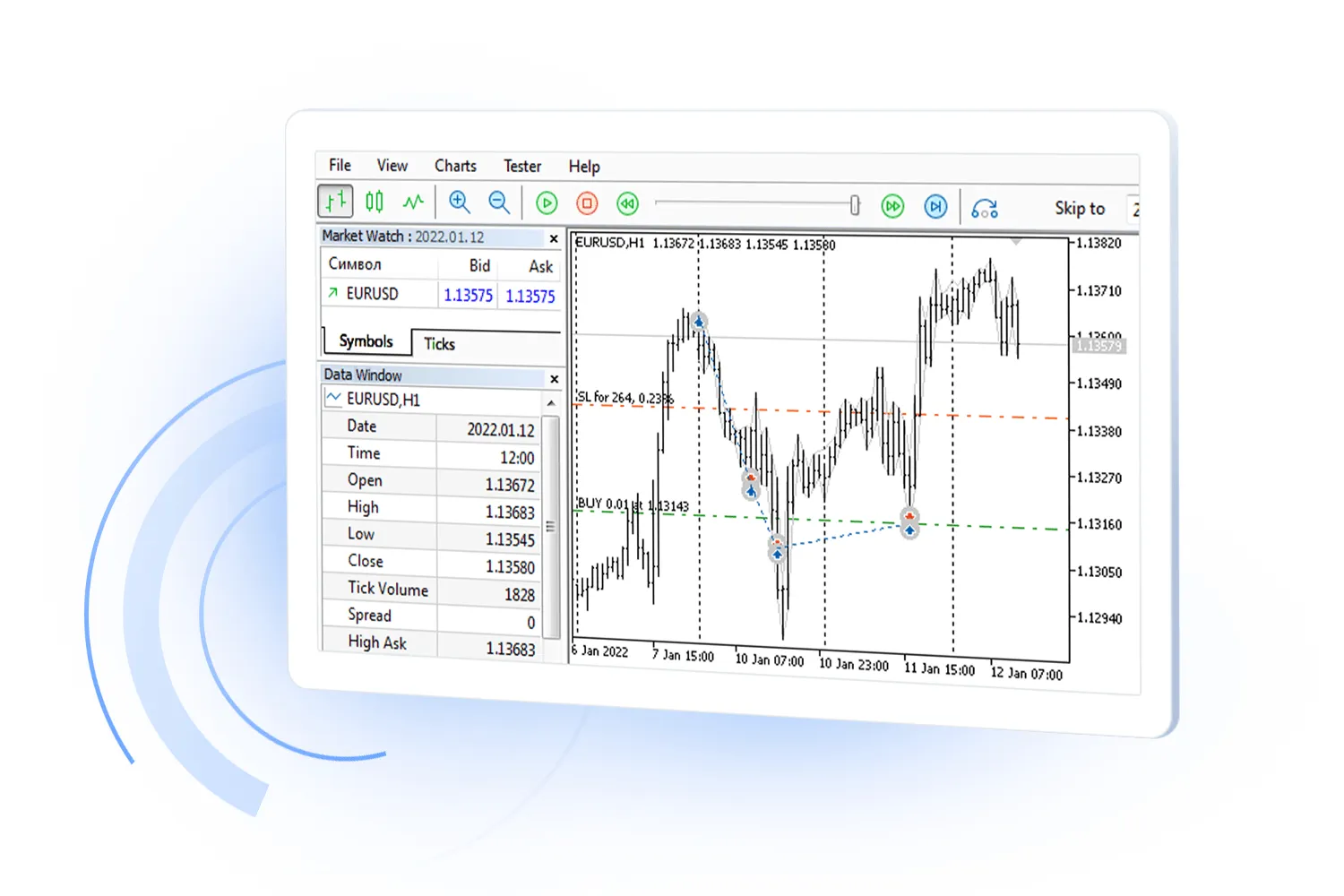
Part 6: Trading Automation Welcome back to our series on MQL5 Programming for Traders! In this segment, we're diving into the exciting world of trading automation. This part is crucial for anyone looking to enhance their trading game with Expert Advisors (EAs) in MetaTrader 5. We'll kick things off by exploring some essential components of the MQL5 language, starting with the basics like financial instrument specifications and trading account settings. Understanding these elements is key to creating EAs that work seamlessly. After that, we'll delve into built-in functions, data structures, and the robot-specific events that make up the backbone of Expert Advisor operations in the strategy tester. The MetaTrader 5 Strategy Tester is a game-changer for developing trading robots. It allows you to evaluate performance and fine-tune your strategies effectively. You'll have access to vital tools for debugging in various modes, including visual testing with bars or ticks, whether they're modeled or real. Plus, you can visually reproduce the flow of quotes, or even run tests without the visual interface! In our previous discussions, we touched on testing indicators in visual mode, but let's face it – the options are quite limited there. When we develop EAs, we unlock the full potential of the strategy tester's capabilities. Moving on, we’ll also take a closer look at how market data is represented, specifically through the Depth of Market (DOM) and its software interface. MetaTrader 5 gives you the tools to analyze and trade various financial instruments (symbols) that are the foundation of all terminal subsystems. Users can pick from a list of symbols provided by their broker and keep an eye on them in the Market Watch. With the MQL5 API, you can easily view and analyze all symbol characteristics, adding or removing them from your Market Watch as needed. And it doesn’t stop there! In addition to the standard symbols your broker provides, MetaTrader 5 allows you to create custom symbols. You can load their properties and quoting history from various data sources or even calculate them using formulas and MQL5 programs.

2023.12.16
Unlocking MQL5: A Trader's Guide to Creating Applications in MetaTrader 5
MetaTrader5
Unlocking MQL5: A Trader's Guide to Creating Applications in MetaTrader 5

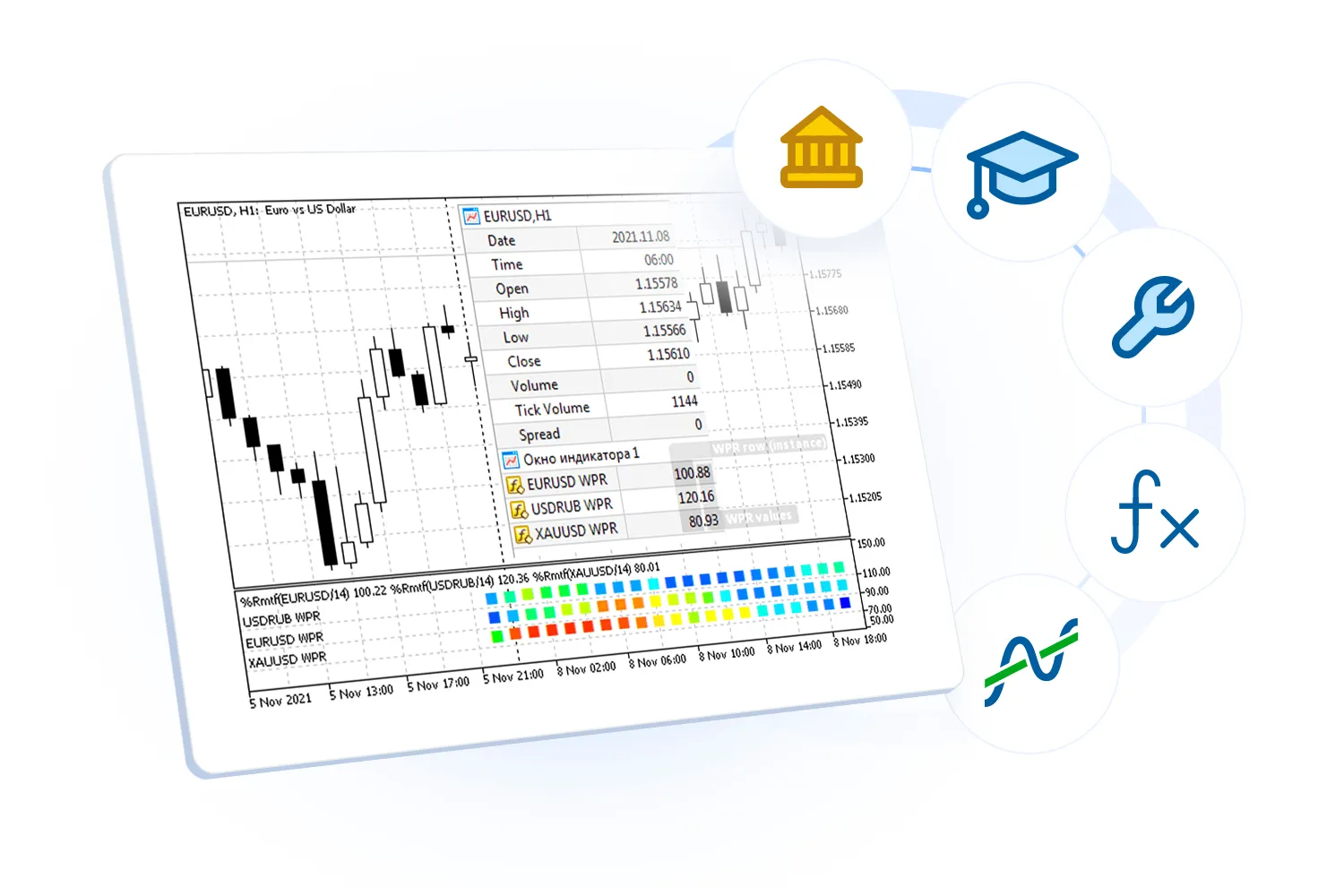
Part 5: Crafting Applications with MQL5 Welcome back, fellow traders! In this installment of "Part 5: Crafting Applications with MQL5", we’re going to dive deep into the exciting world of algorithmic trading. We'll cover everything from financial data analysis to chart visualization, automation, and user interactions. First off, let’s break down the essentials of creating MQL programs. We’ll explore the various event types, features, and models that you can find in the MetaTrader terminal. You’ll also learn how to access time series data, manipulate charts, and work with graphical objects. Plus, we’ll touch on the principles for crafting and applying each type of MQL program. The MetaTrader 5 platform is pretty versatile, supporting five different types of programs: technical indicators, Expert Advisors (or EAs for short), scripts for one-off tasks, services that run in the background, and libraries for those specialized functional modules. Next, we’re going to get our hands dirty with indicators and charts. We’ll learn some nifty techniques that are also relevant for building Expert Advisors. Don’t worry; the development of EAs will be the focus of the next part of our series. We’ll get into the nitty-gritty of automating orders, formalizing trading strategies, and even testing and optimizing them using historical data. We’ll also discover how to utilize the built-in standard indicators and how to whip up custom applications from scratch or modify existing indicators. Just a heads-up: all compiled programs will show up in the Navigator of MetaTrader 5, except for EX5 libraries, which are used by other programs but won’t be visible in the Navigator themselves. By the end of this journey, you’ll have a solid grasp of what MQL5 can do for you in the realm of algorithmic trading. This knowledge will empower you to work more effectively with financial data, creating your own trading indicators and Expert Advisors.

2023.12.16
Mastering MQL5 APIs: Essential Functions for MetaTrader 5 Traders
MetaTrader5
Mastering MQL5 APIs: Essential Functions for MetaTrader 5 Traders

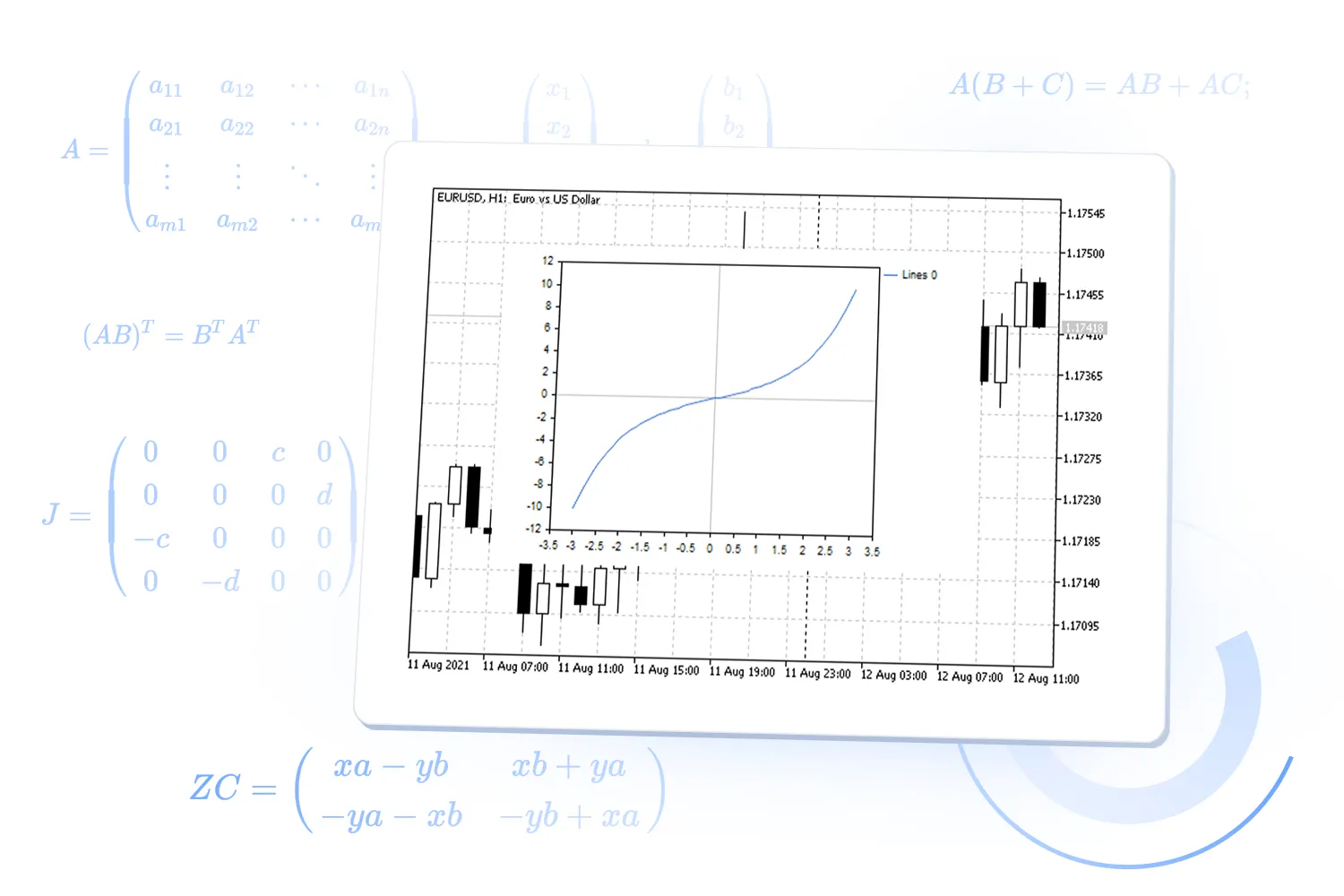
Part 4: Common MQL5 APIs Hey fellow traders! Welcome back to our deep dive into MQL5 programming. In previous posts, we've scratched the surface of MQL5, covering its syntax and core concepts. Now, it's time to roll up our sleeves and get into the nitty-gritty of building practical applications for automated trading and data processing using MetaTrader 5. In this section, "Part 4: Common MQL5 APIs", we're going to focus on mastering the built-in functions of the MQL5 API. These functions are essential tools in our trading toolbox, allowing us to interact seamlessly with the MetaTrader 5 terminal. We’ll start with the basics—functions that you can easily incorporate into most of your trading programs. We’ll cover a variety of topics, including: Array operations String processing File interactions Data conversion User interaction functions Mathematical functions Program environment management One of the great things about MQL5 is that you don’t need to worry about additional preprocessor directives when using its built-in functions. All MQL5 API functions are readily available in the global context, which means you can access them without any fuss. We’ll also touch on handling similar function names in different contexts, like class methods or custom namespaces. When that happens, you can use the context resolution operator to call the global function, a topic we covered earlier when discussing nested types and namespaces. Programming often involves juggling different data types. In our earlier discussions, we explored both explicit and implicit conversion methods for built-in data types. However, these might not always meet your needs. That’s where the MQL5 API shines—it includes a suite of conversion functions designed to give you more control over how you convert between types. We’ll pay special attention to functions that help convert between strings and other types such as numbers, dates, colors, structures, and enumerations.

2023.12.15
Mastering MQL5: A Trader's Guide to Object-Oriented Programming
MetaTrader5
Mastering MQL5: A Trader's Guide to Object-Oriented Programming

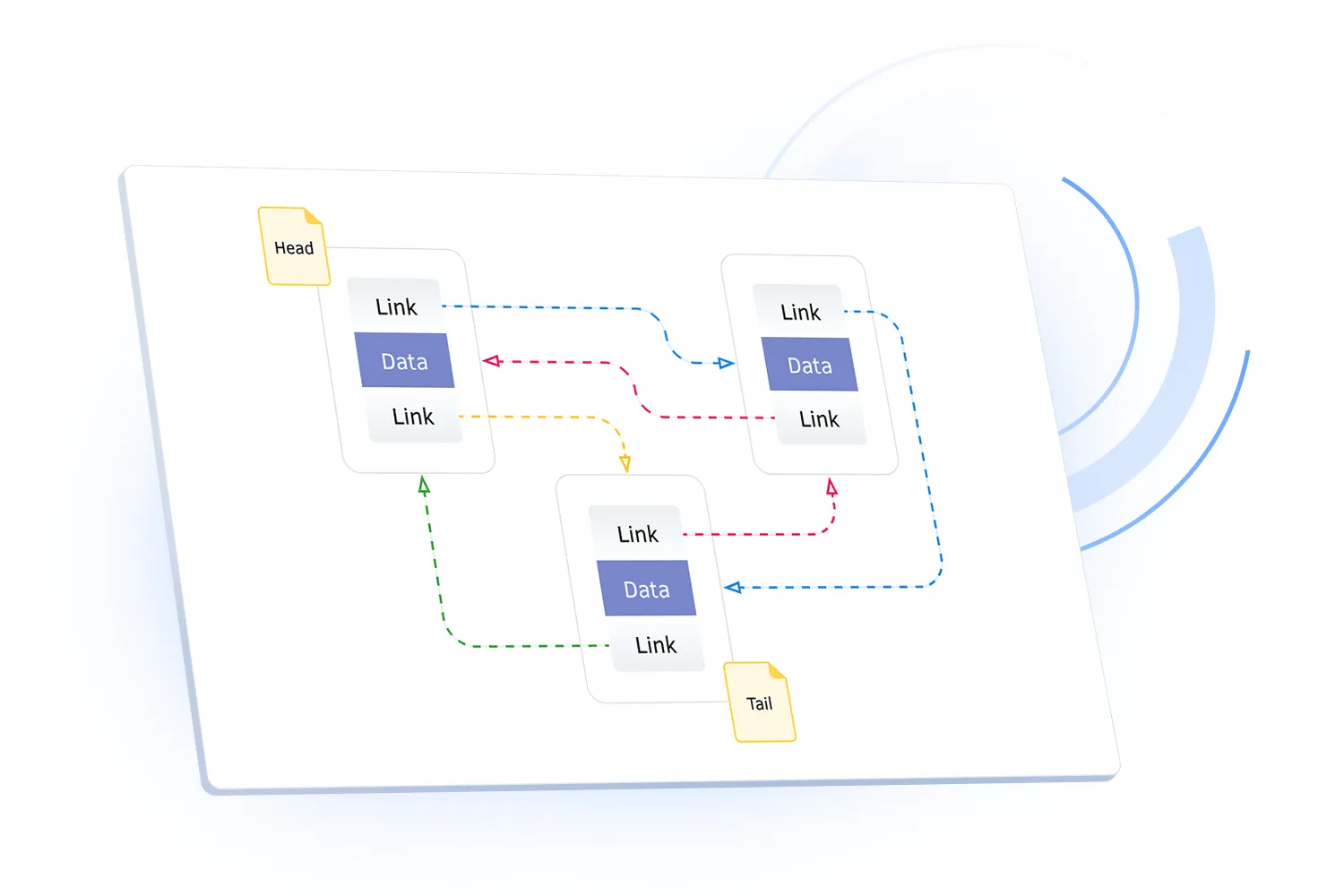
Part 3: Delving into Object-Oriented Programming with MQL5Explore Part 3: Object-Oriented Programming in MQL5 and dive deep into the essentials of object-oriented programming (OOP) within the MQL5 language. If you've ever felt overwhelmed by managing multiple entities in your trading systems, then this guide is just what you need to boost your programming efficiency and output quality.OOP is all about leveraging objects, which are custom type variables defined by you, the programmer, using MQL5 tools. By creating these custom types, you can effectively model your trading objects, making it simpler to write and maintain your programs.In this segment, we’ll explore how to define new types through classes, structures, and unions. These custom types allow you to seamlessly combine data and algorithms, giving you the power to describe the state and behavior of your trading applications.The author emphasizes the "divide and conquer" principle, illustrating how each object acts as a mini-program, tackling a specific, well-defined task. By combining these objects, you can create a cohesive system to develop complex trading products and services.To help you get the most out of MQL5, this section introduces the foundational principles of OOP, complete with practical examples. You’ll also discover the versatility of templates, interfaces, and namespaces, revealing the true power of OOP in crafting robust MQL5 applications.

2023.12.15
Unlocking MQL5: Your Guide to Programming for MetaTrader 5
MetaTrader5
Unlocking MQL5: Your Guide to Programming for MetaTrader 5

Part 1: Getting Started with MQL5 and Your Development Setup Welcome to the first section of our journey through "Introduction to MQL5 and Development Environment". Here, we’ll dive into the essentials of MQL5, the programming language designed for MetaTrader 5. If you're coming from MQL4, you'll notice that MQL5 opens up a world of possibilities with its support for object-oriented programming (OOP), much like C++. Now, while some OOP concepts have trickled down to MQL4, for many users, especially those new to coding, OOP can seem a bit daunting. The aim of this guide is to break down these complexities and make learning MQL5 as straightforward as possible. Think of this book as your trusty sidekick, complementing the MQL5 reference by delving into all aspects of programming while explaining them in detail. Plus, you can choose to stick with either an object-oriented approach or a procedural style—or even mix the two! If you're already familiar with programming, feel free to skip the introductory bits. For those of you who’ve dabbled in C++, you might find MQL5 a walk in the park. Just keep an eye out for the differences to avoid any hiccups. With MQL5, you can whip up various types of applications, like indicators that visually display data, Expert Advisors (EAs) to automate your trading, scripts for one-off tasks, and services for running jobs in the background. What sets MetaTrader 5 apart is the ability to control your entire trading system right from the client terminal. This is where your MQL5 programs will run and send trade commands to the server—rest assured, MQL5 applications don’t get installed on the server itself. This first part will guide you through editing, compiling, and running your programs. We’ll also cover different data types, variables, expressions, arrays, debugging techniques, and how to output your results effectively.

2023.12.15
Recognizing Handwritten Digits with ONNX in MetaTrader 5: A Step-by-Step Guide
MetaTrader5
Recognizing Handwritten Digits with ONNX in MetaTrader 5: A Step-by-Step Guide

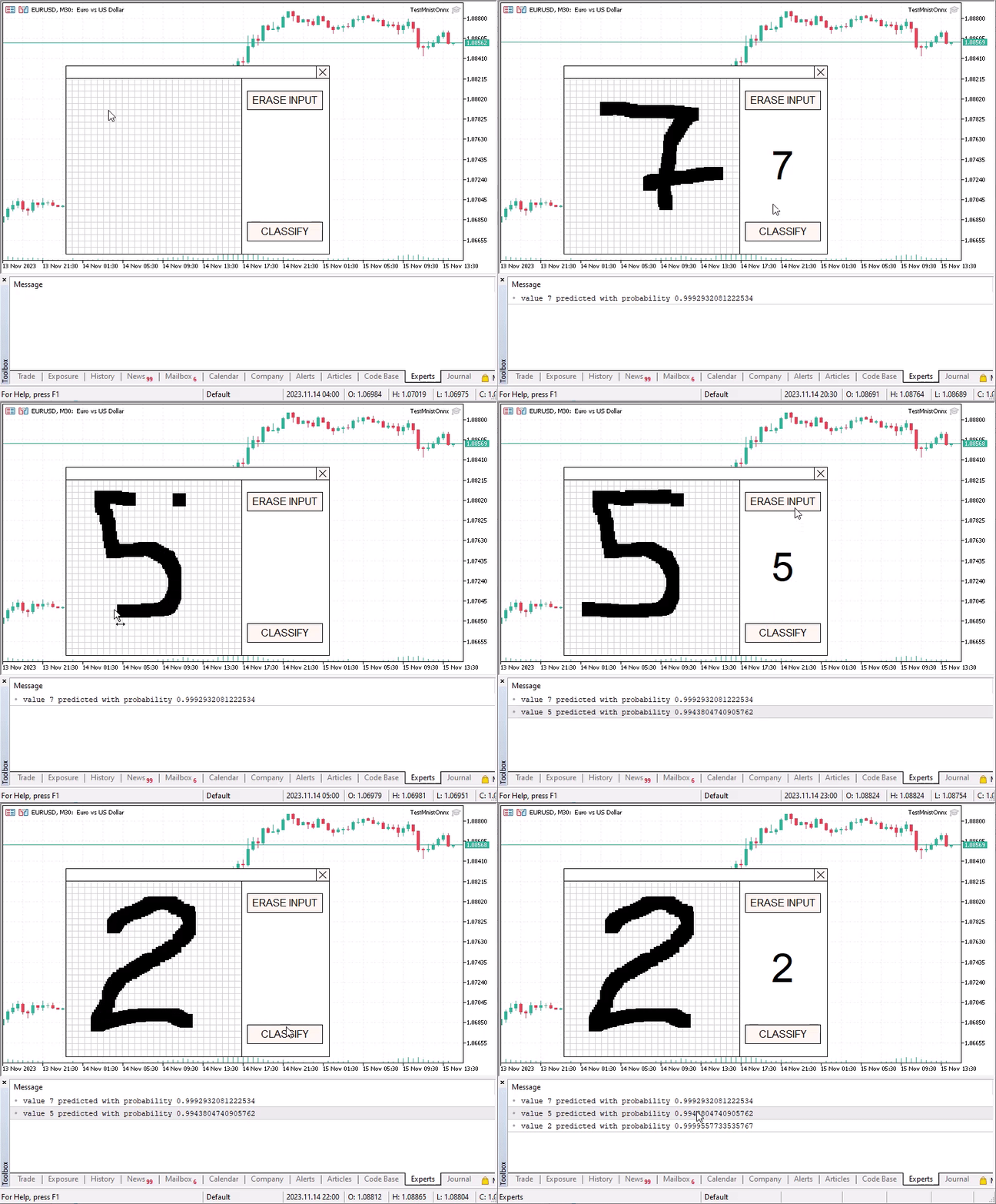
An Expert Advisor for Handwritten Digit Recognition If you're diving into the world of algorithmic trading, you might want to explore how to utilize models for tasks like recognizing handwritten digits. One popular dataset for this is the MNIST database, which includes 60,000 training images and 10,000 testing images. These images have been generated by remixing the original NIST set of 20x20 pixel black-and-white samples, sourced from the US Census Bureau and enriched with samples from American high school students. Each image has been normalized to a size of 28x28 pixels and anti-aliased to introduce various grayscale levels. For trading enthusiasts looking to implement this, the trained model mnist.onnx is available for download on GitHub from the Model Zoo (opset 8). You can easily download and test other models, but be cautious to avoid those using opset 1, as they aren't supported by the latest ONNX runtime. Interestingly, the output vector isn't processed with the Softmax activation function, which is typically standard in classification models. But don’t worry, we can implement that ourselves! int PredictNumber(void) {   static matrixf image(28, 28);   static vectorf result(10);   PrepareMatrix(image);   if(!OnnxRun(ExtModel, ONNX_DEFAULT, image, result)) {     Print("OnnxRun error ", GetLastError());     return(-1);  }   result.Activation(result, AF_SOFTMAX);   int predict = int(result.ArgMax());   if(result[predict] < 0.8)     Print(result);   Print("value ", predict, " predicted with probability ", result[predict]);   return(predict);} To recognize a drawn digit, simply draw it within a special grid using your mouse while holding down the left button. Once you’ve drawn your digit, hit the CLASSIFY button to see the result! If the recognized digit's probability is below 0.8, the resulting vector of probabilities for each class will be logged. For instance, if you classify an empty input field, you might see something like this: [0.095331445, 0.10048489, 0.10673151, 0.10274081, 0.087865397, 0.11471312, 0.094342403, 0.094900772, 0.10847695, 0.09441267] value 5 predicted with probability 0.11471312493085861 Interestingly, recognition accuracy tends to dip notably for the number nine (9), and left-slanted digits are recognized more accurately. So, keep that in mind as you experiment with your own digit recognition!

2023.11.23

Maximize Your Trading with the Martin Gale Breakout System for MT5
MetaTrader5
Maximize Your Trading with the Martin Gale Breakout System for MT5

If you're diving into the Forex market, you might want to check out the Martin Gale Breakout system. This trading system is tailored for use with MetaTrader 5 (MT5) and cleverly combines breakout strategies with the Martin Gale money management approach to enhance your trading performance. Key Input Parameters: TakeProfPoints: Set your Take Profit level in points for each trade to lock in those gains. BalancePercentageAvailable: Decide what percentage of your account balance you want to commit to trading. TP_Percentage_of_Balance: This determines the portion of your balance that goes toward your Take Profit on each trade. SL_Percentage_of_Balance: Here, you can set how much of your balance will be used for your Stop Loss. Start_The_Recovery: This parameter is crucial for initiating recovery measures, dictating when and how they kick in. TP_Points_Multiplier: Adjust your Take Profit points with this multiplier for more flexible profit strategies. MagicNumber: A unique identifier for this system, ensuring it handles its trades independently. Why Choose This Strategy? Breakout Trading: This system excels at spotting breakout opportunities where price moves beyond critical levels. Dynamic Lot Sizing: Lot sizes automatically adjust based on your account balance and risk tolerance, in line with Martin Gale principles. Loss Recovery: Equipped with a robust recovery mechanism, this system adapts trade parameters to help recover losses when needed. The heart of this EA lies in the CalcLotWithTP() function, which takes three parameters: Takeprofit, Startprice, and Endprice. This function calculates the necessary volume for a trade to meet your profit target when entering at Startprice and exiting at Endprice. Don’t worry if you’re new to coding; everything in the code is well-commented, making it easy to understand and tweak.

2023.09.26
Understanding Symbol Filling Policies in MetaTrader 5 for Smart Trading
MetaTrader5
Understanding Symbol Filling Policies in MetaTrader 5 for Smart Trading

When trading in MetaTrader 5, understanding the symbol filling policy is crucial for making informed decisions. Let’s break down how to determine the filling policy for a financial instrument. What You Need to Know The first step is to input the symbol of the financial instrument you’re interested in. This is where the magic starts! How to Determine the Filling Policy Getting the Filling Policy Type: Using the SymbolInfoInteger function, you’ll retrieve essential information about the filling policy for your chosen symbol. This is stored in a variable, filling, as a numerical value. Comparing Filling Policies: The next step is to compare this numerical value with predefined constants that represent various filling policies. Here are a few you should know: Fill or Kill: This policy is often referred to as SYMBOL_FILLING_FOK. Immediate or Cancel: Known as SYMBOL_FILLING_IOC. Return: This is represented by SYMBOL_FILLING_RETURN. Returning the Filling Policy Type: After checking the comparisons, the function determines the filling policy type. If it matches SYMBOL_FILLING_FOK, it returns ORDER_FILLING_FOK. For SYMBOL_FILLING_IOC, it returns ORDER_FILLING_IOC. If it doesn’t match any of these, you’ll get ORDER_FILLING_RETURN. Why This Matters Understanding the filling policy helps you make better trading decisions based on the specific characteristics of the financial instrument you’re dealing with. Knowing whether you’re in a Fill or Kill situation or if you can expect an Immediate or Cancel response can significantly impact your strategy. In summary, this function in MetaTrader 5 is a key tool for retrieving the filling policy of any symbol, aiding you in navigating the trading waters with confidence!

2023.09.26
Unlocking the Power of Trailing Take Profit in MetaTrader 5
MetaTrader5
Unlocking the Power of Trailing Take Profit in MetaTrader 5

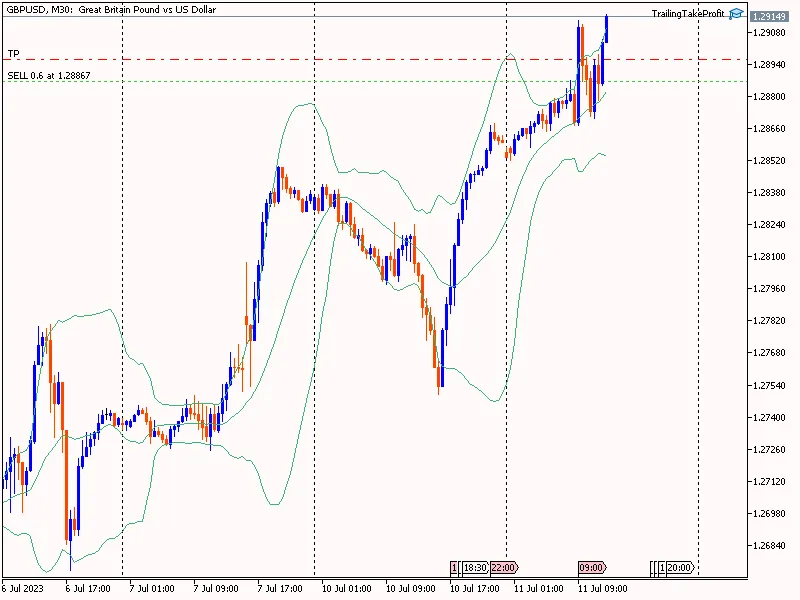
Understanding Trailing Take ProfitMany of you are familiar with the concept of a Trailing Stop, which moves your stop loss up to lock in profits as the price rises. But have you heard about the Trailing Take Profit? This innovative feature is designed to trail your take profit level when your position is in the red, helping to minimize losses rather than just securing profits.Here’s how it works: Let’s say you’re holding a position that’s currently showing a loss. When the price reaches a certain point known as TailingTPStart (for instance, 500 points away from your entry price), your take profit will start to trail the price. The TailingTPDistance is the maximum distance allowed between the trailing take profit and the current price, providing a buffer to potentially recover from losses.This might sound like a game-changer! While it won’t eliminate losses entirely, using this concept with an EA can help you reduce the depth of your losses when you’re trading without a stop loss.How to Set Up Trailing Take ProfitReady to give it a shot? Here’s a simple step-by-step guide to set up your Trailing Take Profit EA:Start by running the Trailing Take Profit EA.Ensure TrailingTP_Mode is set to true for the EA to activate.Input your symbol name, for example, GBPUSD, in the EA settings.Set your TailingTPStart level, which determines how far the price needs to move before the take profit starts trailing.Finally, configure the TailingTPDistance, specifying the maximum distance between the take profit and the current price.This new tool could be just what you need to refine your trading strategy and manage your losses effectively. Give it a try and share your experiences!

2023.07.11
Unlock Profits with the AK-47 Scalper EA for MetaTrader 5
MetaTrader5
Unlock Profits with the AK-47 Scalper EA for MetaTrader 5

Hey there, fellow traders! Today, I’m excited to dive into the AK-47 Scalper EA – a robust trading system designed for MetaTrader 5. Whether you're a newbie trying to get your feet wet or a seasoned pro looking to optimize your strategies, this EA could be a game-changer for you! 1. Input Parameters #define ExtBotName "AK-47 EA" // Bot Name #define Version "1.00" // Import input classes #include &lt;Trade\PositionInfo.mqh&gt; #include &lt;Trade\Trade.mqh&gt; #include &lt;Trade\SymbolInfo.mqh&gt; #include &lt;Trade\AccountInfo.mqh&gt; #include &lt;Trade\OrderInfo.mqh&gt; //--- Define variables for code readability #define Ask SymbolInfoDouble(_Symbol, SYMBOL_ASK) #define Bid SymbolInfoDouble(_Symbol, SYMBOL_BID) //--- Input parameters input string EASettings = "---------------------------------------------"; // EA Settings input int InpMagicNumber = 124656; // Magic Number input string MoneySettings = "---------------------------------------------"; // Money Settings input bool isVolume_Percent = true; // Allow Volume Percent input double InpRisk = 3; // Risk Percentage of Balance (%) input string TradingSettings = "---------------------------------------------"; // Trading Settings input double Inpuser_lot = 0.01; // Lots input double InpSL_Pips = 3.5; // Stoploss in Pips input double InpTP_Pips = 7; // TP in Pips (0 = No TP) input int InpMax_slippage = 3; // Maximum slippage allowed in Pips input double InpMax_spread = 5; // Maximum allowed spread in Points (0 = floating) input string TimeSettings = "---------------------------------------------"; // Trading Time Settings input bool InpTimeFilter = true; // Trading Time Filter input int InpStartHour = 2; // Start Hour input int InpStartMinute = 30; // Start Minute input int InpEndHour = 21; // End Hour input int InpEndMinute = 0; // End Minute 2. Local Variables Initialization //--- Variables int Pips2Points; // slippage 3 pips, 3=points, 30=points double Pips2Double; // Stoploss 15 pips, 0.015 bool isOrder = false; int slippage; long acSpread; string strComment = ""; CPositionInfo m_position; // trade position object CTrade m_trade; // trading object CSymbolInfo m_symbol; // symbol info object CAccountInfo m_account; // account info wrapper COrderInfo m_order; // pending orders object 3. Main Code a/ Expert Initialization Function int OnInit() { // 3 or 5 digits detection // Pip and point if (_Digits % 2 == 1) { Pips2Double = _Point * 10; Pips2Points = 10; slippage = 10 * InpMax_slippage; } else { Pips2Double = _Point; Pips2Points = 1; slippage = InpMax_slippage; } if (!m_symbol.Name(Symbol())) // sets symbol name return(INIT_FAILED); RefreshRates(); m_trade.SetExpertMagicNumber(InpMagicNumber); m_trade.SetMarginMode(); m_trade.SetTypeFillingBySymbol(m_symbol.Name()); m_trade.SetDeviationInPoints(slippage); return(INIT_SUCCEEDED); } b/ Expert Tick Function void OnTick() { if (TerminalInfoInteger(TERMINAL_TRADE_ALLOWED) == false) { Comment("LazyBot\nTrade not allowed."); return; } MqlDateTime structTime; TimeCurrent(structTime); structTime.sec = 0; // Set starting time structTime.hour = InpStartHour; structTime.min = InpStartMinute; datetime timeStart = StructToTime(structTime); // Set Ending time structTime.hour = InpEndHour; structTime.min = InpEndMinute; datetime timeEnd = StructToTime(structTime); acSpread = SymbolInfoInteger(_Symbol, SYMBOL_SPREAD); strComment = "\n" + ExtBotName + " - v." + (string)Version; strComment += "\nServer time = " + TimeToString(TimeCurrent(), TIME_DATE | TIME_SECONDS) + " - " + DayOfWeekDescription(structTime.day_of_week); strComment += "\nTrading time = [" + (string)InpStartHour + "h" + (string)InpStartMinute + " --&gt; " + (string)InpEndHour + "h" + (string)InpEndMinute + "]"; strComment += "\nCurrent Spread = " + (string)acSpread + " Points"; Comment(strComment); // Update Values UpdateOrders(); TrailingStop(); // Trading conditions based on time filter if (InpTimeFilter) { if (TimeCurrent() >= timeStart && TimeCurrent() < timeEnd) { if (!isOrder) OpenOrder(); } } else { if (!isOrder) OpenOrder(); } } 3.1 Calculate Signal to Send Orders void OpenOrder() { ENUM_ORDER_TYPE OrdType = ORDER_TYPE_SELL; double TP = 0; double SL = 0; string comment = ExtBotName; // Calculate Lots double lot1 = CalculateVolume(); if (OrdType == ORDER_TYPE_SELL) { double OpenPrice = Bid - NormalizeDouble(InpSL_Pips / 2 * Pips2Double, _Digits); TP = OpenPrice - NormalizeDouble(InpTP_Pips * Pips2Double, _Digits); SL = Ask + NormalizeDouble(InpSL_Pips / 2 * Pips2Double, _Digits); if (CheckSpreadAllow() && CheckVolumeValue(lot1) && CheckOrderForFREEZE_LEVEL(ORDER_TYPE_SELL_STOP, OpenPrice) && CheckStopLoss(OpenPrice, SL, TP) && CheckMoneyForTrade(m_symbol.Name(), lot1, ORDER_TYPE_SELL)) { if (!m_trade.SellStop(lot1, OpenPrice, m_symbol.Name(), SL, TP, ORDER_TIME_GTC, 0, comment)) Print(__FUNCTION__, "--&gt; OrderSend error ", m_trade.ResultComment()); } } // Add more conditions for ORDER_TYPE_BUY similarly... } 3.2 Calculate Volume double CalculateVolume() { double LotSize = 0; if (isVolume_Percent == false) { LotSize = Inpuser_lot; } else { LotSize = (InpRisk) * m_account.FreeMargin(); LotSize = LotSize / 100000; double n = MathFloor(LotSize / Inpuser_lot); LotSize = n * Inpuser_lot; if (LotSize < Inpuser_lot) LotSize = Inpuser_lot; if (LotSize > m_symbol.LotsMax()) LotSize = m_symbol.LotsMax(); if (LotSize < m_symbol.LotsMin()) LotSize = m_symbol.LotsMin(); } return LotSize; } 3.3 EA's Trailing Stop Function void TrailingStop() { double SL_in_Pip = 0; for (int i = PositionsTotal() - 1; i >= 0; i--) { if (m_position.SelectByIndex(i)) { if ((m_position.Magic() == InpMagicNumber) && (m_position.Symbol() == m_symbol.Name())) { // For Buy orders if (m_position.PositionType() == POSITION_TYPE_BUY) { SL_in_Pip = NormalizeDouble(Bid - m_position.StopLoss(), _Digits) / Pips2Double; if (SL_in_Pip > InpSL_Pips) { double newSL = NormalizeDouble(Bid - InpSL_Pips * Pips2Double, _Digits); if (!m_trade.PositionModify(m_position.Ticket(), newSL, m_position.TakeProfit())) { Print(__FUNCTION__, "--&gt; OrderModify error ", m_trade.ResultComment()); continue; } } } // For Sell orders... Add similar logic for sell... } } } }

2023.06.12
Mastering Equity-Based Position Closure in MetaTrader 5
MetaTrader5
Mastering Equity-Based Position Closure in MetaTrader 5

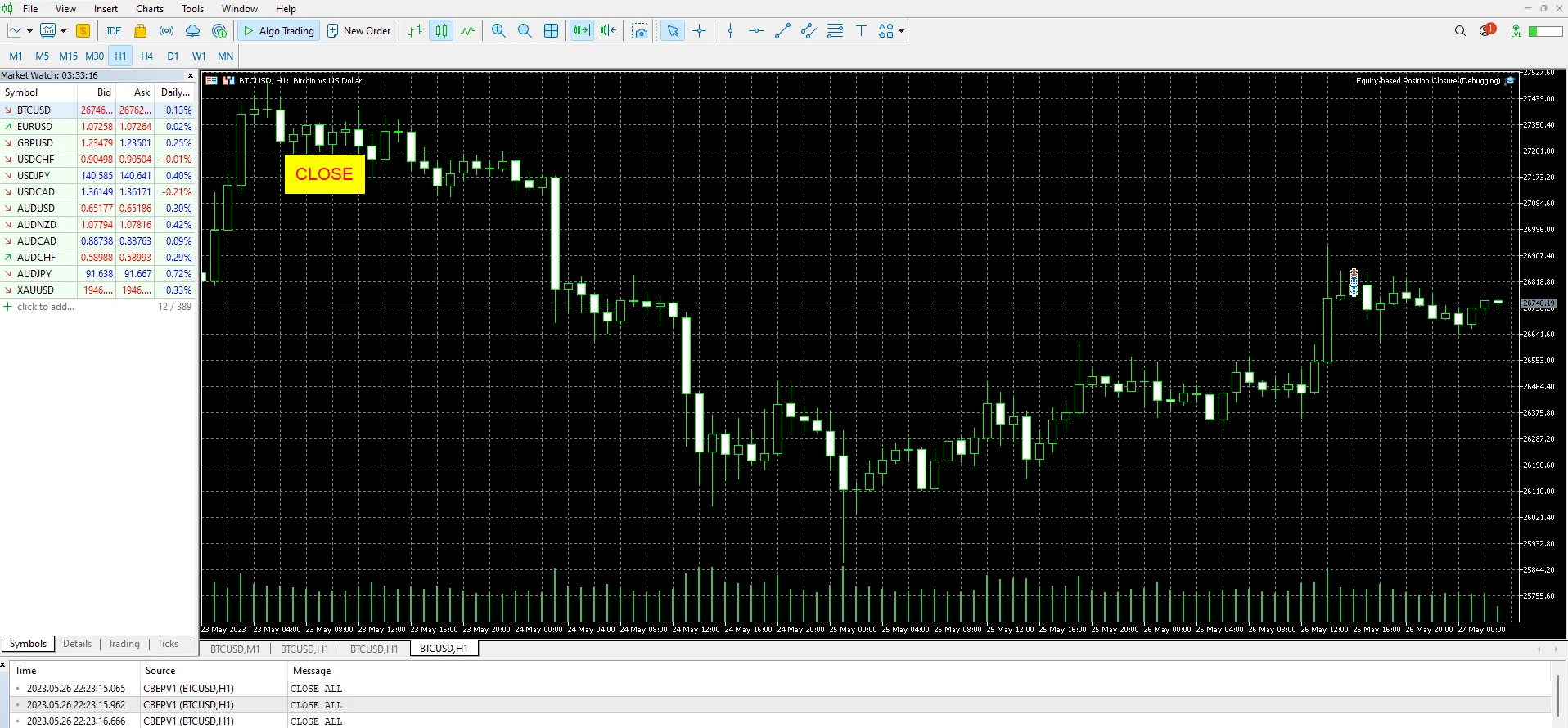
Hey there, fellow traders! Today, let’s dive into an essential aspect of trading: closing equity-based positions in MetaTrader 5. Whether you’re a seasoned pro or just starting out, understanding how to effectively manage your positions can make a world of difference in your trading journey.Why Position Closure MattersClosing a position at the right time is crucial. It can help you lock in profits or minimize losses. When you're trading, especially in volatile markets, having a solid strategy for position closure can keep your trading account healthy.How to Close Positions in MetaTrader 5MetaTrader 5 makes it pretty straightforward to close your positions. Here’s a quick rundown:Find Your Open Positions: Navigate to the 'Trade' tab in the terminal window. Here, you’ll see a list of all your open positions.Select the Position: Click on the position you want to close. It's as easy as pie!Hit the Close Button: Look for the close button, and give it a click. You can also adjust the close parameters if you want to fine-tune your exit.Confirm Your Action: Make sure everything looks good and confirm your closure. And just like that, you’re out!Tips for Effective Position ClosureHere are a few handy tips to consider when closing your positions:Set Profit Targets: Always have a clear target in mind. It helps prevent emotional decision-making.Use Trailing Stops: This can allow you to capture more gains while protecting your downside.Stay Informed: Keep an eye on market news and trends that could impact your positions.So, there you have it! Mastering the art of equity-based position closure in MetaTrader 5 can really elevate your trading game. Remember, it’s all about making informed decisions to maximize your success. Happy trading!

2023.05.27
Mastering Dynamic Trailing Stop Loss and Profit Target Management for MT5
MetaTrader5
Mastering Dynamic Trailing Stop Loss and Profit Target Management for MT5

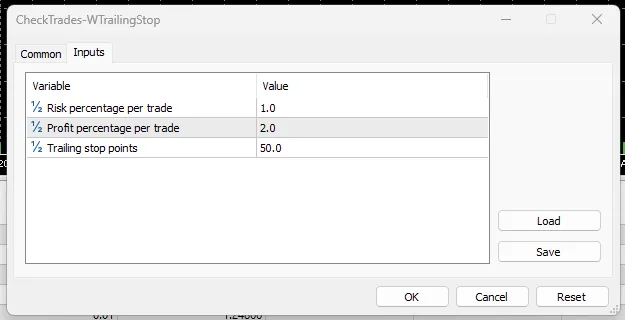
In the fast-paced world of trading, having a sturdy risk management strategy is key to ensuring your success. Today, we're diving into a handy code that can help you manage your trades more effectively in MetaTrader 5. So, what does this code do? Simply put, it’s all about managing your existing trades based on specific input parameters. The main goal here is to close trades when they hit a profit or loss threshold, while also using a trailing stop loss to secure your profits as the trade moves in your favor. Understanding the Code Here’s a quick breakdown of how this code works: It starts by including the necessary header files for trade and symbol information classes. Next, we define input parameters, such as risk percentage, profit percentage, and trailing stop points. Global variables are set up for trade and symbol information objects, which are crucial for managing trades. The OnInit function initializes the symbol information object and checks for any errors. For the OnDeinit function, there’s nothing to worry about in this case; it simply does nothing. The real action happens in the OnTick function, which gets triggered every time a new tick comes in, calling the CheckTrades function. The CheckTrades function goes through all open positions, checking if each belongs to the current symbol. If it does, it calculates the current profit and sees if the profit or loss thresholds are hit. If so, it closes the position. If neither threshold is hit, it checks whether the position type is a buy or sell order and updates the stop loss level with a trailing stop loss. If the new stop loss level is more favorable than the current one, the position gets modified with this new level. In summary, this code offers a straightforward risk management strategy, allowing you to adjust your stop loss dynamically based on a trailing stop loss while closing trades when specific profit or loss thresholds are reached. It’s a simple yet effective way to keep your trading on the right track!

2023.04.28
Maximize Your Trading with This MT5 EA for Multiple Orders
MetaTrader5
Maximize Your Trading with This MT5 EA for Multiple Orders

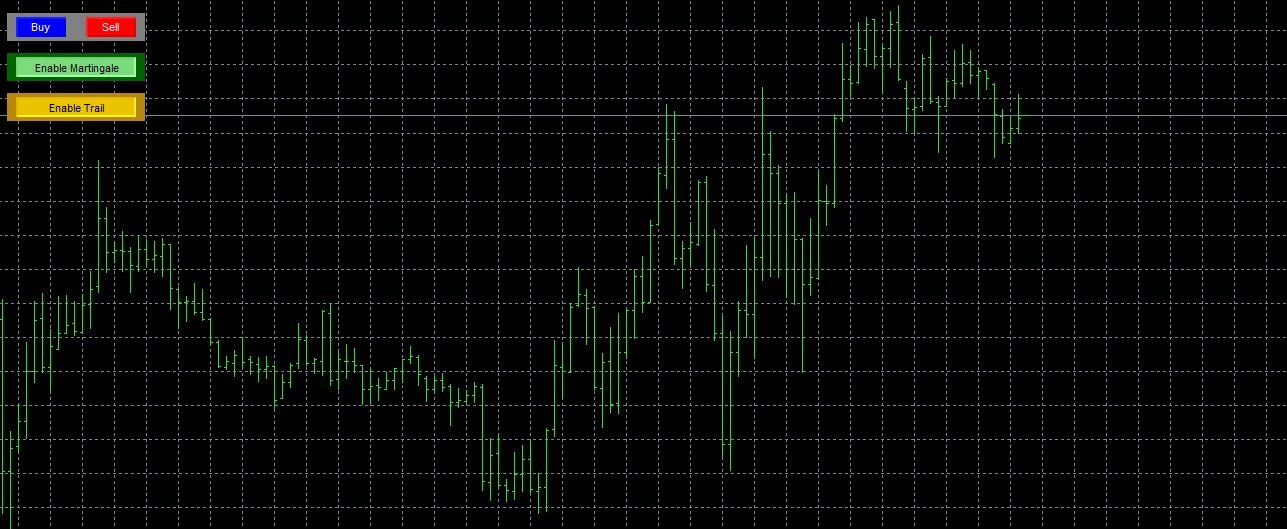
If you’re looking to streamline your trading process, this Expert Advisor (EA) for MetaTrader 5 (MT5) might just be the tool you need. Designed to open multiple buy and sell orders based on your preferences, this EA is all about making your trading experience smoother and more efficient. Key Features of the EA User-Friendly Interface: The EA comes equipped with straightforward Buy and Sell buttons that allow you to quickly open multiple orders with just a click. Customizable Inputs: You can set the number of buy and sell orders, along with risk percentage per trade, stop loss, take profit, and slippage—all tailored to your trading strategy. Lot Size Calculation: The EA automatically calculates the optimal lot size based on your specified risk percentage and stop loss, helping you manage your capital effectively. Spread and Slippage Checks: Before executing any trades, it checks the spread against your configured slippage to ensure you’re getting the best price possible. When you hit the Buy or Sell button, the EA will work its magic, opening the specified number of orders with the calculated lot size, stop loss, and take profit levels in place. However, keep in mind that this EA is a basic example. It might not be ready for live trading right out of the box, so you’ll want to tweak and optimize it to fit your style. Always make sure to test any trading algorithm in a demo account before diving into the real market with your hard-earned cash.

2023.04.27
Mastering Risk Management with CheckTrades for MetaTrader 5
MetaTrader5
Mastering Risk Management with CheckTrades for MetaTrader 5

Welcome, fellow traders! Today, we’re diving into a handy tool that can take your trading game to the next level: CheckTrades, an Expert Advisor (EA) designed for MetaTrader 5. This EA operates on a simple yet crucial principle: it helps you manage risk by closing open positions once they hit a predefined profit or loss threshold, calculated as a percentage of your account balance. It’s all about protecting your hard-earned capital! How CheckTrades Works Now, let’s break down how this EA functions. Keep in mind that it doesn’t provide entry signals or market timing—its main goal is to manage your existing positions. Here are the external variables you’ll use: RiskPercentage: This represents the maximum loss you’re willing to take on a single trade, expressed as a percentage of your account balance. If the loss on an open position hits this percentage, the EA will automatically close the position to limit your risk. ProfitPercentage: This variable sets your target profit per trade, also as a percentage of your account balance. Once your open position reaches this profit percentage, the EA will close it, ensuring you lock in those gains! Since CheckTrades is focused on risk management, it’s versatile and can be applied to any trading symbol or timeframe. However, it’s crucial to pair it with a solid trading strategy that includes entry signals and additional trade management rules to create a comprehensive trading system. If you're thinking about using this code as an include file, just drop it in your MQL5\Include folder. Its primary function will be to assist in managing risk by closing positions based on your defined profit and loss limits. You can easily combine it with other include files that handle different tasks, such as calculating position sizes based on your account risk or implementing trailing stop-loss strategies. Just use the #include directive in your main EA file to integrate CheckTrades, and call the CheckTrades() function whenever you need to manage your open positions. Happy trading, and may your profits soar!

2023.04.25
First Previous 1 2 3 4 5 6 7 8 9 10 11 Next Last