System Trading

Mastering Volume Trading with MetaTrader 5: Your Go-To EA Guide
MetaTrader5
Mastering Volume Trading with MetaTrader 5: Your Go-To EA Guide

Idea by: Scriptor. MQL5 code by: Vladimir Karputov. This Expert Advisor (EA) kicks into gear when a new bar is formed. It compares the tick volumes of the latest and the previous bar to make trading decisions. Here’s how it works: //---    if(array_volume[1] > array_volume[2])      {       ClosePositions(POSITION_TYPE_SELL);       OpenBuy();      }    if(array_volume[1] < array_volume[2])      {       ClosePositions(POSITION_TYPE_BUY);       OpenSell();      } If the tick volume of the latest bar is LARGER than the previous bar, it's time to CLOSE your Sell positions and go ahead with a Buy position. If the tick volume of the latest bar is SMALLER than the previous bar, you should CLOSE your Buy positions and place a Sell order. This EA works best on the H1 timeframe across all symbols. Since it operates only with new bar formations, it was tested in 'OHLC mode' using M1 bars: Symbol Pass Result Profit Expected Payoff Profit Factor Recovery Factor Sharpe Ratio Custom Equity DD % Trades EURGBP 8 4,709.76 1,709.76 1.03 1.06 0.83 0.02 0 67.05 1,666 EURUSD 1 3,445.02 445.02 0.28 1.02 0.23 0.02 0 39.87 1,607 EURJPY 7 2,949.86 -50.14 -0.03 1.00 -0.02 0.02 0 90.27 1,561 USDJPY 5 2,318.50 -681.50 -0.42 0.97 -0.21 0.01 0 75.64 1,606 GBPUSD 2 128.04 -2,871.96 -3.19 0.85 -0.59 -0.05 0 97.46 900 EURCHF 6 102.93 -2,897.07 -5.03 0.44 -0.96 -0.14 0 96.97 576 EURCAD 9 90.06 -2,909.94 -11.50 0.53 -1.00 -0.12 0 97.26 253 USDCHF 0 84.60 -2,915.40 -8.19 0.58 -0.98 -0.16 0 97.58 356 GBPJPY 11 74.40 -2,925.60 -5.98 0.81 -0.88 -0.02 0 97.99 489 AUDJPY 12 70.44 -2,929.56 -4.47 0.76 -0.83 -0.03 0 98.32 656 GBPCHF 10 69.53 -2,930.47 -12.69 0.57 -0.76 -0.18 0 98.30 231 AUDUSD 4 68.15 -2,931.85 -3.06 0.76 -0.83 -0.04 0 98.55 957 USDCAD 3 -88.32 -3,088.32 -4.11 0.77 -0.83 -0.05 0 112.21 751

2018.07.09

Unlocking the Power of Exp_BlauTVI_Tm: Your Ultimate MetaTrader 5 EA Guide
MetaTrader5
Unlocking the Power of Exp_BlauTVI_Tm: Your Ultimate MetaTrader 5 EA Guide

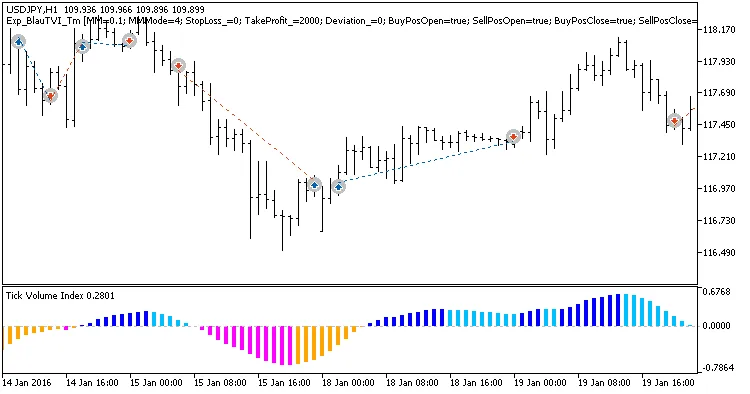
Hey there, fellow traders! Today, we're diving into an exciting Expert Advisor (EA) for MetaTrader 5 known as Exp_BlauTVI_Tm. This EA is designed to leverage the signals from the trend-following indicator BlauTVI, and it even gives you the flexibility to set a specific trading time interval. The magic happens when a bar closes, and the indicator histogram changes direction, signaling a potential trade. Let’s break down how you can customize it for your trading sessions. Setting Your Trading Time You can easily specify the trading hours in the input parameters. Here’s a quick look at what you’ll need: input bool   TimeTrade=true;      //Enable trading in the specified interval input HOURS  StartH=ENUM_HOUR_0;  //Trading starts at (hours) input MINUTS StartM=ENUM_MINUT_0; //Trading starts at (minutes) input HOURS  EndH=ENUM_HOUR_23;   //Trading ends at (hours) input MINUTS EndM=ENUM_MINUT_59;  //Trading ends at (minutes) You’ll have two sets of variables for both the start and end times. By default, the EA is set to trade from 00:00, closing all positions at 23:59. If you set a start time that’s later than your end time, don’t worry! The EA will close your positions the next day at the specified time. Compiling the EA To ensure everything runs smoothly, make sure the compiled file of the BlauTVI.ex5 indicator is in the terminal_data_directory\MQL5\Indicators folder. When you compile the EA, it references the indicator as a resource, so it’s not strictly necessary for it to be in the terminal folder. Utilizing the TradeAlgorithms Library Also, keep in mind that the TradeAlgorithms.mqh library file allows you to use EAs with brokers that offer a nonzero spread and lets you set Stop Loss and Take Profit levels right alongside opening your positions. You can grab other versions of this library here. The testing results below used the default input parameters of the EA, and interestingly, no Stop Loss or Take Profit was applied during the tests. Fig 1. Examples of deals on the chart 2016 Testing Results: USDJPY H1 Here’s a snapshot of the testing results from 2016 for the USDJPY H1: Fig. 2. Testing results chart

2018.07.09
Mastering the BlauErgodicMDI System for MetaTrader 5
MetaTrader5
Mastering the BlauErgodicMDI System for MetaTrader 5

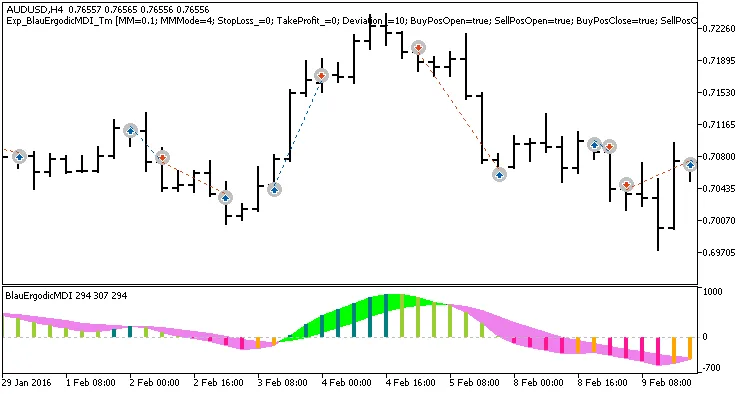
If you're looking to enhance your trading game, you might want to take a look at the BlauErgodicMDI trading system. This powerful tool allows you to set precise trading time intervals, giving you more control over your trades. So, how does it work? The system makes trade decisions based on changes in the histogram direction, crossing the zero line, or shifts in the color of the signal line cloud. You can use the following input parameter to choose your entry algorithm: input AlgMode Mode=twist; //Market entry algorithm You can also define your trading hours directly in the input parameters, allowing you to execute trades within your preferred time intervals: input bool TimeTrade=true; //Enable trading by time intervals input HOURS StartH=ENUM_HOUR_0; //Trading starts at (Hours) input MINUTS StartM=ENUM_MINUT_0; //Trading starts at (Minutes) input HOURS EndH=ENUM_HOUR_23; //Trading ends at (Hours) input MINUTS EndM=ENUM_MINUT_59; //Trading ends at (Minutes) With these parameters, you can easily set the start and end times for your trading sessions. By default, this Expert Advisor is set to trade the entire session from 00:00 to 23:59. If your start time is later than your end time, don't worry—the EA will simply close positions the following day at the specified time. To ensure everything runs smoothly, make sure the compiled file for the BlauErgodicMDI.ex5 indicator resides in your terminal's terminal_data_directory\MQL5\Indicators folder. When you compile the EA, it includes the indicator in its code as a resource, meaning you won’t need to have the indicator in the terminal folder. Also, keep in mind that the TradeAlgorithms.mqh library file allows you to use Expert Advisors with brokers that offer a non-zero spread and lets you set Stop Loss and Take Profit right at the time of opening a position. You can find other versions of this library at TradeAlgorithms. The tests shown below utilized the default input parameters for the Expert Advisor, and it’s worth noting that Stop Loss and Take Profit were not included in these tests. Fig. 1. Examples of deals on the chart Here’s a look at the testing results for 2016 using the AUDUSD on an H4 timeframe: Fig. 2. Testing results chart

2018.07.09
Mastering the Exp_ColorX2MA_X2 EA for MetaTrader 5: Your Ultimate Guide
MetaTrader5
Mastering the Exp_ColorX2MA_X2 EA for MetaTrader 5: Your Ultimate Guide

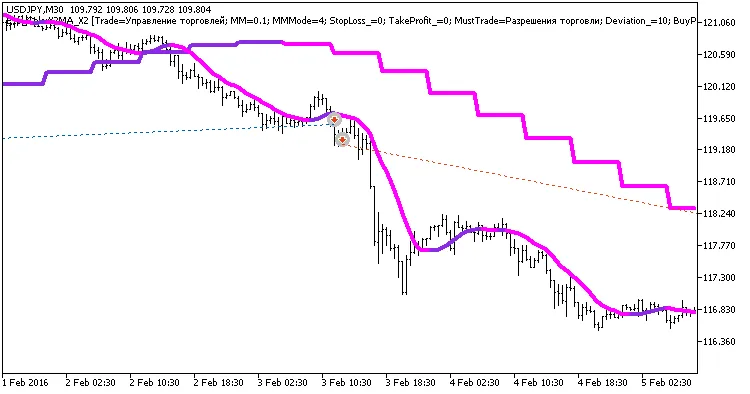
If you're looking for a reliable trend-following trading system, the Exp_ColorX2MA_X2 could be just what you need. This EA uses two indicators—ColorX2MA—to help you navigate the markets with confidence. Here's how it works: The first indicator identifies the direction of the slow trend based on its color. The second indicator signals when it’s time to open a trade, which happens when there’s a change in the line’s color. A trading signal is generated at the close of a bar if two conditions are met: The fast and slow trend signals align. The direction of the fast trend changes. Input Parameters for the Expert Advisor //+-------------------------------------------------+ //| Input parameters of the EA indicator | //+-------------------------------------------------+ sinput string Trade="Trade Management";    //+============== TRADE MANAGEMENT ==============+ input double MM=0.1;               //Share of a deposit in a deal input MarginMode MMMode=LOT;      //Lot value detection method input uint    StopLoss_=1000;      //Stop Loss in points input uint    TakeProfit_=2000;    //Take Profit in points sinput string MustTrade="Trade Permissions";    //+============== TRADE PERMISSIONS ==============+ input int    Deviation_=10;       //Max price deviation in points input bool   BuyPosOpen=true;     //Permission to enter long positions input bool   SellPosOpen=true;    //Permission to enter short positions //+-------------------------------------------------+ //| Input parameters of the filter indicator        | //+-------------------------------------------------+ sinput string Filter="SLOW TRADE PARAMETERS"    //+============== TRADE PARAMETERS ==============+ input ENUM_TIMEFRAMES TimeFrame=PERIOD_H6;  //1 Chart period for the trend input Smooth_Method MA_Method1=MODE_SMA_; //first-smoothing averaging method input uint Length1=12; //first smoothing depth                     input int Phase1=15; //first smoothing parameter, 3//---- for JJMA within the range of -100 ... +100 it influences the quality of the transition process; //---- for VIDIA it is a CMO period, for AMA it is a slow average period input Smooth_Method MA_Method2=MODE_JJMA; //second-smoothing averaging method input uint Length2= 5; //second smoothing depth input int Phase2=15;  //second smoothing parameter, 3//---- for JJMA within the range of -100 ... +100 it influences the quality of the transition process; //---- for VIDIA it is a CMO period, for AMA it is a slow average period input Applied_price_ IPC=PRICE_CLOSE_;//price constant                   input uint SignalBar=1; //Bar index to get receive signal input bool   BuyPosClose=true;     //Permission to exit long positions by trend input bool   SellPosClose=true;    //Permission to exit short positions by trend //+-------------------------------------------------+ //| Input parameters of the entry indicator         | //+-------------------------------------------------+ sinput string Input="ENTRY PARAMETERS"       //+=============== ENTRY PARAMETERS ===============+ input ENUM_TIMEFRAMES TimeFrame_=PERIOD_M30;  //2 Chart period for entry input Smooth_Method MA_Method1_=MODE_SMA_; //first-smoothing averaging method input uint Length1_=12; //first smoothing depth                     input int Phase1_=15; //first smoothing parameter, 3//---- for JJMA within the range of -100 ... +100 it influences the quality of the transition process; //---- for VIDIA it is a CMO period, for AMA it is a slow average period input Smooth_Method MA_Method2_=MODE_JJMA; //second-smoothing averaging method input uint Length2_= 5; //second smoothing depth input int Phase2_=15;  //second smoothing parameter, 3//---- for JJMA within the range of -100 ... +100 it influences the quality of the transition process; //---- for VIDIA it is a CMO period, for AMA it is a slow average period input Applied_price_ IPC_=PRICE_CLOSE_;//price constant input uint SignalBar_=1;//Bar index to receive an entry signal input bool   BuyPosClose_=false;     //Permission to exit long positions by signal input bool   SellPosClose_=false;    //Permission to exit short positions by signal //+-------------------------------------------------+ The string parameters in the input parameters code simply enhance the visualization of the EA's settings window. It's worth noting that the ColorX2MA_HTF indicators included in the EA are designed solely for better trend visualization in the strategy tester and won’t be active in other operating modes. To ensure your EA runs smoothly, make sure the compiled files for the indicators ColorX2MA.ex5 and ColorX2MA_HTF.ex5 are placed in the <terminal_data_directory>\MQL5\Indicators folder. The TradeAlgorithms.mqh library file allows you to use Expert Advisors with brokers offering nonzero spreads and the ability to set Stop Loss and Take Profit simultaneously with position opening. You can download more library variants via this link: Trade Algorithms. During the tests shown below, we used the default input parameters of the Expert Advisor. No Stop Loss or Take Profit settings were applied during these tests. Here are the testing results for USDJPY over the year 2016, utilizing a slow trend on H6 and entry based on a fast trend on M30: Fig 1. Examples of deals on the chart Fig. 2. Testing results chart

2018.07.09
Maximize Your Trading with the Absolutely No Lag LWMA X2 System for MT5
MetaTrader5
Maximize Your Trading with the Absolutely No Lag LWMA X2 System for MT5

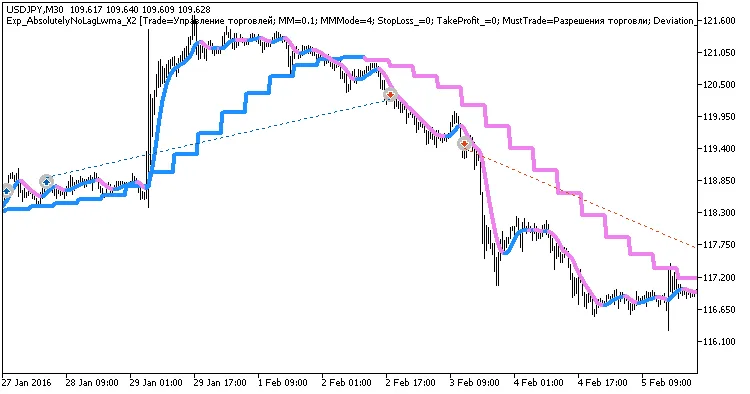
If you're on the lookout for a reliable trend-following trading system, you've landed in the right spot! Let me introduce you to the Absolutely No Lag LWMA X2, a powerful trading tool designed for MetaTrader 5 that leverages the signals from two nifty indicators, AbsolutelyNoLagLWMA. The first indicator helps us spot the direction of the slow trend by analyzing the line color, while the second indicator provides the perfect moment to enter a trade, indicated by a line color change. A trading signal is generated when a bar closes, given that these two conditions are met: Fast and slow trend signals align; The direction of the fast trend shifts. Input Parameters for the Trading System //+-------------------------------------------------+ //| Input parameters of the EA indicator | //+-------------------------------------------------+ sinput string Trade="Trade Management";    //+============== TRADE MANAGEMENT ==============+ input double MM=0.1;               //Share of a deposit in a deal input MarginMode MMMode=LOT;       //lot size detection method input uint    StopLoss_=1000;      //Stop Loss in points input uint    TakeProfit_=2000;    //Take Profit in points sinput string MustTrade="Trade Permissions";    //+============== TRADE PERMISSIONS ==============+ input int    Deviation_=10;       //Max price deviation in points input bool   BuyPosOpen=true;     //Permission to enter long positions input bool   SellPosOpen=true;    //Permission to enter short positions //+-------------------------------------------------+ //| Input parameters of the filter indicator        | //+-------------------------------------------------+ sinput string Filter="SLOW TRADE PARAMETERS";    //+============== TRADE PARAMETERS ==============+ input ENUM_TIMEFRAMES TimeFrame=PERIOD_H6;  //1 Chart period for the trend input uint Length=7; // smoothing depth                   input Applied_price_ IPC=PRICE_CLOSE_; // price constant input uint SignalBar=1; // bar number for getting the entry signal input bool   BuyPosClose=true;     // Permission to close long positions by trend input bool   SellPosClose=true;     // Permission to close short positions by trend //+-------------------------------------------------+ //| Input parameters of the entry indicator         | //+-------------------------------------------------+ sinput string Input="ENTRY PARAMETERS"       //+=============== ENTRY PARAMETERS ===============+ input ENUM_TIMEFRAMES TimeFrame_=PERIOD_M30;  //2 Chart period for entry input uint Length_=7; // smoothing depth                   input Applied_price_ IPC_=PRICE_CLOSE_; // price constant input uint SignalBar_=1; // bar number to get an entry signal input bool   BuyPosClose_=false;     // Permission to close long positions by signal input bool   SellPosClose_=false;     // Permission to close short positions by signal //+-------------------------------------------------+ Just a heads up: the string parameters in the input code are there to enhance the visualization of the input parameters window for the Expert Advisor. The indicators AbsolutelyNoLagLwma_HTF included in the EA are only meant for better trend visualization in the Strategy Tester and won’t function in any other modes. For everything to run smoothly, make sure that the compiled files of the indicators AbsolutelyNoLagLwma.ex5 and AbsolutelyNoLagLwma_HTF.ex5 are saved in your <terminal_data_directory>\MQL5\Indicators folder. Also, keep in mind that the TradeAlgorithms.mqh library file allows you to use Expert Advisors with brokers who offer a nonzero spread and the flexibility to set Stop Loss and Take Profit simultaneously when opening a position. You can grab more versions of this library here. The default input parameters of the Expert Advisor were used during the tests outlined below. Notably, Stop Loss and Take Profit settings were not applied during these tests. Here are the testing results for USDJPY over the year 2016, using a slow trend on H6 and entering based on a fast trend on M30: Fig 1. Examples of deals on the chart Fig. 2. Testing results chart

2018.07.09
Interceptor EA: Mastering the Market with Moving Averages on MetaTrader 5
MetaTrader5
Interceptor EA: Mastering the Market with Moving Averages on MetaTrader 5

Idea by: mserega76. MQL5 code by: Vladimir Karputov. Welcome to the world of automated trading! If you’re looking to elevate your trading game, the Interceptor EA for MetaTrader 5 could be just what you need. This strategy utilizes a "fan" of Moving Averages across three different timeframes, with five Moving Averages on each. It’s specifically designed for GBP/USD on the M5 timeframe, and trying to run it on any other symbol or timeframe will result in an error. So, stick to what it knows best! In the code, two methods are utilized for fetching data from the Moving Average indicators: Data from a single bar per request using iMAGet Data from multiple bars per request using iMAGetArray and iStochasticGetArray Additionally, CopyRates is employed for quicker calculations, enhancing the EA’s performance. Input Parameters Lot size for normal position openings (when signals don’t align) Flat coefficient on M5 (points per bar) Initial stop loss (if below 100, no stop loss is applied) Take profit level (if below 100, no take profit is applied) Minimum profit in points for breakeven adjustments Stop loss adjustments for breakeven (applies if parameter is above 9) Maximum distance between MAs for the fan on M5 (in signal 1 only) Maximum distance between MAs for the fan on M15 (in signal 4 only) Maximum distance between MAs for the fan on M15 (in signal 6 only) Stochastic period settings (for M5) Upper level of stochastic (for M5) Lower level of stochastic (for M5) Stochastic period settings (for M15) Upper level of stochastic (for M15) Lower level of stochastic (for M15) Minimum candlestick body size (in signal 1 only) Low flat (minimum flat length in bars) High flat (maximum flat height in points) Minimum distance in bars between indicator peaks for divergence on M5 Minimum percentage of the long hammer shadow Maximum percentage of the short hammer shadow Minimum hammer size in points (for M5) Age of the hammer (highest bar number) Maximum bars for hammer confirmation (in signal 6 only) Narrow source (maximum width of the fan on M5 at its narrowest) Bars ago when the fan converged to the "narrow source" (almost a point) Maximum/minimum range broken through (narrow source in bars) Mark your positions with this number Minimum trailing stop shift Distance from trailing stop to price (if below 100, trailing stops are disabled) Here’s a snapshot from a single test using the "Every tick based on real ticks" mode:

2018.07.09
Unlock Profits with EES Hedger for MetaTrader 5
MetaTrader5
Unlock Profits with EES Hedger for MetaTrader 5

Idea by: eesfx. MQL5 code by: Vladimir Karputov. Ever found yourself wishing you could trade against the trend? Whether you're trading manually or using another EA, the EES Hedger utility is here to help. It can instantly open opposite positions based on the parameters you set. And don't worry, it keeps track of trades opened manually or by other EAs through the OnTradeTransaction function.   How to Use EES Hedger Let's say you're using the SAR indicator to trade GBPUSD with a magic number of 1234. To use EES Hedger alongside SAR, simply open another GBPUSD chart (make sure it’s the same currency pair). It’s crucial that the timeframe matches or is shorter than what SAR is using. Next, in the external variables of EES Hedger, you'll need to input the SAR magic number into Original_EA_Magic (in this case, that's 1234). Just ensure that Advocate_EA_Magic is different from Original_EA_Magic. This way, whenever SAR opens a trade, EES Hedger will automatically open an opposite position. If you’re using EES Hedger for manual trading, just set Original_EA_Magic to 0.   Program Parameters Explained Lots - This sets the volume of the position that EES Hedger will open. Stop Loss (in pips) - Sets the stop loss for the position opened by EES Hedger. Take Profit (in pips) - Defines the take profit level for the position opened by EES Hedger. Trailing Stop (in pips) - Enables trailing for the position opened by EES Hedger. Trailing Step (in pips) - Sets the trailing step for the position opened by EES Hedger. Original EA Magic Number - This is the magic number used by your first EA that the advocating EA will base its trades on. Advocate EA Magic Number - This is the magic number for the advocating EA, which should remain unique to prevent conflicts.

2018.07.09
Mastering BreakOut15: Your Go-To EA for MetaTrader 5
MetaTrader5
Mastering BreakOut15: Your Go-To EA for MetaTrader 5

Idea by: Scriptor. MQL5 code by: Vladimir Karputov. This EA operates exclusively when a new bar forms on the Working Timeframe. All indicators are also sourced from this timeframe. Remember, it's designed to work best on the M1 timeframe! Once a trading signal triggers a BUY or SELL, the EA sets a price level. A new position is opened as soon as the price crosses this threshold. Signal to open BUY: MA Fast on bar #0 > MA Slow on bar #0; Signal to open SELL: MA Fast on bar #0 < MA Slow on bar #0. When assessing signals, the EA double-checks the working time range (unless the Start Hour and Stop Hour are set to "-1"). Positions get closed based on the opposite signal. If the Friday Close Hour isn't set to "-1", your positions will automatically close at this hour on Fridays. Inputs Working Timeframe - the timeframe for indicator calculations; Stop Loss - sets stop loss ("0" disables this feature); Take Profit - sets take profit ("0" disables this feature); Trailing Stop - activates trailing ("0" disables this feature); Trailing Step - defines the trailing step. Start Hour - the beginning of the time range (hours); "-1" disables both Start Hour and Stop Hour; Stop Hour - the end of the time range (hours); "-1" disables both Start Hour and Stop Hour; Friday Close Hour - sets the closing time on Friday (hours); "-1" disables this feature; BreakOut Level - the breakout level; Lots - fixed lot size, requires Risk to be "0"; Risk - dynamic lot size based on risk percentage per trade, requires Lots to be "0"; Magic Number - a unique identifier for your EA.

2018.07.09
Mastering JS-MA-Day: Your Go-To EA for MetaTrader 5
MetaTrader5
Mastering JS-MA-Day: Your Go-To EA for MetaTrader 5

Created by: JS_Sergey. Code by: Vladimir Karputov. The JS-MA-Day Expert Advisor (EA) is built on the iMA indicator (Moving Average, MA) using a D1 timeframe. If you're looking to ramp up your trading, you can enable position increases by setting the parameter Increase positions to true. Just a heads up, be cautious with the Close hour and Increase timeframe settings. For instance, if you set Close hour to 23 and Increase timeframe to PERIOD_H4, your positions won't close at 23:00 because H4 candlesticks open at 16:00, 20:00, and 00:00. So, if you enable Close hour (must be more than -1), it’s best to choose H1 or a lower timeframe. Remember, when increasing positions, you can also limit the number of open trades by using the Max positions setting for your current symbol and magic number. You can also disable the stop loss, take profit, and trailing features by simply setting the corresponding inputs to zero. As for position sizing, you have a couple of options: you can trade with a fixed lot size (make sure the Lots parameter is above zero and Risk is zero), or you can dynamically calculate the lot size based on risk percentage per trade (set Risk to a value above zero while keeping Lots at zero). Input Parameters Increase positions Increase timeframe Max positions Reverse signals Close hour (set to -1 to disable) Indicator Inputs MA PERIOD_D1: averaging period MA PERIOD_D1: horizontal shift MA PERIOD_D1: smoothing type MA PERIOD_D1: price type or handle Trade Management Settings Stop Loss (in pips) Take Profit (in pips) Trailing Stop (in pips) Trailing Step (in pips) Lots (either Lots > 0 and Risk = 0, or Lots = 0 and Risk > 0) Risk (either Lots > 0 and Risk = 0, or Lots = 0 and Risk > 0) Magic number

2018.07.09
Mastering the MACD Stochastic 2: Your Go-To EA for MetaTrader 5
MetaTrader5
Mastering the MACD Stochastic 2: Your Go-To EA for MetaTrader 5

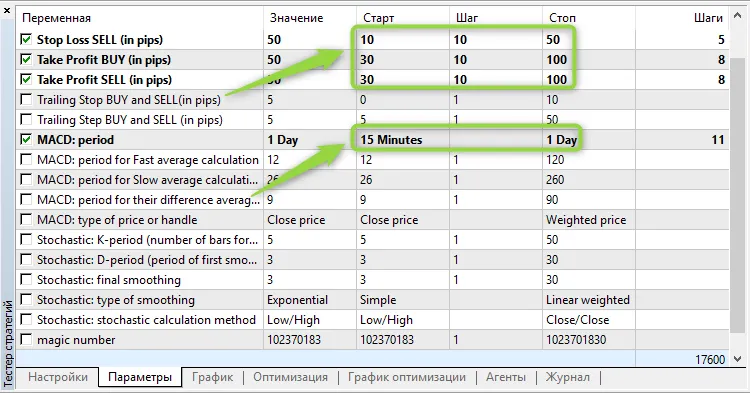
Idea by: Scriptor. MQL5 Code by: Vladimir Karputov. Introducing the MACD Stochastic 2, an Expert Advisor (EA) designed specifically for MetaTrader 5. This EA utilizes two powerful oscillators: the iMACD, which operates on an adjustable timeframe, and the iStochastic that functions on the current chart timeframe. The key principle is to ensure that the MACD timeframe is set higher than the timeframe displayed on your chart. Each trade can be finely tuned with individual stop loss and take profit settings for both BUY and SELL positions. Plus, the trailing stop is uniform across all trade types, giving you a streamlined approach to managing your positions. Input Parameters Lots - This defines the volume of your position (set manually). Stop Loss BUY (in pips) - Your designated stop loss for BUY trades. Stop Loss SELL (in pips) - Your stop loss for SELL trades. Take Profit BUY (in pips) - The take profit level for BUY positions. Take Profit SELL (in pips) - The take profit level for SELL positions. Trailing Stop BUY and SELL (in pips) - A single trailing stop for both BUY and SELL trades. Trailing Step BUY and SELL (in pips) - The interval for the trailing stop movement. //--- Indicator Inputs: MACD: Period - The overall period for the MACD indicator. MACD: Fast Average Period - Period for the calculation of the fast average. MACD: Slow Average Period - Period for the calculation of the slow average. MACD: Difference Averaging Period - Period for averaging the difference. MACD: Price Type or Handle - Select the type of price to use. Stochastic: K-Period - Number of bars used for calculation. Stochastic: D-Period - The first smoothing period for the stochastic indicator. Stochastic: Final Smoothing - The final smoothing setting. Stochastic: Type of Smoothing - Choose the smoothing method. Stochastic: Calculation Method - Method used for stochastic calculation. It’s crucial to optimize these inputs for each trading symbol and timeframe to get the best results. For example, an optimization range for AUDUSD on the M15 chart is recommended:

2018.07.09
Unlock Trading Success with Exp_Sinewave2_X2 for MetaTrader 5
MetaTrader5
Unlock Trading Success with Exp_Sinewave2_X2 for MetaTrader 5

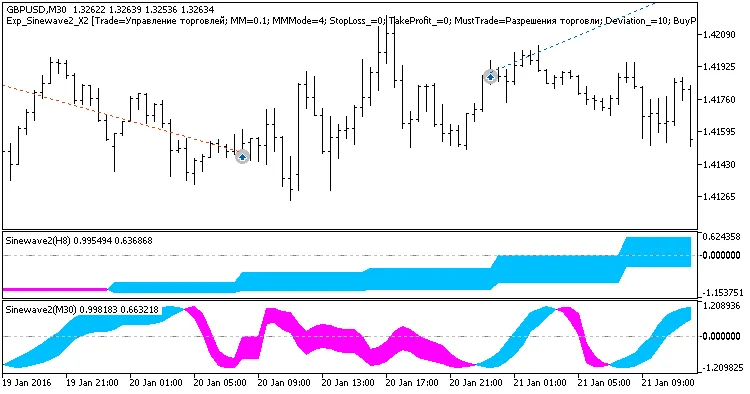
If you're looking to ride the waves of the market, the Exp_Sinewave2_X2 trading system is a fantastic tool to consider. This system is all about following trends, leveraging signals from two key indicators: Sinewave2. Here's how it works: The first indicator helps pinpoint the direction of the slow trend based on the alignment of its main and signal lines. Meanwhile, the second indicator signals the perfect time to open a trade—specifically when these lines cross or come into contact. For an entry signal to be triggered at the closure of a bar, two conditions need to be met: The fast and slow trend signals must align. The fast trend must change direction. EA Inputs //+-------------------------------------------------+ //| Input parameters of the EA indicator &nbsp;&nbsp;&nbsp;&nbsp;&nbsp;&nbsp;&nbsp;&nbsp;&nbsp;&nbsp; | //+-------------------------------------------------+ input string Trade="Trade management";&nbsp;&nbsp;&nbsp;&nbsp;//+============== TRADE MANAGEMENT ==============+&nbsp;&nbsp; input double MM=0.1;&nbsp;&nbsp;&nbsp;&nbsp;&nbsp;&nbsp;&nbsp;&nbsp;&nbsp;&nbsp;&nbsp;&nbsp;&nbsp;&nbsp; // Share of a deposit in a deal input MarginMode MMMode=LOT;&nbsp;&nbsp;&nbsp;&nbsp;&nbsp;&nbsp; // lot value determining method input uint&nbsp;&nbsp;&nbsp;&nbsp;StopLoss_=1000;&nbsp;&nbsp;&nbsp;&nbsp;&nbsp;&nbsp;// Stop Loss in points input uint&nbsp;&nbsp;&nbsp;&nbsp;TakeProfit_=2000;&nbsp;&nbsp;&nbsp;&nbsp;// Take Profit in points input string MustTrade="Trade permissions";&nbsp;&nbsp;&nbsp;&nbsp;//+============== TRADE PERMISSIONS ==============+&nbsp;&nbsp; input int&nbsp;&nbsp;&nbsp;&nbsp;Deviation_=10;&nbsp;&nbsp;&nbsp;&nbsp;&nbsp;&nbsp; // max. price deviation in points input bool&nbsp;&nbsp; BuyPosOpen=true;&nbsp;&nbsp;&nbsp;&nbsp; // Permission to enter long positions input bool&nbsp;&nbsp; SellPosOpen=true;&nbsp;&nbsp;&nbsp;&nbsp;// Permission to enter short positions //+-------------------------------------------------+ //| Input parameters of the filter indicator&nbsp;&nbsp;&nbsp;&nbsp;&nbsp;&nbsp;&nbsp;&nbsp;| //+-------------------------------------------------+ input string Filter="SLOW TREND PARAMETERS";&nbsp;&nbsp;&nbsp;&nbsp;//+============== TREND PARAMETERS ==============+&nbsp;&nbsp; input ENUM_TIMEFRAMES TimeFrame=PERIOD_H6;&nbsp;&nbsp;// 1 Chart period for the trend input uint Length=10;&nbsp;&nbsp;&nbsp;&nbsp;&nbsp;&nbsp;&nbsp;&nbsp;&nbsp;&nbsp;&nbsp;&nbsp;&nbsp;&nbsp;&nbsp;&nbsp;&nbsp;&nbsp;&nbsp;&nbsp;&nbsp;&nbsp; // indicator smoothing ratio input uint SignalBar=1;&nbsp;&nbsp;&nbsp;&nbsp;&nbsp;&nbsp;&nbsp;&nbsp;&nbsp;&nbsp;&nbsp;&nbsp;&nbsp;&nbsp;&nbsp;&nbsp;&nbsp;&nbsp;&nbsp;&nbsp; // bar number to receive the entry signal input bool&nbsp;&nbsp; BuyPosClose=true;&nbsp;&nbsp;&nbsp;&nbsp;&nbsp;&nbsp;&nbsp;&nbsp;&nbsp;&nbsp;&nbsp;&nbsp;&nbsp; // Permission to exit long positions by trend input bool&nbsp;&nbsp; SellPosClose=true;&nbsp;&nbsp;&nbsp;&nbsp;&nbsp;&nbsp;&nbsp;&nbsp;&nbsp;&nbsp;&nbsp;&nbsp; // Permission to exit short positions by trend //+-------------------------------------------------+ //| Input parameters of the entry indicator &nbsp;&nbsp;&nbsp;&nbsp;&nbsp;&nbsp;&nbsp;&nbsp;| //+-------------------------------------------------+ input string Input="ENTRY PARAMETERS";&nbsp;&nbsp;&nbsp;&nbsp;&nbsp;&nbsp; //+=============== ENTRY PARAMETERS ===============+&nbsp;&nbsp; input ENUM_TIMEFRAMES TimeFrame_=PERIOD_M30;&nbsp;&nbsp;//2 Chart period for entry input uint Length_=10&nbsp;&nbsp;&nbsp;&nbsp;&nbsp;&nbsp;&nbsp;&nbsp;&nbsp;&nbsp;&nbsp;&nbsp;&nbsp;&nbsp;&nbsp;&nbsp;&nbsp;&nbsp;&nbsp;&nbsp;&nbsp;&nbsp; // indicator period input uint SignalBar_=1;&nbsp;&nbsp;&nbsp;&nbsp;&nbsp;&nbsp;&nbsp;&nbsp;&nbsp;&nbsp;&nbsp;&nbsp;&nbsp;&nbsp;&nbsp;&nbsp;&nbsp;&nbsp;&nbsp;&nbsp; // bar number to receive an entry signal input bool&nbsp;&nbsp; BuyPosClose_=false;&nbsp;&nbsp;&nbsp;&nbsp;&nbsp;&nbsp;&nbsp;&nbsp;&nbsp;&nbsp;&nbsp;&nbsp; // Permission to exit long positions by signal input bool&nbsp;&nbsp; SellPosClose_=false;&nbsp;&nbsp;&nbsp;&nbsp;&nbsp;&nbsp;&nbsp;&nbsp;&nbsp;&nbsp;&nbsp;&nbsp; // Permission to exit short positions by signal //+-------------------------------------------------+ Just a heads up: the string variables you see are there to enhance the visual experience of the EA input parameters window. The indicators Sinewave2_Cloud_HTF included in the EA are solely for making trends easier to visualize during strategy testing and won't be active in other modes. To ensure that the EA runs smoothly, make sure the compiled indicator files, namely CyclePeriod.ex5, Sinewave2.ex5, and Sinewave2_Cloud_HTF.ex5, are located in the &lt;terminal_data_directory&gt;\MQL5\Indicators folder. Also, keep in mind that the TradeAlgorithms.mqh library file is essential for using Expert Advisors with brokers that offer a nonzero spread and allow for setting Stop Loss and Take Profit when opening positions. You can grab other versions of this library at Trade Algorithms. In the tests below, we utilized the default input parameters for the EA. Note that Stop Loss and Take Profit were not applied during testing. Testing results for GBPUSD over the year 2016, with a slow trend on H8 and entry by fast trend on M30: Fig. 2. Testing results chart

2018.06.19
Unlocking the Potential of the SilverTrend Duplex System for MetaTrader 5
MetaTrader5
Unlocking the Potential of the SilverTrend Duplex System for MetaTrader 5

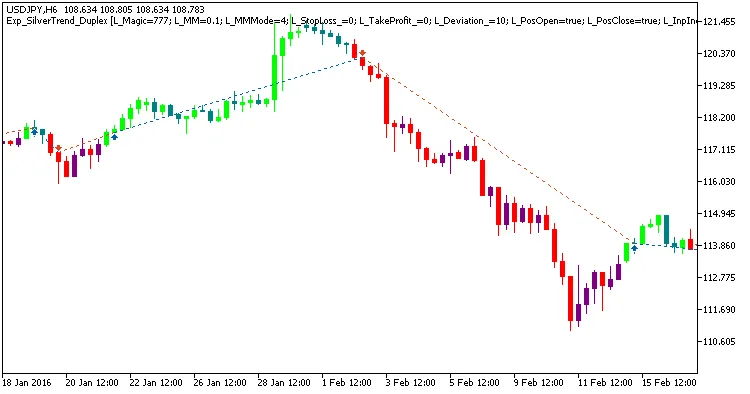
Hey there, fellow traders! Today, I’m diving into the SilverTrend Duplex System designed for MetaTrader 5. This nifty tool features two identical trading systems tailored for both long and short positions, making it incredibly versatile. Understanding the Setup What’s cool about this setup is that you can configure it in various ways all within one Expert Advisor (EA). The input parameters are neatly categorized into two groups: Long Position Parameters: These are indicated by parameters starting with “L”. Short Position Parameters: These use parameters beginning with “S”. //+----------------------------------------------+ //| Input parameters for long trades&nbsp;&nbsp;&nbsp;| //+----------------------------------------------+ magic numberinput uint&nbsp;&nbsp;&nbsp;&nbsp;L_Magic=777;&nbsp;&nbsp;&nbsp;&nbsp;&nbsp;&nbsp;&nbsp;&nbsp;&nbsp;&nbsp;//L magic number input double&nbsp;&nbsp;L_MM=0.1;&nbsp;&nbsp;&nbsp;&nbsp;&nbsp;&nbsp;&nbsp;&nbsp;&nbsp;&nbsp;&nbsp;&nbsp; //L share of deposit per trade input MarginMode L_MMMode=LOT;&nbsp;&nbsp;&nbsp;&nbsp;&nbsp;&nbsp;//L lot setting mode //+----------------------------------------------+ //| Input parameters for short trades&nbsp;&nbsp;| //+----------------------------------------------+ input uint&nbsp;&nbsp;&nbsp;&nbsp;S_Magic=555;&nbsp;&nbsp;&nbsp;&nbsp;&nbsp;&nbsp;&nbsp;&nbsp;&nbsp;&nbsp;//S magic number input double&nbsp;&nbsp;S_MM=0.1;&nbsp;&nbsp;&nbsp;&nbsp;&nbsp;&nbsp;&nbsp;&nbsp;&nbsp;&nbsp;&nbsp;&nbsp; //S share of deposit per trade input MarginMode S_MMMode=LOT;&nbsp;&nbsp;&nbsp;&nbsp;&nbsp;&nbsp;//S lot setting mode Each of these systems operates independently with its unique magic number. This is crucial, as real financial markets can be quite asymmetric. You often need different parameters for trading during uptrends versus downtrends. So, it’s best to start by testing one system at a time. Just flip the relevant switches to disable the other system. input bool&nbsp;&nbsp;&nbsp;&nbsp;L_PosOpen=true;&nbsp;&nbsp;&nbsp;&nbsp;&nbsp;&nbsp; //L permission to enter long positions input bool&nbsp;&nbsp;&nbsp;&nbsp;L_PosClose=true;&nbsp;&nbsp;&nbsp;&nbsp;&nbsp;&nbsp;//L permission to exit long positions Once you’ve got that sorted, you can repeat the process for the short trading system. Important Setup Notes To get your EA up and running, make sure the compiled SilverTrend.ex5 indicator is located in the &lt;terminal_data_directory&gt;\MQL5\Indicators folder. For the tests I ran below, I utilized the EA’s default input parameters, and I didn’t include Stop Loss or Take Profit during testing. Testing Results . Fig.1. Examples of deals on the chart with symmetrical settings. Here are the testing results for USDJPY on the H6 timeframe over the year 2016: Fig.2. Testing results chart. Fig.3. Examples of deals on the chart with non-symmetrical settings.

2018.06.19
Master Your Trades with the Exp_CandlesticksBW_Tm EA for MetaTrader 5
MetaTrader5
Master Your Trades with the Exp_CandlesticksBW_Tm EA for MetaTrader 5

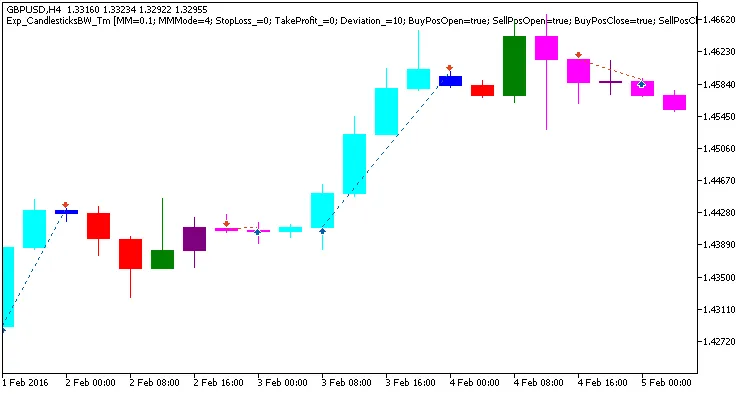
Hey fellow traders! Today, let's dive into the Exp_CandlesticksBW_Tm Expert Advisor designed specifically for MetaTrader 5. This EA harnesses the power of color changes in the CandlesticksBW indicator to help you pinpoint perfect trading moments. What’s cool about this EA is its ability to define strict trading time intervals. It generates a trade signal whenever a bar closes and the indicator's color shifts, signaling a potential trend change. Talk about catching the wave at the right time! With the input parameters, you can easily set your desired trading hours: input bool&nbsp;&nbsp; TimeTrade=true;&nbsp;&nbsp;&nbsp;&nbsp;&nbsp;&nbsp;// Enable trading during specified time intervals input HOURS&nbsp;&nbsp;StartH=ENUM_HOUR_0;&nbsp;&nbsp;// Trading start hour input MINUTS StartM=ENUM_MINUT_0; // Trading start minute input HOURS&nbsp;&nbsp;EndH=ENUM_HOUR_23;&nbsp;&nbsp; // Trading end hour input MINUTS EndM=ENUM_MINUT_59;&nbsp;&nbsp;// Trading end minute You can set specific hours and minutes for both the start and end of your trading session. By default, this EA will trade from midnight (0:00) to 23:59, closing all open positions at the end of the day. Now, if you set the start time to be later than the end time, the EA will automatically close any open trades the next day at the designated time. It’s all about keeping your trading schedule in check! To get this EA up and running, make sure the compiled CandlesticksBW.ex5 indicator file is placed in your &lt;terminal_data_directory&gt;\MQL5\Indicators folder. It’s essential for the EA to function properly. In the tests below, we used the EA's default settings. Notably, we didn’t employ Stop Loss or Take Profit orders, just to see how it performs under standard conditions. Fig.1. Example trades on the chart Let’s take a look at the testing results for GBPUSD on the H4 timeframe throughout 2016: Fig.2. Testing results chart

2018.06.19
Mastering Trading with Two MAs and One RSI in MetaTrader 5
MetaTrader5
Mastering Trading with Two MAs and One RSI in MetaTrader 5

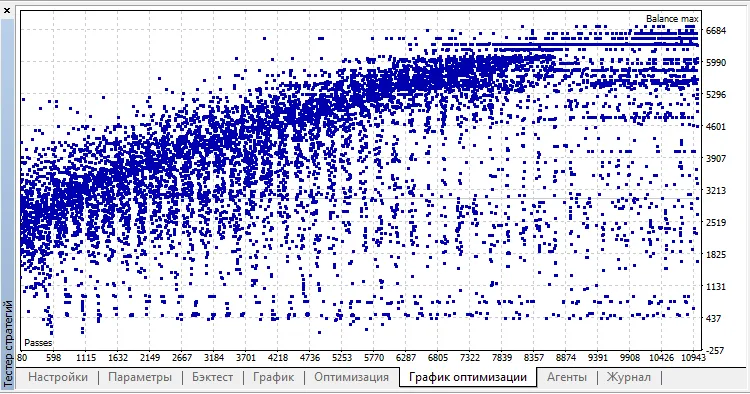
Idea by: Iurii Tokman. MQL5 code by: Vladimir Karputov. This Expert Advisor (EA) utilizes two indicators: the Moving Average (MA) and the Relative Strength Index (RSI). It waits for a new bar to form before making any trade decisions and will manage open positions by trailing stops and closing them at every tick as needed. Here’s a unique twist: the Slow MA's averaging period is double that of the Fast MA's, while the RSI period matches the Fast MA. This approach simplifies the optimization process by reducing the number of parameters you need to juggle. You can also customize the comparison signs in the signal identification formula. This is done by introducing specific variables like InpMoreLessBuy_1, InpMoreLessBuy_2, InpMoreLessBuy_3, InpMoreLessSell_1, InpMoreLessSell_2, and InpMoreLessSell_3. The modified formula looks like this: bool signal_buy=(!InpMoreLessBuy_1&nbsp;&nbsp;?&nbsp;&nbsp;ArrayFast[1]&lt;ArraySlow[1]: ArrayFast[1]&gt;ArraySlow[1]) &amp;&amp; &nbsp;&nbsp;&nbsp;&nbsp;&nbsp;&nbsp;&nbsp;&nbsp;&nbsp;&nbsp;&nbsp;&nbsp;&nbsp;&nbsp;&nbsp;&nbsp;&nbsp;&nbsp; (InpMoreLessBuy_2&nbsp;&nbsp; ?&nbsp;&nbsp;ArrayFast[0]&gt;ArraySlow[0]:&nbsp;&nbsp;ArrayFast[0]&lt;ArraySlow[0]) &amp;&amp; &nbsp;&nbsp;&nbsp;&nbsp;&nbsp;&nbsp;&nbsp;&nbsp;&nbsp;&nbsp;&nbsp;&nbsp;&nbsp;&nbsp;&nbsp;&nbsp;&nbsp;&nbsp; (InpMoreLessBuy_3&nbsp;&nbsp; ? RSI&gt;InpRSI_level_UP&nbsp;&nbsp;&nbsp;&nbsp;&nbsp;&nbsp;:&nbsp;&nbsp;RSI&lt;InpRSI_level_UP); &nbsp;&nbsp; bool signal_sell=(InpMoreLessSell_1 ? ArrayFast[1]&gt;ArraySlow[1]:&nbsp;&nbsp;ArrayFast[1]&lt;ArraySlow[1]) &amp;&amp; &nbsp;&nbsp;&nbsp;&nbsp;&nbsp;&nbsp;&nbsp;&nbsp;&nbsp;&nbsp;&nbsp;&nbsp;&nbsp;&nbsp;&nbsp;&nbsp;&nbsp;&nbsp;&nbsp;&nbsp;(!InpMoreLessSell_2? ArrayFast[0]&lt;ArraySlow[0]: ArrayFast[0]&gt;ArraySlow[0]) &amp;&amp; &nbsp;&nbsp;&nbsp;&nbsp;&nbsp;&nbsp;&nbsp;&nbsp;&nbsp;&nbsp;&nbsp;&nbsp;&nbsp;&nbsp;&nbsp;&nbsp;&nbsp;&nbsp;&nbsp;&nbsp;(!InpMoreLessSell_3?&nbsp;&nbsp;RSI&lt;InpRSI_level_DOWN&nbsp;&nbsp;&nbsp;&nbsp;: RSI&gt;InpRSI_level_DOWN); Input Parameters Moving Average Parameters: Fast: av. period - Averaging period for the "Fast" MA; Fast: horizontal shift - Horizontal shift for the "Fast" MA; Fast: price type - Price type for the "Fast" MA; Slow: horizontal shift - Horizontal shift for the "Slow" MA; Slow: price type - Price type for the "Slow" MA; Fast and Slow: smoothing type - Averaging type (applies to both "Fast" and "Slow"). RSI Parameters: RSI: price type - Price type for RSI; RSI: level UP - Upper level for RSI; RSI: level DOWN - Lower level for RSI. Trading Parameters: Stop Loss - Stop Loss (set to zero to disable); Take Profit - Take Profit (set to zero to disable); Trailing Stop - Trailing (set to zero to disable); Trailing Step - Trailing step; Lots - Permanent lot size (set Lots above zero and Risk to zero); Risk - Dynamic lot size (set Risk above zero and Lots to zero); Maximum number of positions in one direction - Limit for trades in one direction (set to zero to disable); Close all positions when profit is achieved - Close positions at profit (set to zero to disable); Close opposite positions - Close opposite positions (set to "false" to disable); Magic number - Unique identifier for the EA. This EA provides flexibility in setting up your indicator parameters while also allowing you to configure (or disable) Stop Loss, Take Profit, Trailing, and other trading variables. You can choose to trade with a fixed lot size or have the EA calculate the lot size dynamically based on your risk preference. Optimization Recommendations For optimal results, use the "OHLC on M1" mode, selecting a symbol and setting the timeframe to M15. Disable Stop Loss, Take Profit, and Trailing by setting them to zero, and limit the maximum number of positions in each direction to "1." Alternatively, you can use the provided Two MA one RSI M15 Start.set file for initial optimization parameters, located in your MQL5\Profiles\Tester\ folder. Set the optimization type to "Fast (genetic algorithm)" and target "Balance max" for optimization. For an efficient optimization experience, consider utilizing the MQL5 Cloud Network. For example, optimizing the USDJPY for the year 2017 using the cloud combined with my quad-core laptop took just: 2018.05.28 08:03:19.923 optimization done in 7 minutes 58 seconds And it only cost me $0.08.

2018.06.19
First Previous 15 16 17 18 19 20 21 22 23 24 25 Next Last