System Trading

Maximize Your Trading with Break Even Strategies in MetaTrader 4
MetaTrader4
Maximize Your Trading with Break Even Strategies in MetaTrader 4

Hey there, fellow traders! Today, I want to share some insights on a nifty little EA (Expert Advisor) designed to help you manage your trades more effectively, especially when it comes to break-even strategies. Understanding the Orders Count Function The real magic of this EA lies in its Orders Count Function. This function is crucial for keeping track of your active trades and ensuring you're making the most of your positions. int OrdersCounter() { int counter=0; // Count active orders for(int i=OrdersTotal()-1; i>=0; i--) { if(OrderSelect(i,SELECT_BY_POS)) if(OrderMagicNumber()==MagicNumber && OrderSymbol()==Symbol()) { // Check if order belongs to this EA //--- Check for Break Even status double XBreakeven = OrderType()==OP_BUY ? OrderStopLoss() >= OrderOpenPrice() : OrderStopLoss() <= OrderOpenPrice(); if(!XBreakeven) { counter++; // Count the position } } } return counter; } This function counts only the orders that have NOT reached a break-even point. Specifically, for buy orders, we check if the stop-loss is above or equal to the open price, and for sell orders, below the open price. In simple terms, we tally up all orders that haven’t been safeguarded by a break-even or trailing stop. double XBreakeven = OrderType()==OP_BUY ? OrderStopLoss() >= OrderOpenPrice() : OrderStopLoss() <= OrderOpenPrice(); if(!XBreakeven) // Check Break Even status This allows us to create a counter that helps us limit our maximum positions; in this case, we’ve set it to just one open order at a time. if(OrdersCounter()<MaximumOrders) So, every time a break-even occurs, this function ignores it. With only one position active in our example, it will return zero, enabling us to open another trade and keep the momentum going. Implementing the Break Even Function Now, this wouldn’t be possible without a dedicated break-even function. void BreakEvenFunction() { // Loop through orders for(int i=OrdersTotal()-1; i>=0; i--) { if(OrderSelect(i,SELECT_BY_POS)) if(OrderMagicNumber()==MagicNumber && OrderSymbol()==Symbol()) { // Check for buy orders double xHybrid = OrderType()==OP_BUY ? (Bid>OrderOpenPrice()+BreakevenPips*_Point && OrderStopLoss()<OrderOpenPrice()) : (Ask<OrderOpenPrice()-BreakevenPips*_Point && OrderStopLoss()>OrderOpenPrice()); // Check if we need to adjust the stop-loss if(xHybrid) { bool modify = OrderModify(OrderTicket(),OrderOpenPrice(),OrderOpenPrice(),OrderTakeProfit(),0,clrNONE); } } } So, what do you think? Ready to give it a shot? With this setup, you can manage your trades more effectively and stay ahead in the game!

2021.07.13

Mastering the Moving Average Breakout Strategy for MetaTrader 4
MetaTrader4
Mastering the Moving Average Breakout Strategy for MetaTrader 4

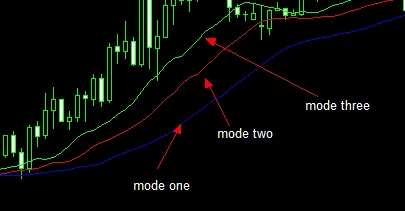
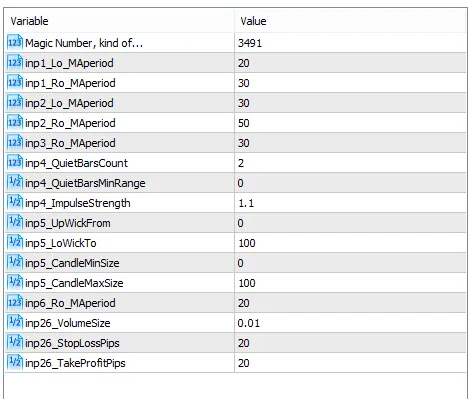
When it comes to trading, one of the most effective strategies is utilizing moving averages, especially in a breakout scenario. Let's dive into how you can set this up in MetaTrader 4! Understanding the Input Parameters For this strategy, I'll break down the inputs as if we're looking at a buy trade. The same principles apply for sell trades, just in reverse. Input 1: Set the 20 EMA to be greater than the 30 EMA. Input 2: Ensure the 30 EMA is greater than the 50 EMA. Input 3: The opening price of the breakout candle should be above the 30 EMA. Breaking Down the Breakout Settings Now, let’s discuss the breakout settings: Quiet Bar Count: This parameter determines how many bars back the breakout must be higher than. Quiet Bar Range: Measured in pips, this sets the minimum range of the quiet bars. Impulse Strength: A value of 1.1 means the breakout must be at least 10% above the highs of the quiet bar range. Optimization Step Value: Set this at 0.1, starting from 1 up to about 5. Wick Length and Breakout Size Next, we need to consider: Input 5: Wick length should be expressed as a percentage of the entire bar. Size in Pips: Set your minimum and maximum sizes for the breakout bar in pips. Final Touches for Your Strategy Lastly, ensure: The low of the breakout candle is equal to or lower than the 20 EMA. Volume lots, stop loss, and target in pips are set accordingly. By following these guidelines, you’ll be well on your way to mastering the moving average breakout strategy in MetaTrader 4. Happy trading!   

2021.07.03
Mastering Risk Management: Dual Stop Loss for MetaTrader 4
MetaTrader4
Mastering Risk Management: Dual Stop Loss for MetaTrader 4

When it comes to trading, one of the first things on a trader's mind should be money management. A solid strategy for managing risk and capital is crucial, and using a well-defined margin loss for your trades is one effective approach. Many traders often believe that once they set a Stop Loss (or Take Profit), the broker will automatically close their position at that specific price. However, that’s not quite the whole story. It really depends on the type of account you have with your broker. For those trading on ECN accounts, when you set a Stop Loss or Take Profit, the broker will close your position at the first available price once the market hits that limit. If you’ve ever noticed that some of your orders were closed at a different price than you set, you might be dealing with slippage. Moreover, some traders think it’s better not to reveal their exact loss limit to the broker. This is where the concept of the Hidden Stop Loss comes into play. This innovative tool is designed specifically for those who want to keep their loss limits under wraps. Now, you can utilize both Hidden and Regular Stop Losses simultaneously. Setting a Regular Stop Loss for your trades is as straightforward as ever, whether you’re using automated strategies or trading manually. Simply run this robot on a new chart (any chart will do) to manage all your positions effectively. The input value you set determines the distance between your Hidden and Regular Stop Losses, so keep in mind that this value is measured in points, not pips.

2021.04.23
Boost Your Scalping Strategy with Scalper Assistant v1.0 for MetaTrader 4
MetaTrader4
Boost Your Scalping Strategy with Scalper Assistant v1.0 for MetaTrader 4

Why Scalping is a Go-To Strategy for Traders Scalping has become one of the go-to strategies for traders around the globe, and let’s be honest, most of us have dipped our toes into it at least once. With scalpers typically executing over 10 trades a day, keeping track of Stop Loss and Take Profit levels can get a bit tedious. If you’re juggling multiple financial instruments, trying to hit that Break Even point can feel like a juggling act prone to mistakes. Picture this: you’re trading on lower time frames across various currency pairs, and just as you step away for a quick cuppa, the market makes a sharp move, and you miss your Break Even opportunity. It’s a trader’s nightmare, right? The thought of a promising trade turning into a loss can be quite unsettling. Meet Scalper Assistant v1.0 This is where the Scalper Assistant comes into play! This handy tool takes the guesswork out of setting your Stop Loss and Take Profit levels. As soon as you open a trade, the assistant automatically applies the initial values. If the price shifts favorably, it can seamlessly push your trade to Risk-Free or Break-Even status. Key Features of Scalper Assistant Customizable Settings: You can easily adjust the parameters to fit your trading style. Point-Based Inputs: All input values are measured in POINT, not PIP, making it straightforward to track your trades. Break Even Management: Specify how many points away from your entry point a trade needs to be before the EA moves it to Break Even. Stop Loss Distance: Set how far your Stop Loss should be from your entry point. How to Use Scalper Assistant To get started, here are a couple of parameters you might want to set: extern double WhenToMoveToBE: This lets you determine how many points the price should be away from the order entry point for the EA to move the order to Break Even. extern double BEAmount: This allows you to set the distance of the Stop Loss from the entry point. With Scalper Assistant v1.0, you can take your scalping game to the next level without the hassle of manual management. Say goodbye to missed opportunities, and hello to a more efficient trading experience!

2021.04.23
Master Your Trading Hours with the Auto Trading Scheduler for MT4 and MT5
MetaTrader4
Master Your Trading Hours with the Auto Trading Scheduler for MT4 and MT5

If you're a trader looking to take control of your trading sessions, the Auto Trading Scheduler for MetaTrader 4 and 5 is a game-changer. Developed by EarnForex.com, this handy tool allows you to manage exactly when your automated trading kicks in or takes a break. With the Auto Trading Scheduler, you can easily set specific time slots for each day of the week. Whether you’re a night owl or an early bird, this feature ensures that your automated trading will only operate during the periods you choose. No more worrying about trades being executed while you're catching some Z's! Worried about open positions when the trading time is up? No problem! The scheduler can also close all active trades and pending orders before it switches off the auto trading feature. This means you can rest easy knowing your positions are managed properly. Key Features of the Auto Trading Scheduler Customizable Trading Hours: Set specific time periods for trading each day of the week. Automatic Trade Management: Close all trades and pending orders before disabling auto trading. User-Friendly Interface: Easy to navigate and set up without hassle. In short, the Auto Trading Scheduler is perfect for traders who want to maintain control over their trading strategies while still enjoying the benefits of automation. So why not give it a try? It might just be the tool you need to take your trading to the next level!

2021.04.01
Mastering Order Management in MetaTrader 4: Cut Loss or Take Profit with Ease
MetaTrader4
Mastering Order Management in MetaTrader 4: Cut Loss or Take Profit with Ease

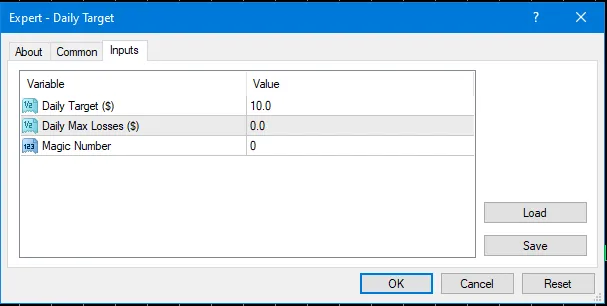
Using the EA for Effective Trade Management Hey fellow traders! Today, we’re diving into an Expert Advisor (EA) that serves as a handy tool for managing your trades in MetaTrader 4. Whether you’re looking to lock in profits or minimize losses, this EA has got your back. Key Inputs for Your EA To get started, you’ll need to configure three essential inputs: Profit Target: This is the amount you aim to gain from your trades. Cut Loss: This is the threshold at which you’ll exit a losing trade to prevent further losses. Magic Number: A unique identifier for your trades that allows the EA to manage them effectively. extern double inTargetProfitMoney = 10; // Target Profit ($) extern double inCutLossMoney = 0.0; // Cut Loss ($) extern int inMagicNumber = 0; // Magic Number Initializing the EA When you run this EA, it first calls the OnInit() function where it checks your inputs and initializes the necessary variables: int OnInit() { //--- if (inTargetProfitMoney = 0; i--) { if (OrderSelect(i, SELECT_BY_POS, MODE_TRADES)) { if (OrderMagicNumber() == inMagicNumber) { tFloating += OrderProfit() + OrderCommission() + OrderSwap(); } } } if (tFloating >= inTargetProfitMoney || (tFloating = 0; i--) { if (OrderSelect(i, SELECT_BY_POS, MODE_TRADES)) { if (OrderMagicNumber() == inMagicNumber && (OrderType() == OP_BUY || OrderType() == OP_SELL)) { priceClose = (OrderType() == OP_BUY) ? MarketInfo(OrderSymbol(), MODE_BID) : MarketInfo(OrderSymbol(), MODE_ASK); if (!OrderClose(OrderTicket(), OrderLots(), priceClose, slippage, clrGold)) { Print("WARNING: Close Failed"); } } } } } Join the Community! For more in-depth information and to share your MQL4 coding experiences, feel free to join our Telegram group. We’d love to have you on board!

2021.03.31
First Previous 1 2 3 4 5 6 7 8 9 10 11 Next Last