
Introducing Exp5-VirtualTradePad for MetaTrader 5
Unlock the Power of the Best Control Panel in MQL5 Contest!
| Pos Tab - Position Management | Ord Tab - Order Management |
|---|---|
|
|
| INFO Tab - Symbol Information | Ind Tab - Signals Information | Func Tab - Functions |
|---|---|---|
 |  |  |
What Can You Do with This Control Panel?
- Buy, Sell, Buy Stop, Buy Limit, Sell Stop, Sell Limit, Close, Delete, Modify, Trailing Stop
Installation Steps:
To begin with, simply copy the archive file into your client terminal folder and extract all the files.
Launching the EA:
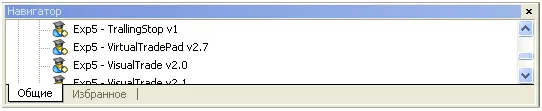
Locate the Exp5-VirtualTradePad Expert Advisor in your "Navigator" window:
Client Terminal Settings:
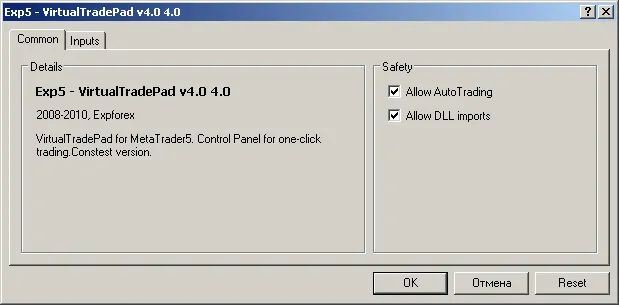
Input Parameters:
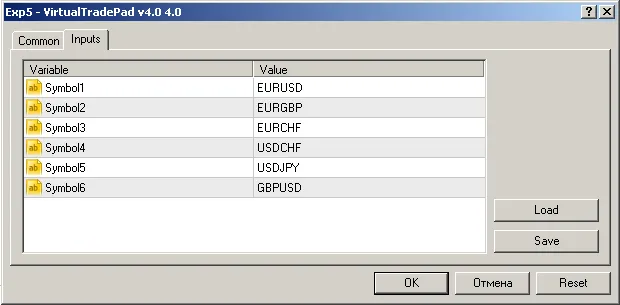
You can specify a list of trading symbols (up to 6) in the input parameters of the EA.
The Control Panel:
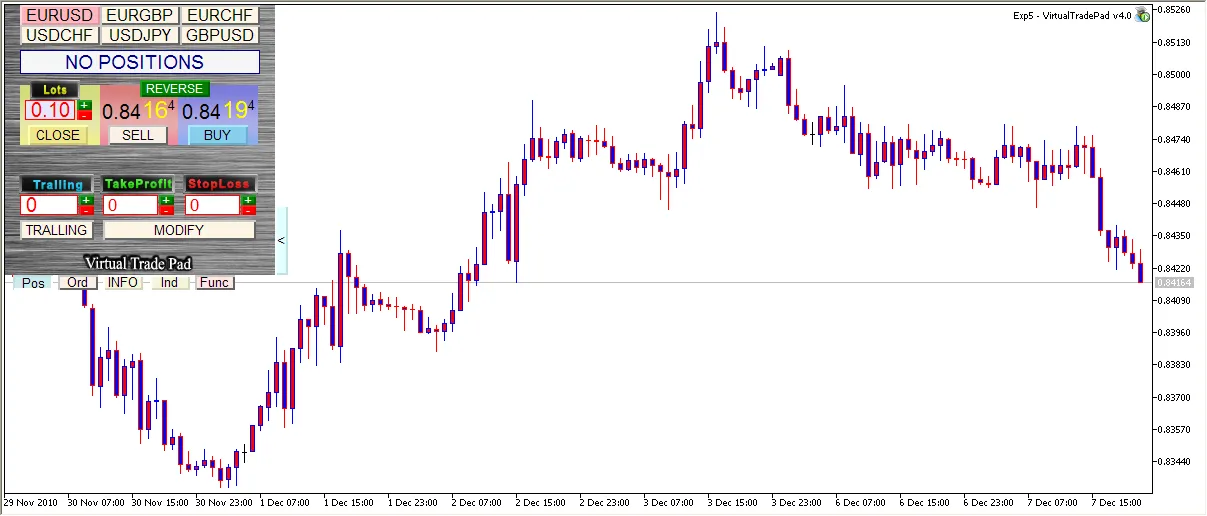
Control Tabs Overview:
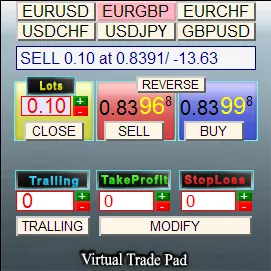
POSITIONS
Manage Your Positions Here
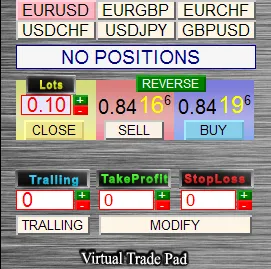
- Lots - Set your trading volume (in lots). Adjust the volume using the +/- buttons; it won’t let you go below the minimum allowed size.
- BUY - Place a Buy order (at the Ask price).
- SELL - Place a Sell order (at the Bid price).
- REVERSE - Reverse your position without setting Stop levels.
- CLOSE - Close all positions.
- Take Profit / Stop Loss - Set your Take Profit and Stop Loss levels.
- The values can be adjusted using the button, but they can’t go lower than the minimum stops set by the server.
When the Take Profit/Stop Loss is set to 0, it’s highlighted in red. If it's not zero, it appears green.
MODIFY - Quickly modify position parameters (set SL/TP) or reset them.
Trailing - Enable Trailing Stop for your position.
Toggle the Trailing button to turn it on or off. A non-zero Trailing Stop appears in green.
Symbol Selection:
 - Symbol selection panel
  - Position information
  - Position direction, volume, opening price, and profit.
Red indicates a short position, while green represents a long position.
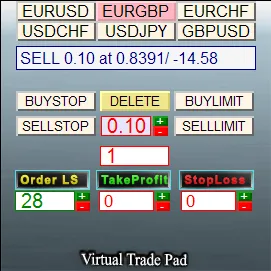
ORDERS Tab
Manage Your Pending Orders Here
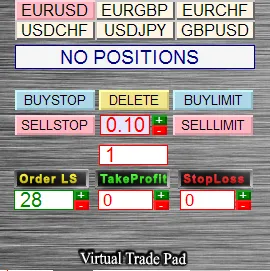
Order Types:
- Order LS - Lowest allowed stop for pending orders (in points).
- Take Profit - Take Profit level for pending orders (in points).
- Stop Loss - Stop Loss for pending orders.
- Lots - Trade volume for pending orders.
- BUYSTOP, SELLSTOP, BUYLIMIT, SELLLIMIT
- DELETE - Deletes all pending orders for the current symbol.
- GRID - For grid strategies, you can specify a value greater than 1 to place a grid of orders at set distances.
INFO Tab
Full Symbol Information at a Glance
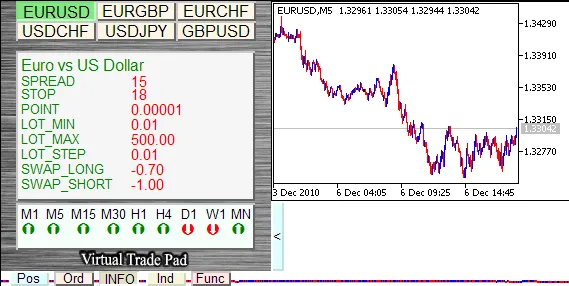
- Spread, Minimal Stop level, Point size, Minimal and Maximal trade volume, Lot step, Swap for long and short positions.
- Candle Type Information:
- Green if the current price is higher than the opening price.
- Red if the current price is lower than the opening price.
- Click the timeframe button to show the chart on the right side (select your symbol).
Ind Tab
Indicator Status at Your Fingertips
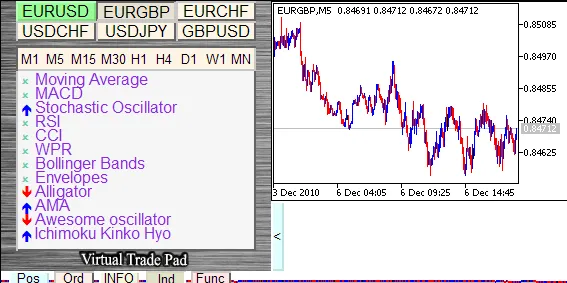
- Blue arrow indicates a buy signal.
- Red arrow indicates a sell signal.
- Click the timeframe button to view the chart of the symbol on the specified timeframe.
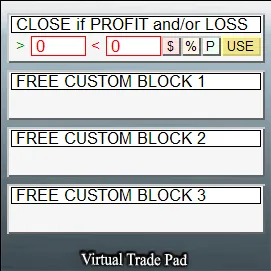
Func Tab
Explore Useful Functions Here
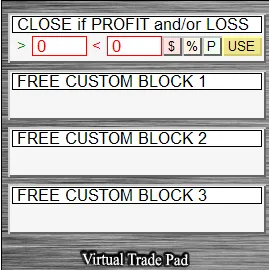
This tab allows you to close or delete all positions/orders based on the specified deposit level (in Percent, USD, or Points).
Example: If you want to close all positions but maintain profit, just set the From and To levels, specify the closing rules, and hit the USE button. It will close all positions when the parameters exceed the range.
- >0 - If higher than (0 - not used).
- <0 - If lower than (the parameter value can be negative) (0 - not used).
- $ - Calculate in USD.
- % - Calculate in % of Balance.
- P - Calculate in Points.
- USE - Enable this option.
Other Cool Features:
- When a position is successfully opened, you'll hear a sound similar to the one from the client terminal.
- If there’s an error, you’ll hear an error sound.
- You can’t set the stop level to 0 or lower than the minimum allowed stops on the server.
- There’s a button for minimizing the panel.
References:
Here are some resources I used while preparing the VirtualTradePad Control Panel:
- ChartinChart Expert Advisor (Standard EA of MetaTrader 5)
- 20 Trade Signals in MQL5 (trading tactics from the IND Tab)
- Migrating from MQL4 to MQL5
- A set of functions from the "Expert Advisor template" created for internal use.




Comments 0