
I. Introduction
If you're trading on MetaTrader 4, you know the importance of setting a reliable Take Profit (TP) and Stop Loss (SL). While you can certainly set fixed TP and SL levels, sometimes we want to utilize more dynamic closing strategies—like support and resistance levels or trendlines. However, manually adjusting these levels can become a real chore. That's where Orders Guardian comes in. This handy Expert Advisor (EA) takes some of the pressure off your shoulders, allowing you to step away from your computer after placing your orders. With its simple closing strategies—utilizing moving averages, envelopes, trendlines, channels, and Parabolic SAR—it automatically adjusts your TP and SL as prices interact with your chosen indicators.
II. Parameters
| Variables | Type | Default Values | Comments |
|---|---|---|---|
| Orders | string | "*" | Specify the order tickets you want to monitor. "*" means it will track all open orders of the current symbol. You can also list specific tickets separated by spaces or commas. All orders in the list must be in the same direction for the EA to function properly. |
| TP_Method | int | 2 | Choose your TP strategy: 1 for Envelopes or Moving Average (MA), 2 for line objects, or any other value for no TP. The EA will look for line objects in your chart—such as Trendlines or Equidistant Channels. |
| SL_Method | int | 2 | Select your SL strategy: 1 for Envelopes or MA, 2 for line objects, 3 for Parabolic SAR, or any other value for no SL. |
| ShowLines | bool | true | Decide whether to display the TP and SL lines on your chart. |
| TP_LineColor | color | LimeGreen | Set the color for your TP price line. |
| TP_TimeFrame | int | 0 | Timeframe for calculating the TP price; 0 means using the current chart timeframe. |
| TP_MA_Period | int | 34 | Period for TP MA calculation. |
| TP_MA_Method | int | MODE_EMA | Method for calculating the TP MA. |
| TP_MA_Price | int | PRICE_CLOSE | Price type used for the TP MA. |
| TP_Env_Dev | double | 0.2 | Percent deviation of the TP envelopes from the MA. |
| TP_Shift | int | 0 | Shift for the TP MA, offsetting the MA line concerning the chart timeframe. |
| SL_LineColor | color | Red | Color for your SL price line. |
| SL_TimeFrame | int | 0 | Timeframe for calculating the SL price. |
| SL_MA_Period | int | 34 | Period for SL MA calculation. |
| SL_MA_Method | int | MODE_EMA | Method for calculating the SL MA. |
| SL_MA_Price | int | PRICE_CLOSE | Price type used for the SL MA. |
| SL_Env_Dev | double | 0.2 | Percent deviation of SL envelopes from the MA. |
| SL_SARStep | double | 0.02 | Increment for Parabolic SAR. |
| SL_SARMax | double | 0.5 | Maximum value for Parabolic SAR. |
| SL_Shift | int | 0 | Shift for the SL MA. |
III. About Line Objects
- If there are multiple line objects on the chart, for a long order, the EA will look for the nearest line above the current price as the TP trendline and the nearest one below as the SL trendline.
- While the EA is running, you can adjust the position of your trendlines, and it will automatically recalculate the new coordinates.
- The EA searches for the TP and SL trendlines right after it starts. Once set, these lines won't change unless you restart the EA.
- Changing the period of the attached chart will cause the EA to restart and re-search for TP and SL objects.
- If you delete the current TP or SL objects, the EA will look for new ones.
- For equidistant channels, the upper line acts as the TP line and the lower line as the SL for long orders, and vice versa for short orders.
- Avoid using angle trendlines, as their position can fluctuate with price changes.
IV. Important Notes
- When using the Parabolic SAR for SL, the variable SL_Shift cannot be set to zero—it must be greater than or equal to one.
- The TP and SL prices displayed in the chart are based on bid prices, excluding any spread calculations.
V. How to Use Orders Guardian
- Open your orders.
- Add indicators or trendlines to your chart as TP or SL objects.
- Attach Orders Guardian to your chart, set the parameters to match your indicators (it’s recommended to set ShowLines to true), and leave "Allow live trading" unchecked. Click OK, and you should see a cross in the top-right corner of the chart.
- Click the "Expert Advisors" button; the cross will change to an unhappy face, indicating that the EA is running but not closing any orders.
- If the TP and SL price lines on the chart match your expectations, press F7, check the box for "Allow live trading," and the unhappy face will turn into a smiling one, meaning the EA is now monitoring your orders.
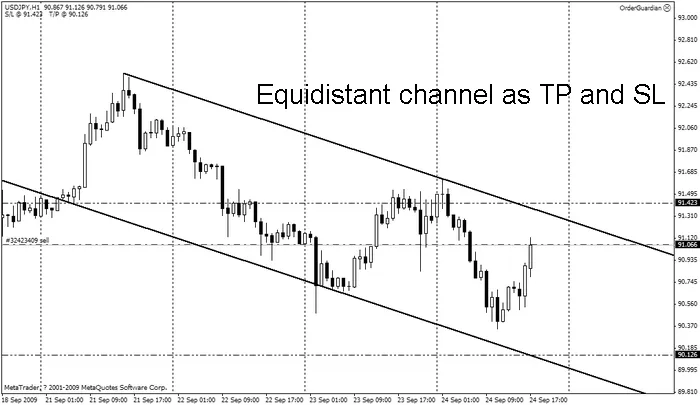
Equidistant Channels as TP and SL
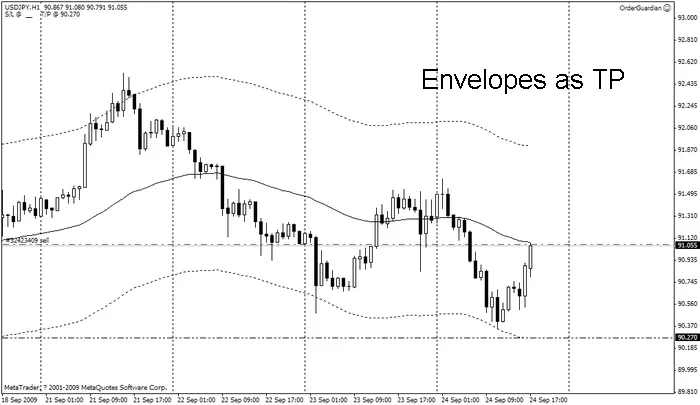
Envelopes as TP
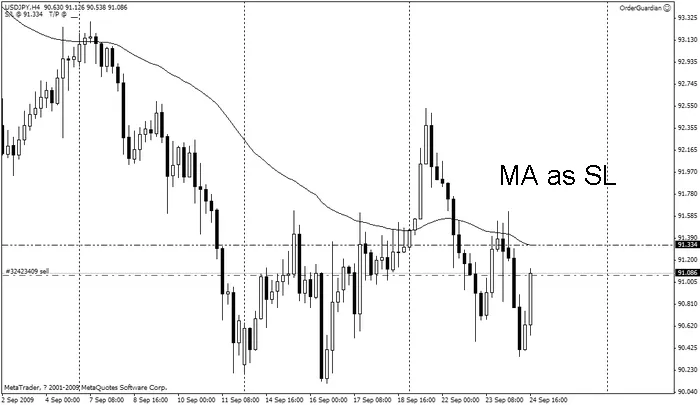
Moving Average as SL
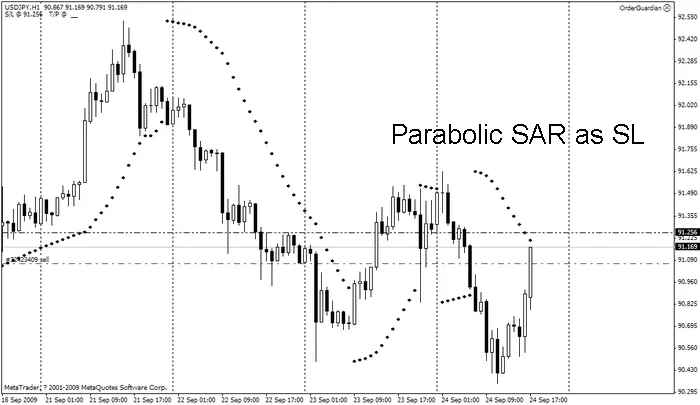
Parabolic SAR as SL
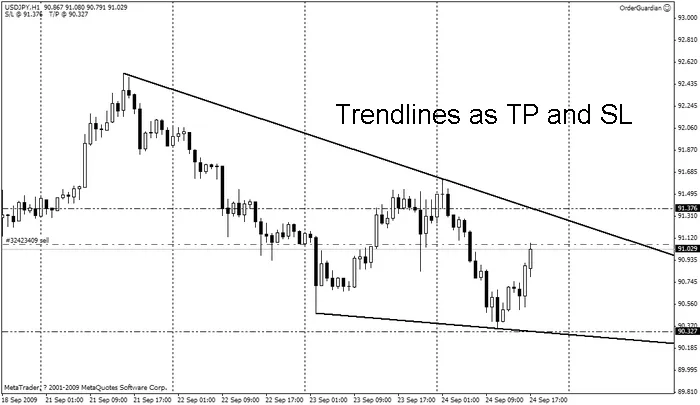
Trendline as TP and SL




Comments 0