
Introducing the Condition Scanner (CS)
If you're tired of manually sifting through charts to find your trading conditions, the Condition Scanner is here to save the day! This innovative tool allows you to create custom conditions, write the necessary code, and then seamlessly integrate it into your MetaTrader 4 platform.
Here’s the lowdown on how it works:
- Imagine a set of conditions you want to track.
- Write the code to test these conditions.
- Embed your code into the provided templates and make a few simple tweaks.
With this setup, you'll get a couple of handy indicators: one that highlights where your conditions have occurred on the current chart, and another that shows a panel indicating whether your conditions are happening across multiple instruments and timeframes. This means no more tedious manual scans—just focus on what really matters!
Installing the Condition Scanner
Getting started is a breeze:
- Copy the contents of the four folders (Indicators, Include, Templates, Profiles) into their respective folders in your MetaTrader installation.
- There’s nothing harmful here—just some indicators and related files!
- Exit and then re-launch your MetaTrader platform.
Demonstrating the Scanner's Capabilities
Let’s dive into an example! We're going to use the Power Pro strategy (identifier = "PP") made popular by Russ Horn. This is a band breakout strategy where the upper limit is an EMA of highs and the lower limit is an EMA of lows. Just to clarify, I’m not endorsing this strategy—it's simply a demonstration of what you can achieve with the scanner.
Switch your profile to cspp. The first display might take a few seconds, but it won't hog your computer resources afterward.
You should see a screen like this:
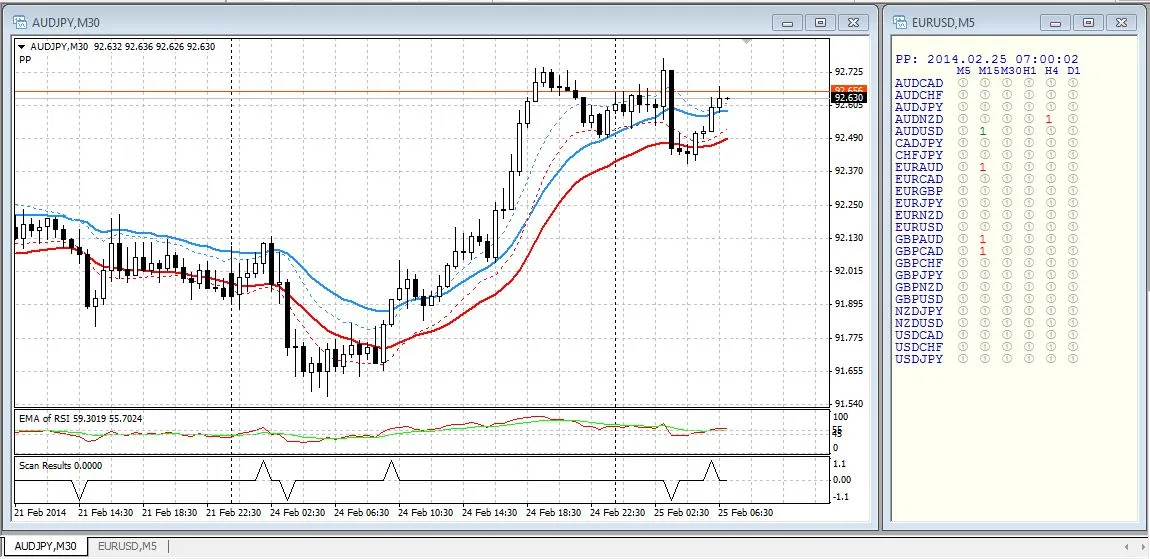
This example features:
- An on-chart indicator with four plots
- A separate-window indicator showing EMA of RSI
- A separate-window indicator indicating where conditions for long or short trades occurred historically
- A panel indicator revealing current occurrences of the same conditions across various pairs and timeframes
Understanding the Code
Here’s a peek at the code involved:
- Utils.mqh: Contains utility functions usable in any indicator or EA.
- cs_Chart.mqh: Houses most of the code for the current-chart indicator.
- cs_Panel.mqh: Contains the code for the panel display indicator.
Power Pro Strategy Code Breakdown
- csPP_0.mq4: Displays the relevant indicators for the chart window.
- csPP_1.mq4: Shows the relevant indicators in a separate window.
- csPP_Chart.mq4: Displays historical events on the current chart.
- csPP_Panel.mq4: Shows the current situation across all pairs and timeframes.
- csPP_GetBarFlag.mqh: Determines whether there's a condition of interest at a specific bar.
Exploring the MAX Strategy
I’ve also included a simpler example, identified as MAX, which focuses on moving average crossovers. Here’s a breakdown:
- csMAX_0.mq4: A custom indicator displaying two moving averages.
- No equivalent for csMAX_1 since it doesn’t need a separate-window display.
- csMAX_Chart.mq4, csMAX_Panel.mq4, csMAX_GetBarFlag.mqh: Functions similarly to the Power Pro strategy.
Coding New Conditions
Ready to code a new condition? Here’s my process:
- Decide on a strategy identifier (e.g., PB for pin bars).
- Set up your window as shown in the demonstration, removing any existing indicators.
- If your new scan requires on-chart indicators, use csXXXX_0.mq4 as a template and save it as csPB_0.mq4.
- For separate window indicators, do the same with csPB_1.mq4.
Custom indicators allow for easy adjustments without having to dig through your code later on. Save your template for the left-hand chart as csPB-CHART.tpl, and similarly for the right-hand chart as csPB_Panel.tpl.
Final Thoughts
Remember, when using the iCustom function, ensure that indicator names match exactly—no warning if an indicator doesn’t exist!
Also, there might be a bug where the panel indicator's initial results don’t align with the chart. If you encounter this, try changing the timescale on the panel to trigger a recalculation.
Happy trading and coding!




Comments 0