
Hey fellow traders! If you're looking to streamline your trading process, let me introduce you to the Multi Forex Scanner. This nifty indicator for MetaTrader 4 (MT4) was designed with one goal in mind: to help you save precious time when scouting for the best currency pairs to trade.
Once installed, the Multi Forex Scanner will display a list of currencies right in your Market Watch window. Want to keep your focus on specific pairs? No problem! You can easily hide any currency from the list by adjusting your Market Watch settings.
Check it out, and I hope it becomes a valuable tool in your trading arsenal!

Settings to Customize Your Scanner
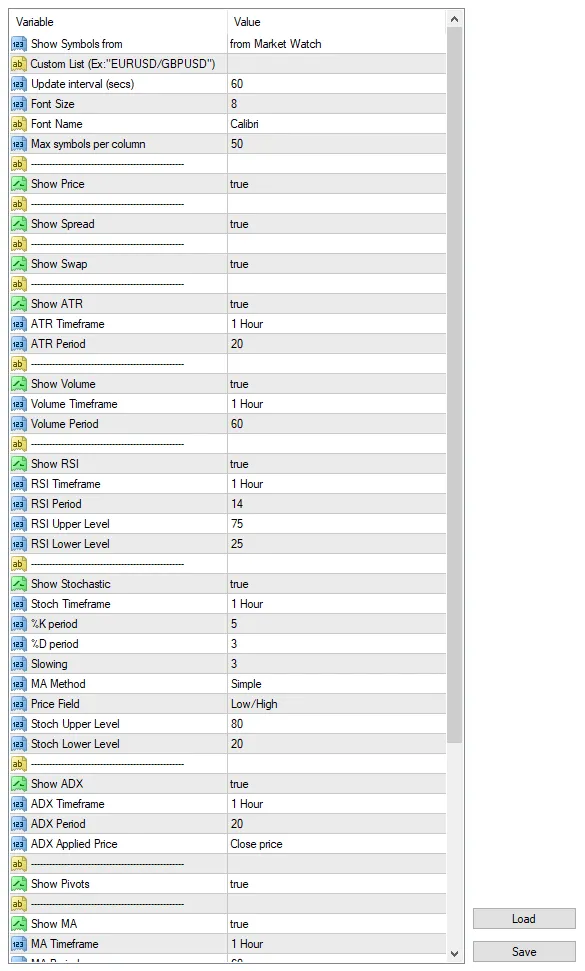
- Show Symbols from: Select which symbols you want to display, whether from your Market Watch or a custom list.
- Custom List: Enter the symbols you want to display, separated by slashes (e.g., "EURUSD/GBPUSD").
- Update Interval (secs): Set how often you want the indicator to refresh. This is key to keeping performance smooth.
- Font Size: Choose the text size displayed on your screen.
- Font Name: Pick the font style for your displayed text.
- Show Price: Toggle the visibility of the Price column, which shows the current Bid price.
- Show Spread: Control whether the Spread column is visible, indicating the currency spread.
- Show ATR: Manage the visibility of the ATR column, which shows the percentage of the current bar related to the ATR calculation.
- ATR Timeframe: Define which timeframe to use for the ATR calculations.
- ATR Period: Set the period for the ATR calculation.
- Show Volume: Decide if you want to see the Volume column, which shows the current bar volume compared to the average of previous volumes.
- Volume Timeframe: Choose the timeframe for calculating average volume.
- Volume Period: Set the period for average volume calculations.
- Show RSI: Control the visibility of the RSI column, which indicates the RSI value for the current bar. If it's overbought, the data appears green; if oversold, it's red.
- RSI Timeframe: Specify the timeframe for your RSI calculations.
- RSI Period: Set the period for RSI calculations.
- RSI Upper Level: Define the upper RSI level to spot overbought conditions.
- RSI Lower Level: Define the lower RSI level to identify oversold conditions.
- Show Stochastic: Control visibility for the Stochastic column, showing the current Stochastic value.
- Stoch Timeframe: Specify the timeframe for Stochastic calculations.
- %K Period: Set the %K parameter for Stochastic calculations.
- %D Period: Define the %D parameter for Stochastic calculations.
- Slowing: Set the Slowing parameter for Stochastic calculations.
- MA Method: Choose the Moving Average method for Stochastic calculations.
- Price Field: Set the Price Field parameter for Stochastic calculations.
- Stoch Upper Level: Define the upper level for Stochastic to detect overbought conditions.
- Stoch Lower Level: Define the lower level for Stochastic to detect oversold conditions.
- Show ADX: Control visibility for the ADX column, interpreting ADX values based on levels 25, 50, and 75.
- ADX Timeframe: Choose the timeframe for ADX calculations.
- ADX Period: Set the period for ADX calculations.
- ADX Applied Price: Specify the price type used for ADX calculations.
- Show Pivots: Toggle visibility for the Pivots column, showing the price's relation to the nearest pivot level.
- Show MA: Control the visibility of the MA column, which indicates if the price is above or below the configured moving average.
- MA Timeframe: Select the timeframe for MA calculations.
- MA Period: Set the period for MA calculations.
- MA Method: Choose the method for MA calculations.
- MA Applied Price: Specify the price type used for MA calculations.
- Show MA Cross: Control visibility for the MA cross column, indicating if two MAs have crossed.
- Fast MA Timeframe: Set the timeframe for Fast MA calculations.
- Fast MA Period: Define the period for Fast MA calculations.
- Fast MA Method: Choose the method for Fast MA calculations.
- Fast MA Applied Price: Specify the price type used for Fast MA calculations.
- Slow MA Timeframe: Set the timeframe for Slow MA calculations.
- Slow MA Period: Define the period for Slow MA calculations.
- Slow MA Method: Choose the method for Slow MA calculations.
- Slow MA Applied Price: Specify the price type used for Slow MA calculations.




Comments 0