
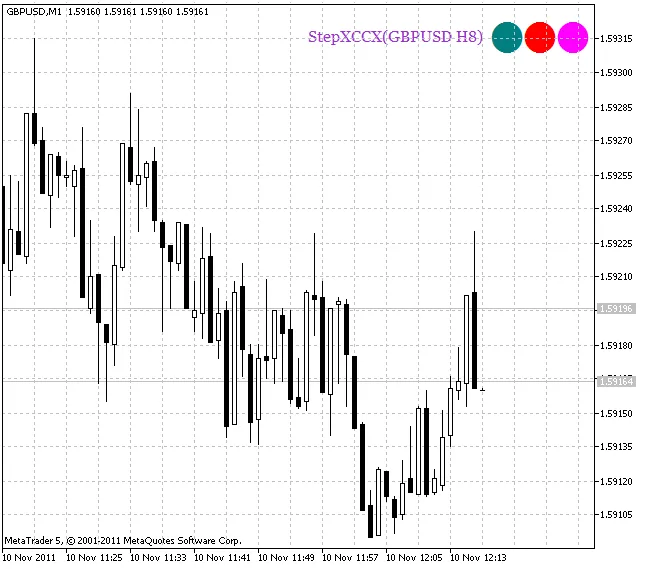
Looking to sharpen your trading edge? The StepXCCX_HTF_Signal indicator is here to help you identify trend directions based on the last three bars from the ColorStepXCCX indicator. This powerful tool showcases trend direction using three graphical objects, each color-coded for easy interpretation.
What sets this indicator apart is its four-color system. When prices are in the overbought zone, determined by the Up1Level input parameter, you'll see ascending trend signals highlighted in lime. Outside of this zone, ascending signals will display in green. Conversely, in the oversold zone defined by the Dn1Level input parameter, descending trends are marked in magenta, while signals outside of this area are shown in red.
Input Parameters of the Indicator:
You can customize the timeframe and financial asset for your indicator calculations using the relevant input parameters. If the Symbol_ (financial asset) parameter is left empty, the indicator will default to the current chart symbol.
All input parameters can be categorized into two main groups:
- The input parameters for the ColorStepXCCX indicator can be found in its description:
//+-----------------------------------+
//|  Indicator input parameters       |
//+-----------------------------------+
input string Symbol_="";                      // Financial asset
input ENUM_TIMEFRAMES Timeframe=PERIOD_H6;     // Indicator timeframe for the indicator calculation
input Smooth_Method DSmoothMethod=MODE_JJMA; // Price smoothing method
input int DPeriod=30;                        // Moving average period
input int DPhase=100;                         // Smoothing parameter
input Smooth_Method MSmoothMethod=MODE_T3;   // Deviation smoothing method
input int MPeriod=7;                         // Average deviation period
input int MPhase=15;                         // Deviation smoothing parameter
input APPLIED_PRICE IPC=PRICE_TYPICAL;        // Applied price
input int StepSizeFast=5;                // Fast step
input int StepSizeSlow=30;                   // Slow step
- Input parameters for the StepXCCX_HTF_Signal indicator which are crucial for visualization:
//---- indicator display settings
input string Symbols_Sirname="StepXCCX_";     // Indicator labels name
input int   Up1Level=+50;                    // Overbought level
input int   Dn1Level=-50;                    // Oversold level
input color Up1Symbol_Color=Lime;            // Maximum growth symbol color
input color UpSymbol_Color=Teal;             // Growth symbol color
input color DnSymbol_Color=Red;              // Downfall symbol color
input color Dn1Symbol_Color=Magenta;         // Maximum downfall symbol color
input color IndName_Color=DarkOrchid;        // Indicator name color
input uint Symbols_Size=40                  // Signal symbols size
input uint Font_Size=12                     // Indicator name font size
input int X_3=110                           // Horizontal shift of the name
input int Y_3=17                            // Vertical shift of the name
input bool ShowIndName=true;                 // Indicator name display
input ENUM_BASE_CORNER  WhatCorner=CORNER_RIGHT_UPPER; // Location corner
input uint X_=0;                             // Horizontal shift
input uint Y_=0                             // Vertical shift
If you're planning to use multiple StepXCCX_HTF_Signal indicators on a single chart, make sure each one has its own unique Symbols_Sirname (indicator labels name).
To get started, place the compiled ColorStepXCCX indicator file in your terminal's data folder under MQL5\Indicators\.
Keep in mind that these indicators utilize the SmoothAlgorithms.mqh library classes, which need to be copied into your terminal's data folder under MQL5\Include\. For a deep dive into these classes, check out the article "Averaging Price Series for Intermediate Calculations Without Using Additional Buffers".
Lastly, remember that ColorStepXCCX_.mq5 is just an intermediate version of the final indicator that features two-color indications.
Related Posts
- Unlock Trading Insights with Volume Profile + Range v6.0 for MetaTrader 5
- Unlocking MetaCOT 2: Your Ultimate CFTC Indicator Toolkit for MT4
- Unlock Trading Success with the XCCXCandleKeltnerPluse Indicator for MetaTrader 5
- Mastering the BackgroundCandle_ColorStepXCCX_HTF Indicator for MetaTrader 5
- Mastering the ColorStepXCCX Indicator for MetaTrader 5