
Hey there, fellow traders!
If you’re diving into Bill Williams' trading strategies, you’ll definitely want to check out the Williams Indicator. This handy tool simplifies how you analyze the market by displaying key indicators like AO, AC, and MACD right on your MetaTrader 4 platform.
What is the Williams Indicator?
This indicator is designed for all the enthusiasts of Bill Williams' theories. Whether you're just starting out or looking to enhance your skills, this tool can really help you grasp his unique approach to trading.
Not only does it provide a clearer visual representation of your charts, but it also helps you maximize your workspace, keeping everything organized while you trade.
Understanding the Panels
I've shared this panel as an example of how to create both static and movable information panels. It's a great way to visualize your settings without the hassle of navigating through multiple windows.
- Williams_Inds.mq4 - This is the code for the movable panel, which you can manually adjust on your chart.
- Williams_IndsS.mq4 - This represents a static panel with preset positioning.
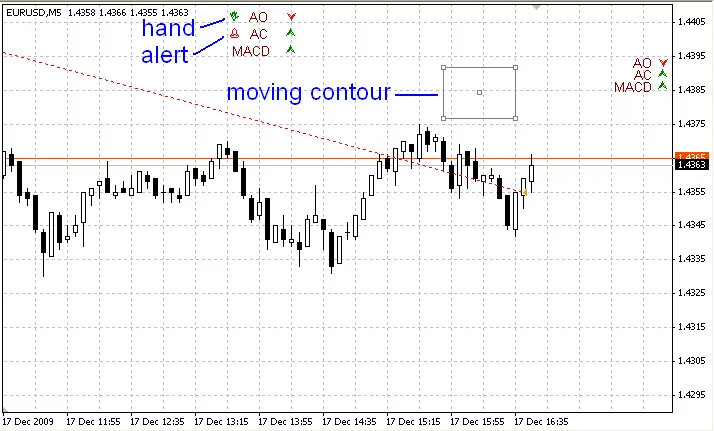
How to Use the Movable Panel
The panel is adjustable based on the bars visible on your chart, making it easy to keep everything in sight. To move the panel, just double-click its border and drag it to your desired location. As new ticks come in, the content will update automatically.
Keep in mind that you can only move it downwards and to the right from the last position. If you find yourself needing to reset it, simply hit the DELETE key, and it will return to the top-left corner of your screen for a fresh start.
Besides the indicator arrows and labels, the panel also features two small icons: a hand and a bell.
- The hand icon toggles the manual dragging option on and off. Turning it off will lock the panel in place, while turning it on allows for adjustments.
- The bell icon signals when the indicators are moving in the same direction and will automatically turn off after notifying you.
Setting Up the Static Panel
The static panel is simpler and can be positioned using pixel coordinates, allowing for precise placement on your charts.
Both panel types come in two themes to suit your preference: light or dark. You can set the White_Chart_Theme parameter to either True or False, depending on which style you prefer.
Final Thoughts
With this example, you can create your own information panels tailored to your trading needs. Get creative and make trading a more organized and efficient experience!
Related Posts
- Unlocking the Power of Master Tools for MetaTrader 4
- Hourly Buffers for Data Collection in MetaTrader 5: A Simple Guide
- Unlocking MetaCOT 2: Your Ultimate CFTC Indicator Toolkit for MT4
- Unlock Trading Insights with Volume Profile + Range v6.0 for MetaTrader 5
- Mastering Support and Resistance: Essential Indicator for MetaTrader 4