Technical Indicator

Mastering the BS_MarketPrice Indicator for Better Trading Decisions
MetaTrader4
Mastering the BS_MarketPrice Indicator for Better Trading Decisions

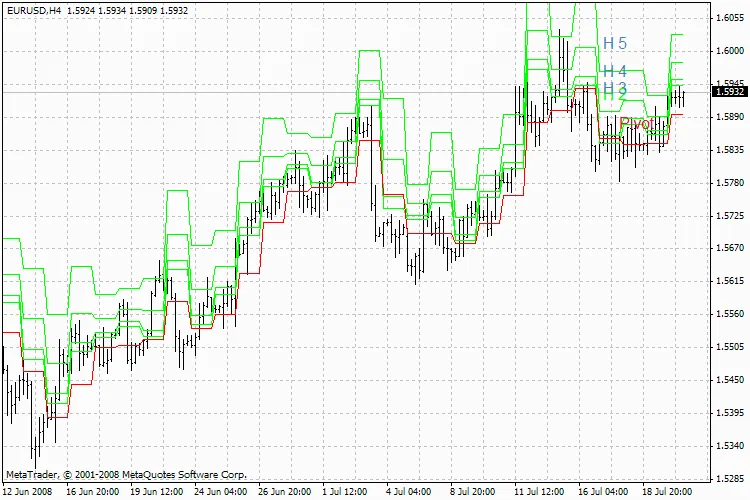
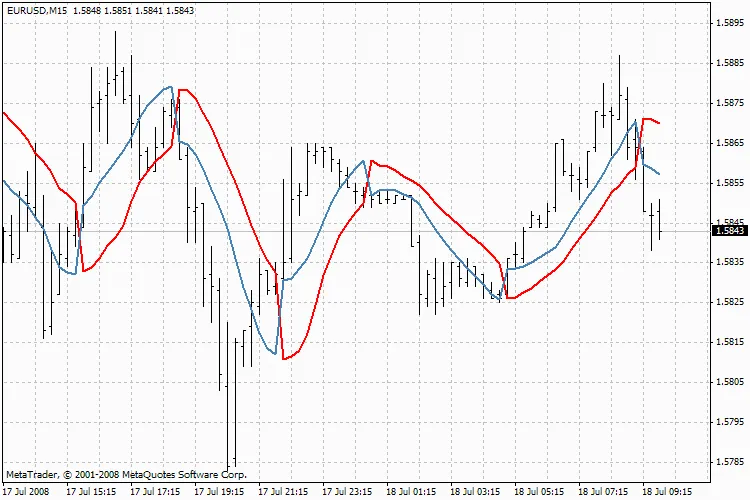
Hey there, fellow traders! Today, I want to dive into the BS_MarketPrice indicator and how it can enhance your trading strategy. What is the BS_MarketPrice Indicator? The BS_MarketPrice indicator is a powerful tool that helps you visualize market trends effectively. By utilizing this indicator, you'll get a clearer picture of price movements, which can be a game-changer in your trading journey. Key Parameters of the BS_MarketPrice Indicator Let’s break down the main parameters you’ll be working with: Indicator_Name: BS_MarketPrice Position: Right Top (true) Price_Color: Set your colors for price direction: Price_color_Up: Blue Price_color_Dn: Red Time_Frame: 15 minutes Fast Moving Average: Period: 1 Method: Simple Apply To: Close Slow Moving Average: Period: 4 Method: Simple Apply To: Close These parameters enable you to customize the indicator according to your trading style and preferences. How to Use the BS_MarketPrice Indicator Using this indicator is straightforward. Here's how: Adjust the parameters to fit your trading needs. Monitor the color changes for price direction – blue indicates upward trends while red signifies downward trends. Combine the indicator with other tools to enhance your trading decisions. BS_MarketPrice Indicator Overview In conclusion, the BS_MarketPrice indicator is a valuable addition to your trading toolkit. By understanding and utilizing its parameters, you can make more informed trading decisions and potentially boost your profitability. Happy trading!

2008.08.05
Master the ZZ Ensign Fibo Indicator: A Trader's Guide
MetaTrader4
Master the ZZ Ensign Fibo Indicator: A Trader's Guide

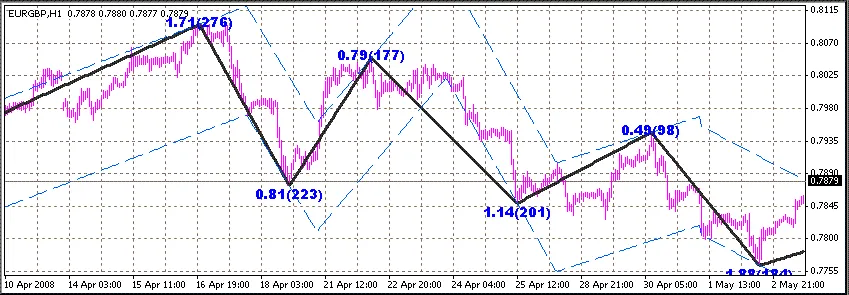
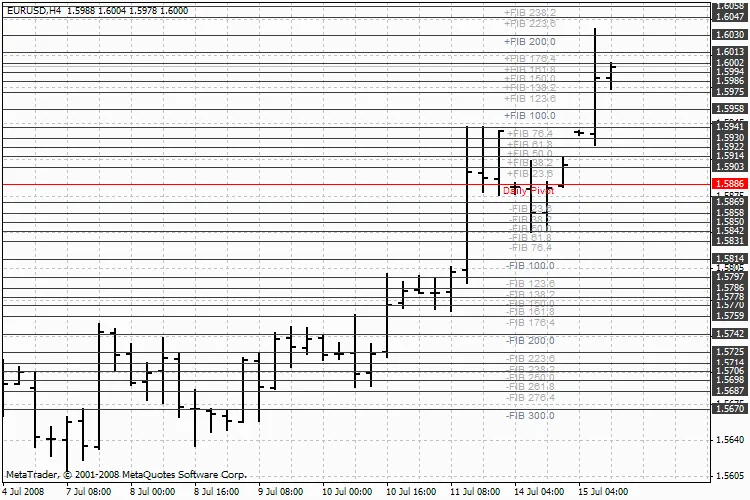
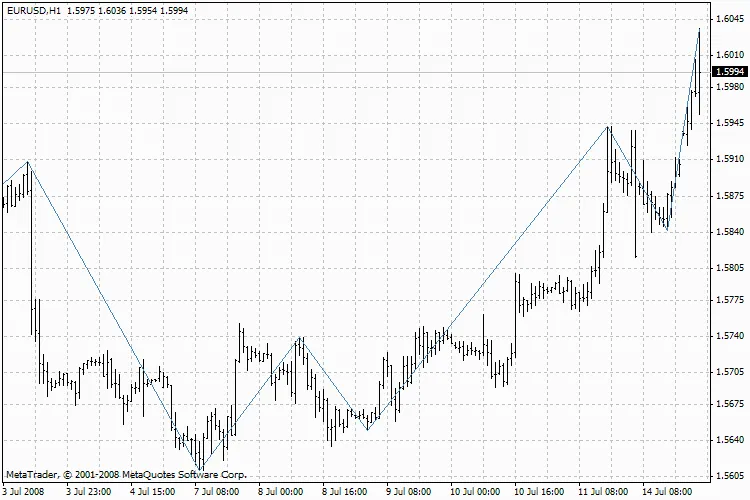
Hey fellow traders! Today, I want to introduce you to a fantastic indicator that's sure to up your trading game: the ZZ Ensign Fibo. This tool is reminiscent of the classic ZigZag but comes with some neat features that can help you visualize market trends more effectively. What Does the ZZ Ensign Fibo Do? This indicator not only displays standard and dynamic Fibonacci levels but also incorporates Andrews' pitchfork. This combination can provide you with valuable insights into price movements and potential reversal points. Parameter Breakdown Let’s dive into the parameters so you can customize the ZZ Ensign Fibo to fit your trading style: minBars: This is the bars filter, allowing you to specify the minimum number of bars you want to use. minSize: This parameter filters by the number of points, so you can set the minimum size that suits your needs. ExtFiboType: Set this to true to use Pesavento Fibonacci levels, or false for standard levels. ExtFiboDinamic: When enabled, this shows dynamic Fibonacci levels on the first ray of the ZigZag. ExtFiboStatic: This option allows for the display of static Fibonacci levels. ExtFiboStaticNum: Choose the ZigZag ray (1 to 9) from which static Fibonacci levels will be displayed. ExtFiboS & ExtFiboD: These options let you pick the colors for static and dynamic Fibonacci levels. ExtPitchfork: Set to 1 to display the Andrews' pitchfork from the last three extremums. If you choose 2, the 50% median will also be displayed. ExtLinePitchfork: This parameter specifies the color of the Andrews' pitchfork. ZZ Ensign Fibo Indicator By utilizing the ZZ Ensign Fibo, you can enhance your trading decisions and better navigate the market trends. Happy trading!

2008.07.28
Unlocking Trading Insights: Using Correlation Indicators
MetaTrader4
Unlocking Trading Insights: Using Correlation Indicators

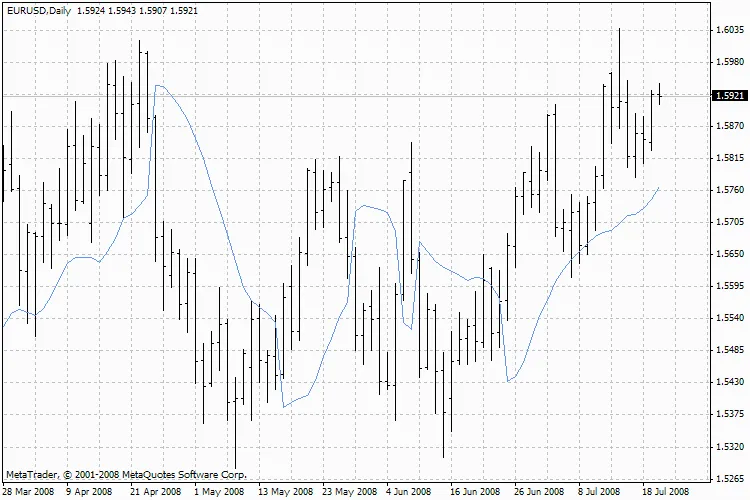
Understanding Correlation Indicators in Trading Hey fellow traders! If you're looking to enhance your trading strategy, understanding correlations between different symbols can be a game changer. This nifty indicator lets you overlay one chart on top of another, giving you a visual representation of how different assets relate to each other. Plus, it allows you to superimpose moving averages for an added layer of analysis. Key Inputs Here are the main parameters you’ll find in this correlation tool: symbol_name - This is the ticker of the symbol you want to overlay on your current chart. bars_for_autoscale - This parameter defines how many bars will be considered for scaling the charts (0 means the maximum number). inverse - This option flips the chart upside down if needed. MA - Choose whether to display the moving average on the overlaid chart (true to show, false to hide). MAPeriod - Set the period for the moving average you wish to analyze. MAOnly - This setting allows you to display only the moving average, hiding the original chart. How Scaling Works The scaling process aligns the maximums and minimums from a selected number of bars (defined by the bars_for_autoscale variable) so that they match up properly. Practical Applications This indicator can be quite useful when it comes to hedging and spread trading strategies involving correlated pairs. By visually mapping out the correlations, you can make more informed decisions and potentially improve your trading outcomes.

2008.07.28
First Previous 360 361 362 363 364 365 366 367 368 369 370 Next Last