Technical Indicator

Mastering Basing Candlesticks with MT5: Your Ultimate Guide
MetaTrader5
Mastering Basing Candlesticks with MT5: Your Ultimate Guide

Basing Candlesticks Indicator for MetaTrader 5 is a handy tool that automatically spots and marks basing candles on your trading charts. So, what exactly is a basing candle? It's a candle that has a body length that's less than 50% of its high-low range. With this indicator, you can easily identify these basing candles, thanks to the histogram lines in MT4 or custom candles in MT5, all displayed right on your main chart. Plus, you have the flexibility to adjust the percentage criteria through the input parameters. And if you want to stay updated, you can set alerts for when a new basing candle pops up! Input Parameters Percentage (default = 50) — This is the percentage used to compare the ratio of the candle's body to its high-low range. TriggerCandle (default = 1) — This specifies the candlestick number to check for alerts. Setting this to "1" means you're looking at the most recent fully formed candlestick, while "0" refers to the current one, which is still forming. EnableNativeAlerts (default = false) — If set to true, you'll receive MetaTrader's native pop-up alerts when a new basing candle appears. EnableSoundAlerts (default = false) — Set this to true to enable sound alerts for new basing candles. EnableEmailAlerts (default = false) — If you want email notifications for new basing candles, set this to true. Just make sure your email is correctly configured in MetaTrader under Tools->Options->Email. EnablePushAlerts (default = false) — Set this to true to get push notifications sent to your device when a new basing candle appears. Ensure your notifications are set up in MetaTrader via Tools->Options->Notifications. AlertEmailSubject (default = "") — You can add extra text for the subject line of your alert emails. AlertText (default = "") — Use this space to include additional text for your alerts. SoundFileName (default = "alert.wav") — This is the name of the sound file that will play when an alert is triggered, provided EnableSoundAlerts is set to true.

2025.01.30
Mastering the Aroon Up & Down Indicator for MT4 Trading Success
MetaTrader4
Mastering the Aroon Up & Down Indicator for MT4 Trading Success

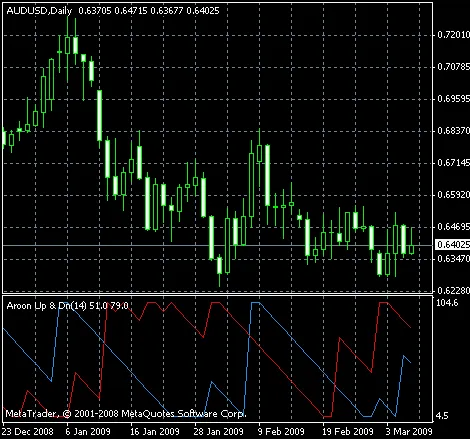
Hey there, fellow traders! Today, we're diving into the Aroon Up & Down indicator for MetaTrader 4. This nifty tool is designed to help you spot the local peaks and troughs on your charts, giving you clear signals for buying and selling currency pairs. When the price bounces up from a low, or dips down from a high, this indicator helps you make informed decisions. The magic happens when the two indicator lines cross; this can be your cue to take profits or exit a trade with minimal loss. Plus, you can set it up to send you sound and email alerts whenever these crucial crosses occur. And don't worry, it works seamlessly on both MT4 and MT5 platforms! Input Parameters AroonPeriod (default = 14) — This is the timeframe in chart bars that the indicator uses to identify highs and lows. Just like with other indicators, a longer period smooths out the lines, while a shorter one generates more signals. MailAlert (default = false) — Turn this on if you want to receive email notifications whenever the lines cross. Just make sure your MetaTrader email options are set up! SoundAlert (default = false) — Activate this feature to get a simple sound and visual alert when the lines cross. Example of Aroon Up & Down Indicator on a MetaTrader Chart As you can see in the chart above, trading with the Aroon indicator is straightforward! Here’s a quick rundown: Buy when the blue line rises from the bottom and the red line is hovering around the middle of the range. Sell when the blue line falls from the top and the red line is also near the middle. Exit for profit, or minimize losses when the red line hits the opposite side of the range. Trading can be a breeze if you stick to this strategy. Give the Aroon Up & Down indicator a spin and see how it works for your trading style!

2025.01.30
Mastering the Aroon Up and Down Indicator for MT5: Your Ultimate Trading Guide
MetaTrader5
Mastering the Aroon Up and Down Indicator for MT5: Your Ultimate Trading Guide

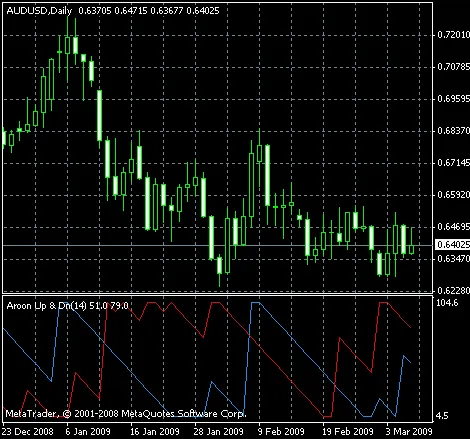
If you’re looking to sharpen your trading skills, the Aroon Up and Down indicator for MetaTrader 5 is a fantastic tool to add to your arsenal. This handy indicator helps you pinpoint local tops and bottoms on your charts, giving you clear signals for buying and selling currency pairs. When the price starts rising from the bottom or falling from the top, the Aroon indicator has your back! How the Aroon Indicator Works The magic really happens when the indicator lines cross. This crossing provides a strong signal to either take profit or exit with minimal loss. Plus, it’s not just about visual cues; this indicator can send you sound and email alerts whenever those crucial crosses occur. You can use it on both MT4 and MT5, giving you flexibility no matter your platform. Input Parameters AroonPeriod (default = 14): This parameter sets the look-back period for the indicator. A longer period results in smoother output lines, while a shorter period generates more signals. Choose based on your trading style! MailAlert (default = false): Enable this if you want email alerts when a cross happens, based on your MetaTrader email settings. SoundAlert (default = false): Turn this on to receive sound and visual alerts when a cross occurs. Example of Aroon Up & Down Indicator on a MetaTrader Chart As shown in the chart above, trading becomes a breeze when you follow this indicator. When the blue line rises from the bottom and the red line hovers around the middle of the range, it’s time to buy. Conversely, when the blue line drops from the top and the red line is near the middle, it’s a signal to sell. For exiting, aim for profit or minimize losses when the red line hits the opposite side of the range. In conclusion, the Aroon Up and Down indicator is a straightforward yet powerful tool that can enhance your trading strategy. Give it a try and see how it can help you navigate the forex markets with confidence!

2025.01.30
Unlocking the 3rd Generation Moving Average for MT5: A Trader's Guide
MetaTrader5
Unlocking the 3rd Generation Moving Average for MT5: A Trader's Guide

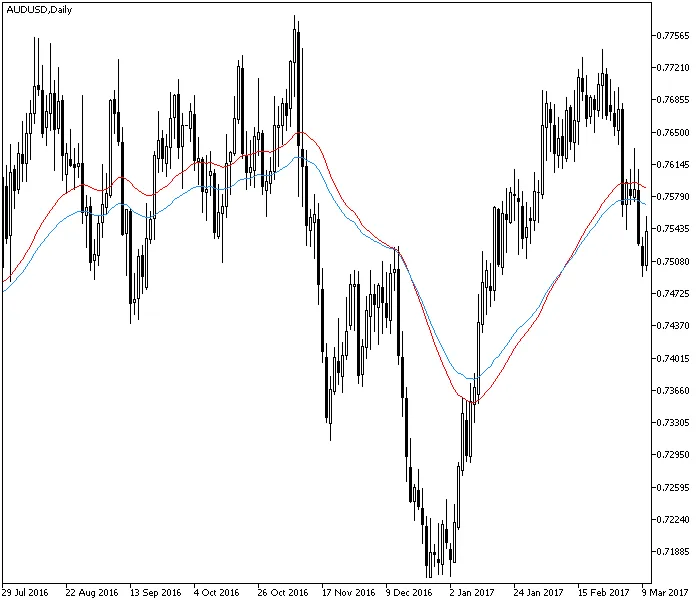
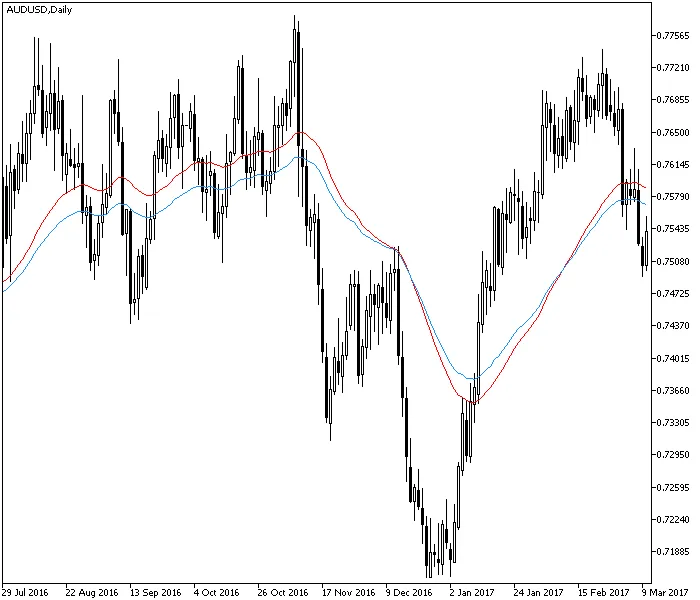
The 3rd Generation Moving Average is a sophisticated upgrade of the traditional moving average (MA) indicator designed specifically for MetaTrader. This innovative tool employs a clever lag-reducing technique based on an extended MA period, which was first detailed by M. Duerschner in his insightful article, Gleitende Durchschnitte 3.0. Using a lambda (λ) value of 2, this version optimally minimizes lag, ensuring that your signals are more timely. Keep in mind that increasing the λ value will make it more similar to the classic moving average. This indicator is available for both MT4 and MT5 platforms and doesn’t require any external DLLs to function. Input Parameters MA_Period (default = 50) — This sets the period for the 3rd Generation Moving Average. MA_Sampling_Period (default = 220) — This is the sampling period for the moving average and should be at least four times greater than the MA_Period. MA_Method (default = MODE_EMA) — This indicates the method used for calculating the moving average. MA_Applied_Price (default = PRICE_TYPICAL) — This defines the price type applied for the moving average. As illustrated in the chart, the 3rd Generation MA (red line) demonstrates slightly reduced lag compared to the conventional EMA (blue line), allowing it to react to price movements more swiftly. However, it’s important to note that it can still experience lag and may generate false signals at times. Overall, you can utilize the 3rd Generation Moving Average in a manner similar to the standard moving average — primarily to gauge the current trend direction. Happy trading!

2025.01.30
Unlocking the Power of the 3rd Generation Moving Average for MT4 Trading
MetaTrader4
Unlocking the Power of the 3rd Generation Moving Average for MT4 Trading

Discover the 3rd Generation Moving Average for MT4 The 3rd Generation Moving Average is a cutting-edge twist on the classic moving average (MA) indicator designed specifically for MetaTrader 4. This advanced tool employs a straightforward method to reduce lag by utilizing a longer MA period, making it a must-have for traders looking to sharpen their edge. The concept was first introduced by M. Duerschner in his article Gleitende Durchschnitte 3.0. This version operates with λ = 2, which optimally minimizes lag. Keep in mind that a higher λ value will make it more akin to the traditional moving average. The great news? It’s available for both MT4 and MT5, and you won’t need any DLLs to get started! Input Parameters MA_Period (default = 50): This parameter defines the period for the 3rd Generation Moving Average. MA_Sampling_Period (default = 220): The sampling period should be at least four times greater than the MA_Period. MA_Method (default = MODE_EMA): Choose the method for calculating the moving average. MA_Applied_Price (default = PRICE_TYPICAL): This sets the price used for the moving average calculation. As illustrated in the chart, the 3rd Generation MA (red line) exhibits slightly less lag compared to the conventional EMA (blue line), allowing it to respond more swiftly to price fluctuations. However, it's important to note that it can still lag and may occasionally produce false signals. You can utilize the 3rd Generation Moving Average just like the standard moving average — it’s a reliable tool for identifying the current trend direction.

2025.01.30
Mastering the Breakeven Line Indicator for MetaTrader 4 & 5
MetaTrader4
Mastering the Breakeven Line Indicator for MetaTrader 4 & 5

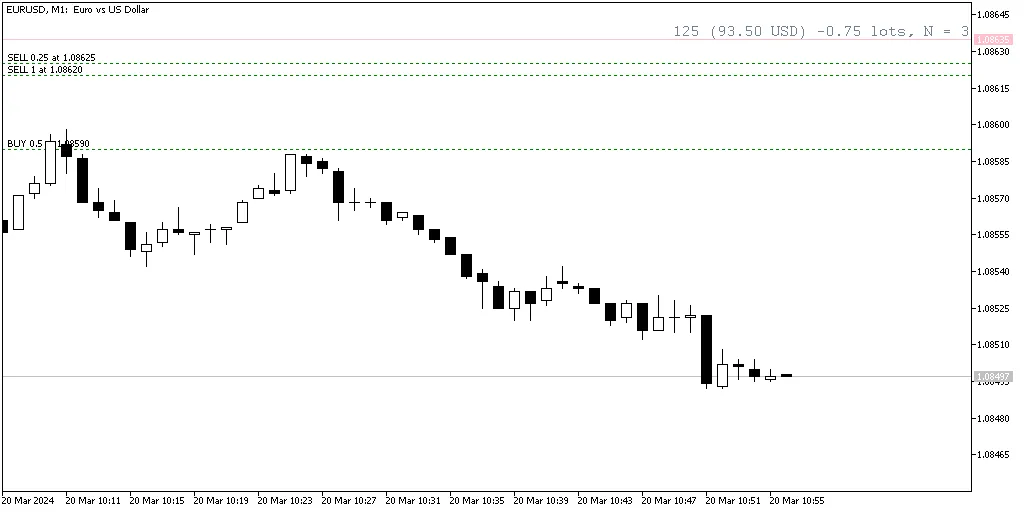
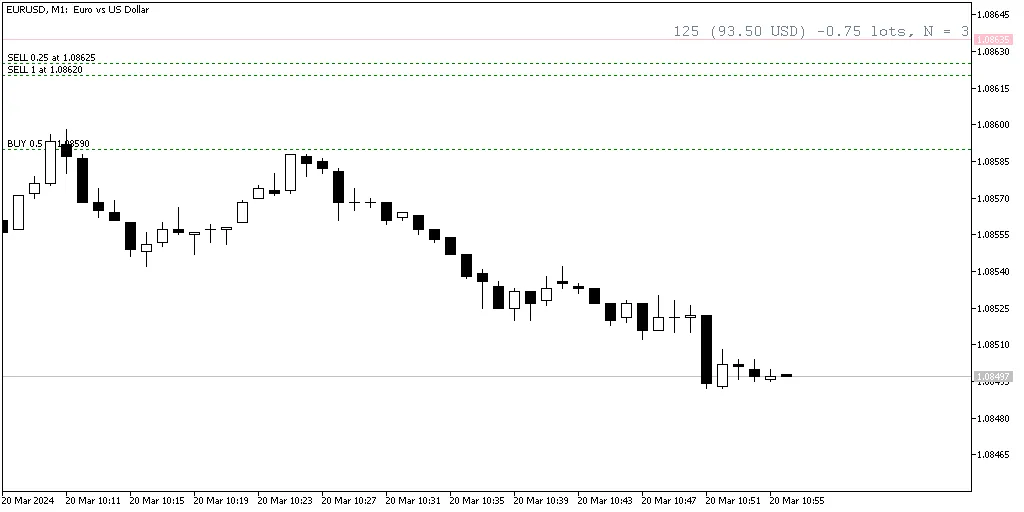
Breakeven Line Indicator is a must-have tool for any serious trader using MetaTrader. This indicator calculates your breakeven level based on all open positions and displays it on your chart as a handy horizontal line. Not only does it show you where you stand, but it also tracks the total number of trades, the cumulative lots traded, and the distance to the breakeven line in both points and profit/loss. Plus, it's compatible with both MT4 and MT5! To toggle the breakeven line on or off, simply use the Shift + B keyboard shortcut. This indicator is highly customizable, allowing you to adjust various input parameters to fit your trading style. Customizing Your Breakeven Line Indicator IgnoreLong (default = false) — Set to true to ignore long positions and calculate the breakeven line based solely on short positions. IgnoreShort (default = false) — Set to true to ignore short positions and focus only on long positions when calculating the breakeven line. line_color_buy (default = clrTeal) — This defines the color of the breakeven line when your total position is long. line_color_sell (default = clrPink) — This sets the color for the breakeven line when your total position is short. line_color_neutral (default = clrSlateGray) — This applies when the overall position is neutral. line_style (default = STYLE_SOLID) — Choose the style of the breakeven line. line_width (default = 1) — Adjust the width of your breakeven line for better visibility. font_color (default = clrSlateGray) — This sets the color of any text displayed. font_size (default = 12) — Control the size of the text for clarity. font_face (default = "Courier") — Choose the font style for the text. ObjectPrefix (default = "BEL") — This prefix helps avoid conflicts with other chart tools by naming your chart objects uniquely.

2025.01.30
Master Your Trades with the Breakeven Line Indicator for MT5
MetaTrader5
Master Your Trades with the Breakeven Line Indicator for MT5

What is the Breakeven Line Indicator? The Breakeven Line Indicator is a handy tool for traders using MetaTrader 5 (MT5). It calculates your breakeven level based on all open positions and displays it right on your chart as a horizontal line. This powerful indicator also keeps track of the total number of trades, the cumulative lots, and the distance to the breakeven line in both points and profit/loss. Plus, it’s available for both MT4 and MT5, making it versatile for every trader's needs. You can easily toggle the breakeven line on or off by using the Shift + B keyboard shortcut. The indicator comes packed with multiple input parameters that let you customize the calculations and the appearance of the line to suit your trading style. Input Parameters IgnoreLong (default = false) — When set to true, this option will have the indicator ignore long positions, calculating the breakeven line based only on short positions. IgnoreShort (default = false) — If you set this to true, the indicator will disregard short positions and calculate the breakeven line based solely on long positions. line_color_buy (default = clrTeal) — This sets the color of the breakeven line when your total cumulative position is long. line_color_sell (default = clrPink) — This defines the color of the breakeven line when your total cumulative position is short. line_color_neutral (default = clrSlateGray) — This sets the color of the breakeven line when your total cumulative position is neutral. line_style (default = STYLE_SOLID) — Choose the style for your breakeven line. line_width (default = 1) — Adjust the width of the breakeven line to your preference. font_color (default = clrSlateGray) — Set the color of the text displayed with the breakeven line. font_size (default = 12) — Specify the size of the text. font_face (default = "Courier") — Choose the font style for the text. ObjectPrefix (default = "BEL") — This is the prefix for names of the chart objects, helping to avoid any conflicts with other chart tools you might be using.

2025.01.29
Mastering the Negative Volume Index (NVI) Indicator on MetaTrader 5
MetaTrader5
Mastering the Negative Volume Index (NVI) Indicator on MetaTrader 5

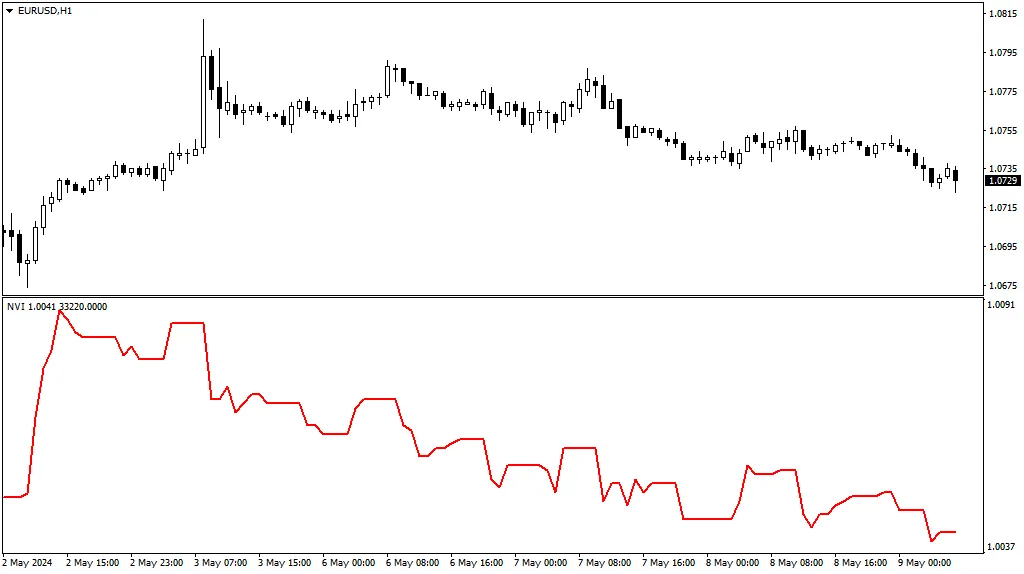
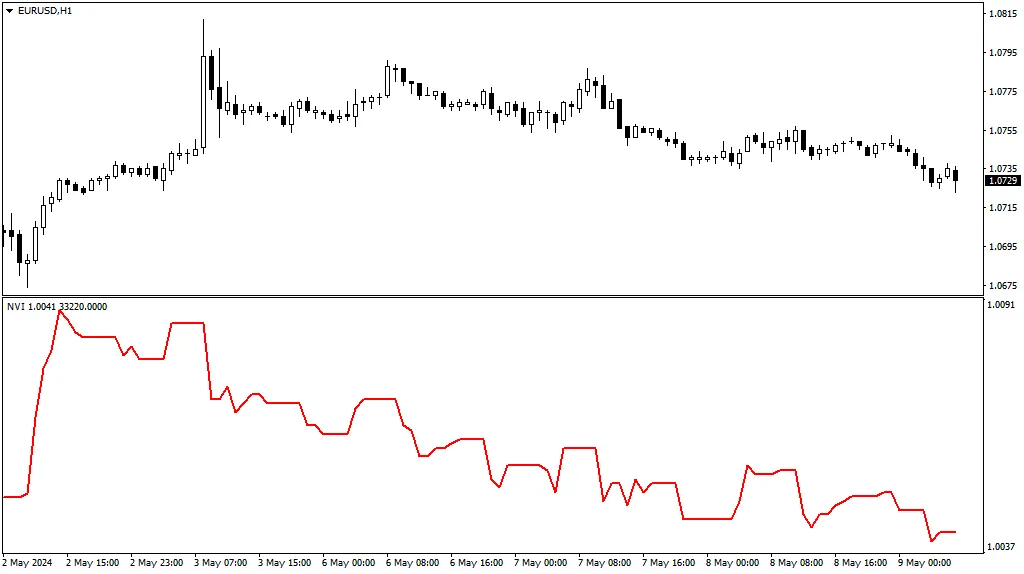
Negative Volume Index (NVI) is a versatile technical indicator available for advanced chart analysis on MT4 and MT5 platforms. It operates based on tick volume (or real volume in MT5) and comes with two valuable features: Support for multi-timeframe (MTF) functionality. Option to switch to the Positive Volume Index (PVI). The NVI is displayed in a separate window below your main chart and doesn’t rely on any standard or custom indicators in its coding. This implementation is available for both MT4 and MT5 users. What is the Negative Volume Index (NVI) Indicator? The Negative Volume Index (NVI) is a classic technical indicator developed by Paul L. Dysart in the early 20th century and later refined by Norman G. Fosback in 1976. It consists of a single oscillating line in a dedicated indicator window that either rises or falls based on the volume of bars that are lower than the preceding bar's volume. How to Use the Negative Volume Index (NVI) Indicator Classic NVI Strategy The traditional interpretation of the NVI suggests that a subsequent movement of the NVI can confirm the strength of a trend. Essentially, a robust trend tends to persist even when volumes are declining. A crossover with its moving average can be viewed as a confirmation of the trend. However, like any MA crossover strategy, this approach can generate false signals or lagging indicators. NVI Divergence Strategy Another approach involves analyzing divergences between the price and the NVI to identify potential trend reversals. For instance, if the price chart is making new higher highs while the NVI is forming lower lows, it may indicate an upcoming long-term downtrend: Unfortunately, these signals can be ambiguous or inaccurate. As with other divergence indicators, it’s wise to seek additional confirmations before making trade decisions. Higher Timeframe Perspective Our version of the NVI allows you to display higher timeframe NVI values on a lower timeframe chart. For example, here’s the EUR/USD on a daily chart, but we’ve attached the NVI indicator from the weekly timeframe: Since the volume on higher timeframe bars can differ significantly from lower timeframe bars, the resulting NVI curve may present a unique view of market conditions. Positive Volume Index (PVI) You can also switch the NVI indicator to calculate and display the Positive Volume Index (PVI). This enables traders to observe price movements that are accompanied by increasing volume. The PVI curve typically mirrors the price chart closely: That said, many traders find the PVI to be less informative than the NVI. NVI Input Parameters Indicator Shift (default = 0) — This parameter allows you to shift the indicator curve horizontally. A positive value shifts it right, while a negative value shifts it left. Timeframe (default = Current) — This specifies the timeframe for calculating the NVI line. Setting it to a higher timeframe will display the NVI on the current chart accordingly; this parameter is ignored if set to a lower timeframe. Positive Volume Index? (default = false) — When set to true, the indicator will calculate the Positive Volume Index instead of the Negative Volume Index. Volume Type (default = VOLUME_TICK) — This allows you to choose the type of volume used in calculations—tick volume or real volume. This option is available only in MT5.

2025.01.29
Mastering the Negative Volume Index (NVI) for MT4 and MT5 Trading
MetaTrader4
Mastering the Negative Volume Index (NVI) for MT4 and MT5 Trading

Negative Volume Index (NVI) is a powerful technical indicator available for free on both MT4 and MT5 platforms, designed for traders who want to dive deep into chart analysis. This indicator leverages tick volume (or real volume in MT5) and comes packed with two handy features: Multi-timeframe (MTF) support for diverse trading strategies. Option to toggle and view the Positive Volume Index. The NVI appears in a separate window beneath your main chart and operates independently of any standard or custom indicators. You can easily access this implementation on both MT4 and MT5. What is the Negative Volume Index (NVI)? The Negative Volume Index is a classic technical indicator, initially developed by Paul L. Dysart in the early 20th century and later refined by Norman G. Fosback in 1976. It features a single oscillating line in a dedicated indicator window, which moves upwards or downwards based on periods where the volume is less than that of the previous bar. How to Utilize the Negative Volume Index (NVI) Classic NVI Strategy The traditional interpretation of the NVI is that its movement can confirm the strength of a trend. When the NVI aligns with the trend, it’s a strong indication that the trend will persist, even in the face of declining volumes. A crossover with its moving average can serve as a reliable trend confirmation signal. However, keep in mind that like any MA crossover strategy, this one can produce false signals or lag behind market movements. NVI Divergence Strategy Another effective approach is to watch for divergences between the price chart and the NVI to identify potential trend reversals. For instance, if the price is making new highs while the NVI is showing lower lows, it might signal an impending downtrend: That said, these signals can sometimes lack clarity. It’s wise to seek additional confirmations before making any trading decisions, just like with other divergence indicators. Higher Timeframe Perspective With our NVI setup, you can display higher timeframe NVI values even on lower timeframe charts. For example, here’s the EUR/USD chart from the D1 timeframe, now featuring the NVI from the weekly timeframe: Keep in mind that the volume on higher timeframe bars can differ significantly from that on lower timeframe bars, which may lead to a different interpretation of market trends based on the resulting NVI curve. Positive Volume Index (PVI) You can also switch the NVI to calculate and display the Positive Volume Index, allowing you to see price movements paired with increasing volume. The resulting curve is quite similar to the price chart: Generally, the PVI is regarded as less informative than the NVI. NVI Input Parameters Indicator Shift (default = 0) — this parameter adjusts the horizontal shift of the indicator curve. You can set it to a positive value (to shift right) or a negative value (to shift left). Timeframe (default = Current) — this defines the timeframe for calculating the NVI line. If you select a higher timeframe, the indicator will show that higher timeframe's NVI on your current chart. If set to a lower timeframe, this parameter will be ignored. Positive Volume Index? (default = false) — set this to true to calculate the Positive Volume Index instead of the NVI. Volume Type (default = VOLUME_TICK) — this parameter chooses whether to use tick volume or real volume for calculations (only available in MT5).

2025.01.29
Understanding the Candle Range Indicator for MetaTrader 5
MetaTrader5
Understanding the Candle Range Indicator for MetaTrader 5

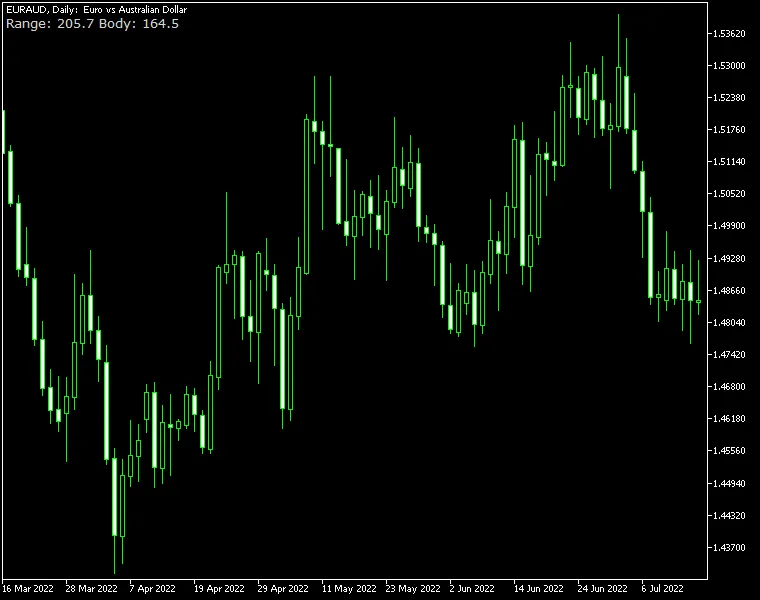
The Candle Range Indicator for MetaTrader is a straightforward and lightweight tool designed for traders. It allows you to see the candle's range in pips simply by hovering your mouse over it. Along with the High/Low range, you can also opt to display the body size (Open/Close) of the candles. This indicator comes with multiple customization options, letting you tailor its appearance to suit your preferences. It’s available for both MT4 and MT5 versions of the platform, so you're covered no matter which one you use. Input Parameters ShowBodySize (default = false) — When set to true, this option will display the size of the candle's body. HavePipettes (default = false) — If you select true, the indicator will consider that the currency pair's quote includes pipettes, adjusting the pip ranges accordingly. TrueRange (default = false) — Setting this to true allows the indicator to calculate the true range, including gaps, instead of the standard range. font_color (default = clrLightGray) — This parameter lets you choose the color of the candle range display. font_size (default = 10) — Customize the size of the candle range text to your liking. font_face (default = "Verdana") — Select your preferred font for the candle range text. corner (default = CORNER_LEFT_UPPER) — This setting allows you to position the candle range indicator anywhere on the chart. distance_x (default = 3) — Adjust the horizontal distance from the chosen corner to the indicator. distance_y (default = 12) — Control the vertical distance from the corner to the indicator. DrawTextAsBackground (default = false) — If you set this to true, the text label showing the candle range value will be drawn as a background, which can help prevent the indicator from obscuring your chart. ObjectPrefix (default = "CR-") — Use this prefix for chart objects to ensure compatibility with other indicators.

2025.01.22
Candle Range Indicator for MetaTrader: Maximize Your Trading Precision
MetaTrader4
Candle Range Indicator for MetaTrader: Maximize Your Trading Precision

Candle Range Indicator for MetaTrader is an incredibly user-friendly and lightweight tool designed to help you understand price movements better. By simply hovering your mouse over a candle, this indicator displays its range in pips, making it easier to gauge market volatility. Plus, it can show the body size (Open/Close) of each candle, giving you even more insight into price action. Available for both MT4 and MT5, this indicator is a must-have for any serious trader. Input Parameters ShowBodySize (default = false) — When set to true, the indicator will also display the size of a candle's body. HavePipettes (default = false) — If true, it assumes the currency pair includes pipettes and adjusts the pip ranges accordingly. TrueRange (default = false) — When enabled (true), the indicator calculates the true range, including gaps, rather than the standard range. font_color (default = clrLightGray) — Choose the color for the candle range display. font_size (default = 10) — Set the size of the text for the candle range display. font_face (default = "Verdana") — Select the font style for the candle range display. corner (default = CORNER_LEFT_UPPER) — Specify where the candle range will appear on your chart. distance_x (default = 3) — Adjust the horizontal distance from the corner to the indicator. distance_y (default = 12) — Set the vertical distance from the corner to the indicator. DrawTextAsBackground (default = false) — If set to true, the candle range value will be drawn as a background, which can help keep your chart clear and readable. ObjectPrefix (default = "CR-") — This prefix is used for chart objects to maintain compatibility with other indicators.

2025.01.22
Mastering the Zigzag Fibo Oscillator for MetaTrader 5: A Trader's Guide
MetaTrader5
Mastering the Zigzag Fibo Oscillator for MetaTrader 5: A Trader's Guide

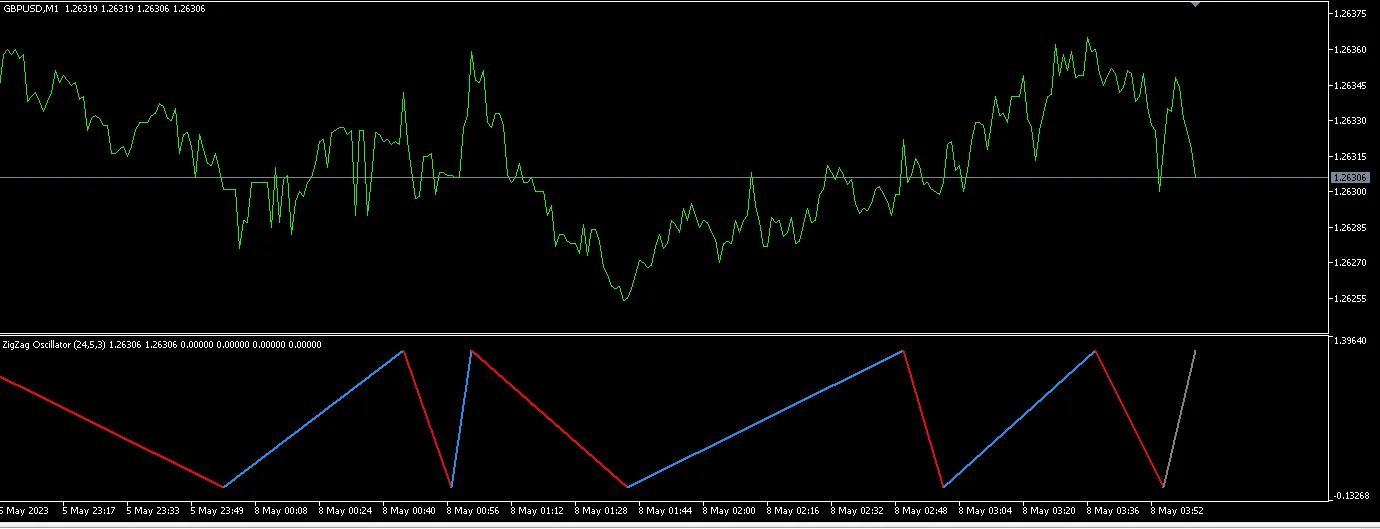
If you're looking to enhance your trading strategy, the Zigzag Fibo Oscillator might just be the quirky tool you need. Built on the MetaQuotes algorithm, this indicator brings some exciting features to the table that can help you make more informed trading decisions. Key Features and Improvements Two Modes: Oscillator and HighLow - The Zigzag Fibo Oscillator has two distinct modes. The Oscillator mode visually illustrates the swings of the Zigzag, even though it’s not a traditional oscillator and doesn’t have a fixed range. In this mode, the extreme low serves as the symbol point value, while extreme highs are treated as usual. HighLow Mode - This mode takes into account the extreme highs and lows like the regular Zigzag. It adds Fibonacci retracement levels that are dynamically scaled to keep them visually fixed. This is particularly handy since prices can fluctuate widely over time, and the dynamic scaling focuses only on the latest extreme swing price. Current Leg Tracking - In both modes, the current leg is displayed even if it’s not confirmed yet. You can choose to track the open, close, high, low, weighted, or typical price for the current bar. This feature helps traders visualize real-time market movements. One unique aspect of this indicator is that it colors the current leg based on the price action: Upward Leg: When the upward leg is being confirmed, it will be colored blue for bullish price action and grey for bearish divergence. Downward Leg: Conversely, if the downward leg is in the process of confirmation, it will be red for bearish price action and grey for bullish divergence. Furthermore, to better reflect real-time price action, the trend color of the unconfirmed leg can also be influenced by volume. Significant bullish volume will override the leg’s color to a bullish hue, while significant bearish volume will do the same in the opposite direction. Visual Aids Here are some visuals to help you better understand how the Zigzag Fibo Oscillator works: Latest Updates Version 1.01: This version saw the fix of some bugs that were reported. Version 1.02: Added more customizability with scaling, included the option to toggle Fibonacci levels, and improved price direction tracking in the oscillator mode. With these features, the Zigzag Fibo Oscillator can be a valuable addition to your trading toolkit. Happy trading!

2025.01.21
Hourly Buffers for Data Collection in MetaTrader 5: A Simple Guide
MetaTrader5
Hourly Buffers for Data Collection in MetaTrader 5: A Simple Guide

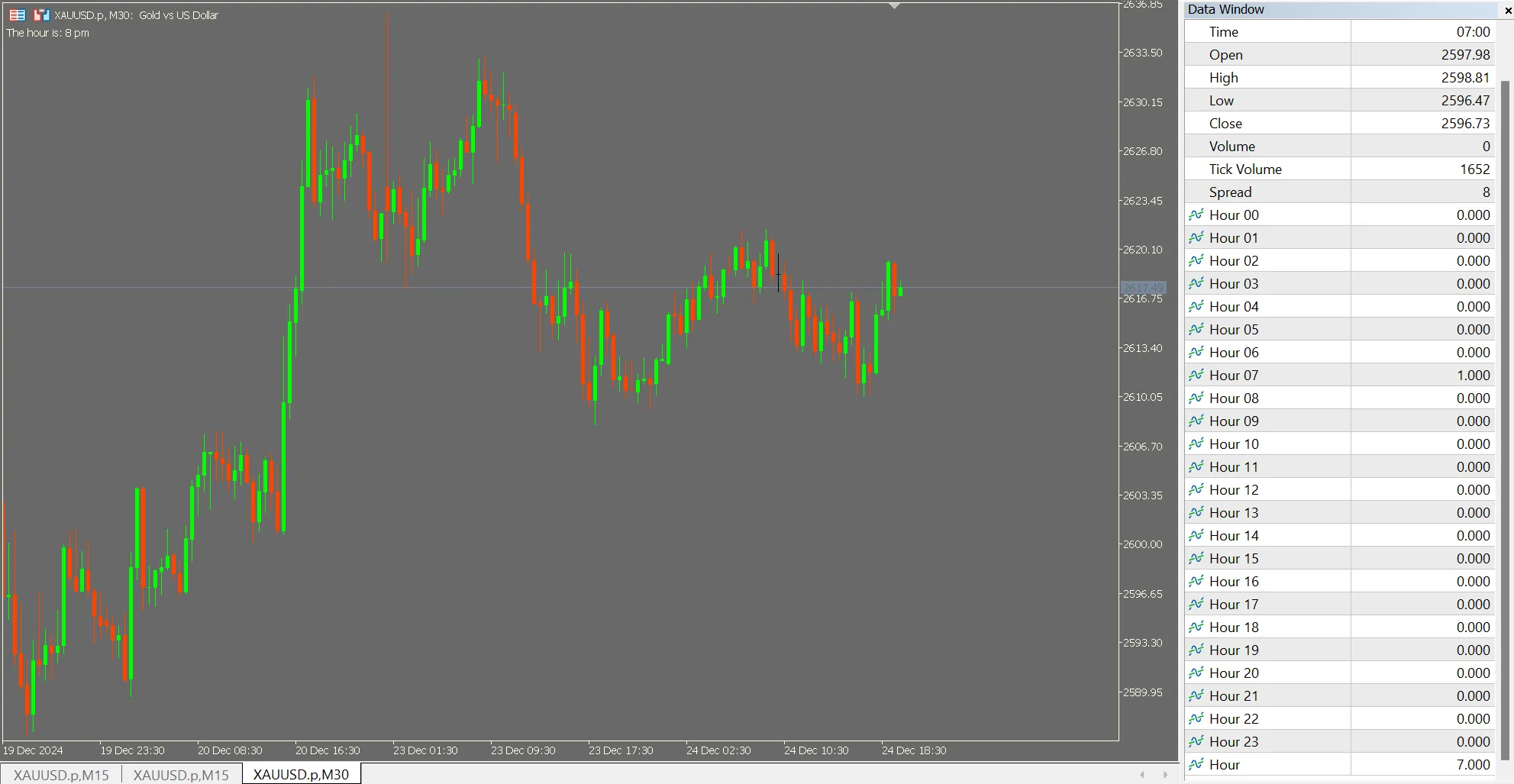
Purpose As traders, we often need to collect data for analysis and strategy modeling. This straightforward indicator will help you create hourly buffers in a binary format, making it easy to gather data for your models. The indicator offers a buffer array for each hour (0-23) and includes an additional buffer to store the hour itself. If you're collecting data from other indicators into a CSV using functions like CopyBuffer, this tool allows you to add extra columns for the hour, enhancing your dataset. This simple code is great for those involved in data collection for machine learning or other modeling efforts, providing you with ready-to-use dummy variables (buffers 0 to 23) and an hour variable (buffer 24). Walking through the Code We begin by declaring the buffer and plot numbers, setting them to 25: #property indicator_chart_window #property indicator_buffers 25 #property indicator_plots 25 Buffer Labelling Next, we define the buffer labels for the data window: #property indicator_label1 "Hour 00" #property indicator_label2 "Hour 01" #property indicator_label3 "Hour 02" #property indicator_label4 "Hour 03" #property indicator_label5 "Hour 04" #property indicator_label6 "Hour 05" #property indicator_label7 "Hour 06" #property indicator_label8 "Hour 07" #property indicator_label9 "Hour 08" #property indicator_label10 "Hour 09" #property indicator_label11 "Hour 10" #property indicator_label12 "Hour 11" #property indicator_label13 "Hour 12" #property indicator_label14 "Hour 13" #property indicator_label15 "Hour 14" #property indicator_label16 "Hour 15" #property indicator_label17 "Hour 16" #property indicator_label18 "Hour 17" #property indicator_label19 "Hour 18" #property indicator_label20 "Hour 19" #property indicator_label21 "Hour 20" #property indicator_label22 "Hour 21" #property indicator_label23 "Hour 22" #property indicator_label24 "Hour 23" #property indicator_label25 "Hour" Buffer Declarations Next, we declare the buffers and an integer variable to hold the hour of the day: double hourBuffer0[]; double hourBuffer1[]; double hourBuffer2[]; double hourBuffer3[]; double hourBuffer4[]; double hourBuffer5[]; double hourBuffer6[]; double hourBuffer7[]; double hourBuffer8[]; double hourBuffer9[]; double hourBuffer10[]; double hourBuffer11[]; double hourBuffer12[]; double hourBuffer13[]; double hourBuffer14[]; double hourBuffer15[]; double hourBuffer16[]; double hourBuffer17[]; double hourBuffer18[]; double hourBuffer19[]; double hourBuffer20[]; double hourBuffer21[]; double hourBuffer22[]; double hourBuffer23[]; double hourBuffer[]; int bar_hour; Indexing and Plot Drawing We set the index for all buffers to data and turned off plotting through a loop. This was necessary because attempting to use a loop to set the index presented errors when passing arrays through SetIndexBuffer. However, looping worked perfectly for PlotIndexSetInteger. // Assign buffers to index, hide from chart, show in Data Window SetIndexBuffer(0, hourBuffer0, INDICATOR_DATA); SetIndexBuffer(1, hourBuffer1, INDICATOR_DATA); SetIndexBuffer(2, hourBuffer2, INDICATOR_DATA); SetIndexBuffer(3, hourBuffer3, INDICATOR_DATA); SetIndexBuffer(4, hourBuffer4, INDICATOR_DATA); SetIndexBuffer(5, hourBuffer5, INDICATOR_DATA); SetIndexBuffer(6, hourBuffer6, INDICATOR_DATA); SetIndexBuffer(7, hourBuffer7, INDICATOR_DATA); SetIndexBuffer(8, hourBuffer8, INDICATOR_DATA); SetIndexBuffer(9, hourBuffer9, INDICATOR_DATA); SetIndexBuffer(10, hourBuffer10, INDICATOR_DATA); SetIndexBuffer(11, hourBuffer11, INDICATOR_DATA); SetIndexBuffer(12, hourBuffer12, INDICATOR_DATA); SetIndexBuffer(13, hourBuffer13, INDICATOR_DATA); SetIndexBuffer(14, hourBuffer14, INDICATOR_DATA); SetIndexBuffer(15, hourBuffer15, INDICATOR_DATA); SetIndexBuffer(16, hourBuffer16, INDICATOR_DATA); SetIndexBuffer(17, hourBuffer17, INDICATOR_DATA); SetIndexBuffer(18, hourBuffer18, INDICATOR_DATA); SetIndexBuffer(19, hourBuffer19, INDICATOR_DATA); SetIndexBuffer(20, hourBuffer20, INDICATOR_DATA); SetIndexBuffer(21, hourBuffer21, INDICATOR_DATA); SetIndexBuffer(22, hourBuffer22, INDICATOR_DATA); SetIndexBuffer(23, hourBuffer23, INDICATOR_DATA); SetIndexBuffer(24, hourBuffer, INDICATOR_DATA); for(int i = 0; i < 24; i++) { PlotIndexSetInteger(i, PLOT_DRAW_TYPE, DRAW_NONE); PlotIndexSetInteger(i, PLOT_SHOW_DATA, true); } return(INIT_SUCCEEDED); OnCalculate Function Loops and Program Now we dive into the OnCalculate function: Here, we reset all buffers to zero, only changing the one corresponding to the current hour to one. There may be efficiency improvements to explore later. if (rates_total

2024.12.25
First Previous 8 9 10 11 12 13 14 15 16 17 18 Next Last