
Welcome to the world of Close Cross MA, your go-to Expert Advisor (EA) for MetaTrader 4!
Stealth Mode: This nifty EA will automatically close all open orders across all charts linked to the EA's chart symbol when the Bid or Ask price either meets or crosses the Moving Average (MA). For Buy orders, the EA acts when the Bid price is equal to or drops below the MA. Conversely, for Sell orders, it kicks in when the Ask price is equal to or exceeds the MA.
Price Gaps in Stealth Mode: If the current price shoots past the MA, the EA will close all relevant open orders at the very first available price.
Spread Mode: In this mode, the EA will close all open orders across the charts that match the EA chart symbol when the MA price falls within the Bid-Ask spread. Essentially, this means the Bid is lower than the MA price while the Ask is higher. This condition applies to both Buy and Sell orders.
Price Gaps in Spread Mode: If the price moves past the MA, it will either push both the Bid and Ask above or below the MA. All relevant open orders will stay open until the price retraces back to the MA, or until the MA price fits within the Ask-Bid spread, or until you manually close them.
- Note: Make sure that the Moving Average on your chart and the EA parameters perfectly align regarding MA Period, MA Shift, MA Method, and MA Applied Price.
- Any changes to parameters can be saved, named, and loaded for future use via the Save & Load buttons. Check out the EA Properties Inputs Tab (F7 → Inputs Tab → Save, Load Buttons).
- You'll also find Chart PopUp and Sound alert features, along with Push Notifications for mobile devices.
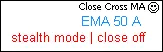
Enable/Disable Order Close Function: Simply click on the chart to toggle the function: | close on ^ | close off .
Limitations
- The Experts button is now called AutoTrading and operates differently. For more info, check out this video.
- For an EA to manage order control effectively, it needs access to the order's magic number. Unfortunately, magic numbers can't be assigned to manually opened orders. As such, if orders are opened manually and only closed by the EA, the lack of a magic number limits EA functionality.
- To learn more about magic numbers, take a look at this article. It explains that when placing an order (opening a position), you can assign a unique number to it, which helps distinguish it from other orders. This feature isn't applicable for manual trading.
- The EA will close all open trades for the symbol on the chart it’s attached to, as well as for all open trades on charts of the same symbol that it is not directly attached to.
- Avoid using the EA on multiple charts of the same symbol at once. Doing so may result in all open trades on those charts being closed by the first EA that meets any OrderClose() conditions.
Note: The EA will only close open positions across all charts of the same symbol it’s attached to. Positions of different symbols will remain open.
Push Notifications: iOS and Android
- Push Notifications are quick, reliable, and easy to set up.
- First, install MetaTrader 4 on your mobile device.
- Find your MetaQuotes ID in Settings and Messages on the MetaTrader 4 Mobile app.
- Enter your MetaQuotes ID into the Client Terminal of MetaTrader 4 on your computer (Tools → Options → Notifications).
- Note: You can use the same MetaQuotes ID across multiple Client Terminals (different brokers).
- Click the Test Button.
- Open the MetaTrader 4 Terminal (Ctrl + T) and look for the Journal Tab to check under Messages if the Test was successful.
- Confirm that the test message has arrived on your mobile device.
- Once you’ve successfully tested it, you can set Push Notification Alerts in the EA.
- Important: Make sure your mobile device’s sound is on for notifications and that MetaTrader 4 mobile is included in your phone’s Notifications or Messaging settings.
- If you need more help, just Google or YouTube "MT4 push notification."
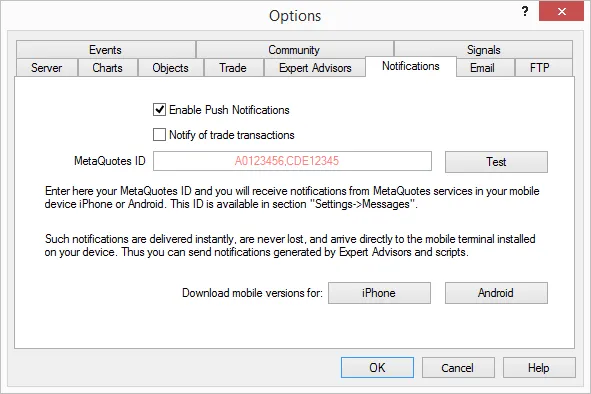
Please note: The EA only sends notifications for closed trades, not for any other trade transactions. If you've checked 'Notify of trade transactions,' you’ll receive notifications for all trade activities.
To view examples of Push Notifications received on iOS and Android devices, check out this link (Scroll down to Push Notification).




Comments 0