
The MQL5 Wizard is a fantastic tool that lets you whip up Expert Advisors (EAs) right from your MetaTrader 5 platform. With it, you can quickly create your own trading signal classes based on the Standard Library Classes. If you want to dive deeper on how to set this up, check out the guide on Creating Ready-Made Expert Advisors in MQL5 Wizard.
The core idea is simple: you derive a class of trading signals from CExpertSignal. From there, you’ll need to override the LongCondition() and ShortCondition() virtual methods with your own methods.
There’s a solid resource out there called "Strategies of Best Traders" that discusses various trading strategies. Today, we’ll zoom in on reversal candlestick patterns, particularly the Hammer and Hanging Man, and how they can be validated using the RSI and other oscillators like Stochastic, CCI, and MFI.
The best practice is to create a separate class that extends CExpertSignal for checking the formation of candlestick patterns. To confirm the trade signals generated by these patterns, you can simply write a class based on CCandlePattern and integrate any necessary features, like oscillator confirmations.
1. Understanding the Hammer and Hanging Man Patterns
1.1. The Hammer
The Hammer pattern features a small body and a long lower wick, typically forming after a downward price movement. It signals the potential end of a bearish trend.
The color of the candlestick body is less significant, but a bullish hammer suggests a stronger bullish outlook. This pattern usually appears near the low of the preceding candle. The longer the lower wick and the shorter the upper wick, the more potent the reversal signal.
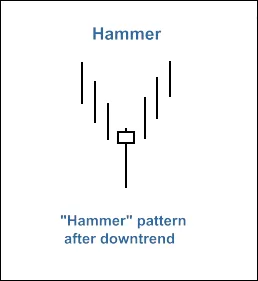
Fig. 1. Hammer Candlestick Pattern
To recognize the Hammer pattern, you can check it using the CheckPatternHammer() method in the CCandlePattern class:
//+------------------------------------------------------------------+ //| Checks formation of "Hammer" candlestick pattern | //+------------------------------------------------------------------+ bool CCandlePattern::CheckPatternHammer() { //--- Hammer if ((MidPoint(1) (High(1) - (High(1) - Low(1)) / 3.0)) && // body in upper 1/3 (Close(1) The CheckCandlestickPattern(CANDLE_PATTERN_HAMMER) method of CCandlePattern class is used to confirm the Hammer pattern formation.
1.2. The Hanging Man
The Hanging Man pattern also features a small body and a long lower wick, yet it forms after an upward price movement, signaling the potential end of a bullish trend.
Similar to the Hammer, the color of the Hanging Man's body is not crucial; however, a bearish body suggests a stronger bearish outlook. This pattern typically emerges near the high of the preceding candle, and a longer lower wick combined with a shorter upper wick enhances its reversal potential.
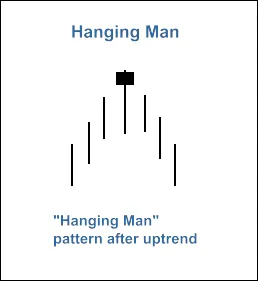
Fig. 2. Hanging Man Candlestick Pattern
The recognition of the Hanging Man pattern is handled by the CheckPatternHangingMan() method in CCandlePattern class:
//+------------------------------------------------------------------+
//| Checks formation of "Hanging Man" candlestick pattern |
//+------------------------------------------------------------------+
bool CCandlePattern::CheckPatternHangingMan() {
//--- Hanging man
if ((MidPoint(1) > CloseAvg(2)) && // up trend
(MathMin(Open(1), Close(1)) > (High(1) - (High(1) - Low(1)) / 3.0)) && // body in upper 1/3
(Close(1) > Close(2)) && (Open(1) > Open(2))) { // body gap
return (true);
}
//---
return (false);
}The CheckCandlestickPattern(CANDLE_PATTERN_HANGING_MAN) method of CCandlePattern class is used to confirm the Hanging Man pattern formation.
2. Trade Signals Validated by the RSI Indicator
To open long or short positions, the signals must be validated by the RSI indicator. Specifically, the RSI value must be below 40 to open a long position and above 60 to open a short position.
Closing an open position hinges on the RSI values as well. There are two scenarios for closing:
- If the RSI reaches the opposite critical level (70 for long positions and 30 for short positions).
- If the reversing signal isn’t confirmed (when RSI hits the levels of 30 for long positions and 70 for short positions).
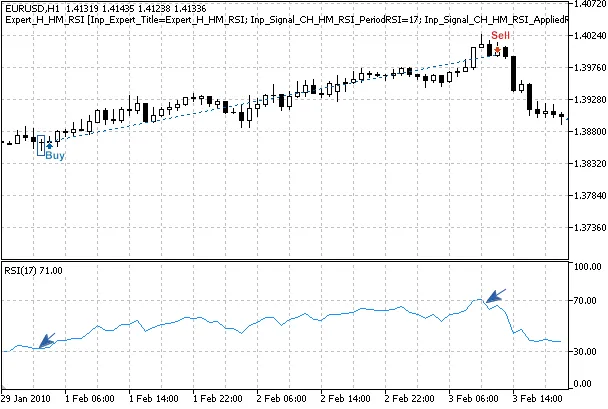
Fig. 3. Harami Pattern, Confirmed by RSI Indicator
int CH_HM_RSI::LongCondition()- checks conditions to open long positions (returns 80) and close short positions (returns 40);int CH_HM_RSI::ShortCondition()- checks conditions to open short positions (returns 80) and close long positions (returns 40).
2.1. Open Long Position/Close Short Position
The formation of the Hammer pattern must be confirmed by the RSI indicator: RSI(1)
The short position should be closed if the RSI indicator crosses upward critical levels of 70 or 30.
//+------------------------------------------------------------------+
//| Checks conditions for entry and exit from market |
//| 1) Market entry (open long position, result=80) |
//| 2) Market exit (close short position, result=40) |
//+------------------------------------------------------------------+
int CH_HM_RSI::LongCondition() {
int result = 0;
//--- idx can be used to determine Expert Advisor work mode
//--- idx=0 - checks trade conditions at each tick
//--- idx=1 - checks trade conditions only at news bars
int idx = StartIndex();
//--- checking conditions to open long position
//--- formation of Hammer pattern and RSI 30) && (RSI(2) 70) && (RSI(2)
2.2. Open Short Position/Close Long Position
The formation of the Hanging Man pattern must be confirmed by the RSI indicator: RSI(1) > 60 (the RSI value of the last completed bar must be greater than 60).
The long position should be closed if the RSI indicator crosses downward the critical levels of 70 or 30.
//+------------------------------------------------------------------+
//| Checks conditions for entry and exit from market |
//| 1) Market entry (open short position, result=80) |
//| 2) Market exit (close long position, result=40) |
//+------------------------------------------------------------------+
int CH_HM_RSI::ShortCondition() {
int result = 0;
//--- idx can be used to determine Expert Advisor work mode
//--- idx=0 - checks trade conditions at each tick
//--- idx=1 - checks trade conditions only at news bars
int idx = StartIndex();
//--- checking conditions to open short position
//--- formation of Hanging Man pattern and RSI > 60
if (CheckCandlestickPattern(CANDLE_PATTERN_HANGING_MAN) && (RSI(1) > 60))
result = 80;
//--- checking conditions to close long position
//--- signal line crossover of overbought/oversold levels (downward 70, downward 30)
if (((RSI(1) 70)) || ((RSI(1) 30)))
result = 40;
//--- return result
return (result);
}
2.3. Creating Your Expert Advisor with MQL5 Wizard
The CH_HM_RSI class isn’t part of the Standard Library, so you’ll need to download the ach_hm_rsi.mqh file (see attachments) and save it in your terminal_data_folder\MQL5\Include\Expert\Signal\MySignals. Do the same with the candlepatterns.mqh file. After you restart MetaEditor, you can access it through MQL5 Wizard.
To kick off creating an Expert Advisor, launch the MQL5 Wizard:
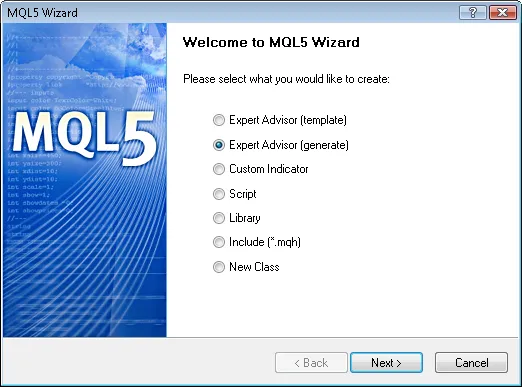
Fig. 4. Creating Expert Advisor using MQL5 Wizard
Let’s set the name of your Expert Advisor:
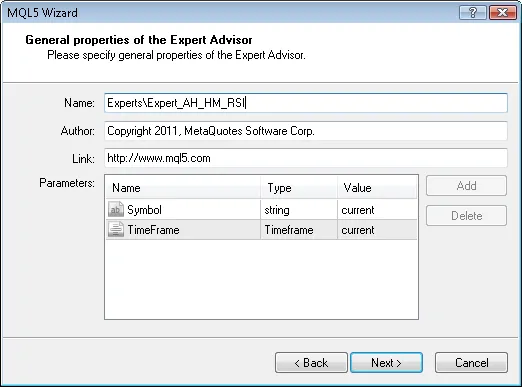
Fig. 5. General properties of the Expert Advisor
Next, select the modules of trade signals you want to use.

Fig. 6. Signal properties of the Expert Advisor
In our case, we’ll only use one module of trade signals.
Adding the Signals based on Hammer/Hanging Man confirmed by RSI trading signals module:
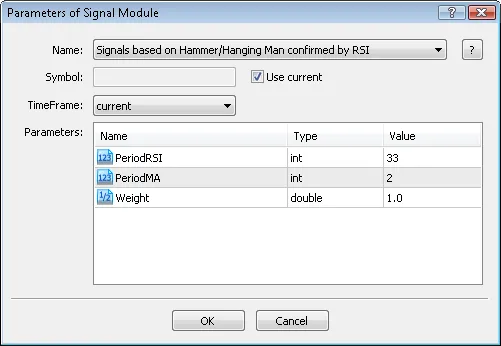
Fig. 7. Signal properties of the Expert Advisor
The signals module has been added:
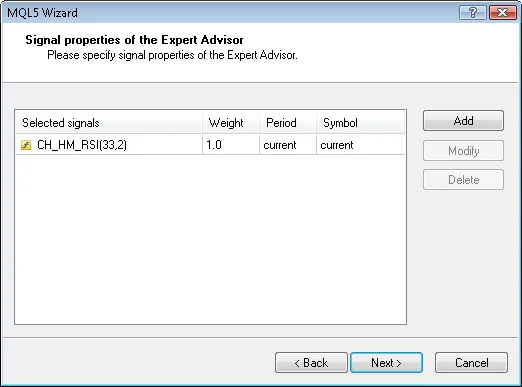
Fig. 8. Signal properties of the Expert Advisor
You can select any trailing properties, but we will go with "Trailing Stop not used":
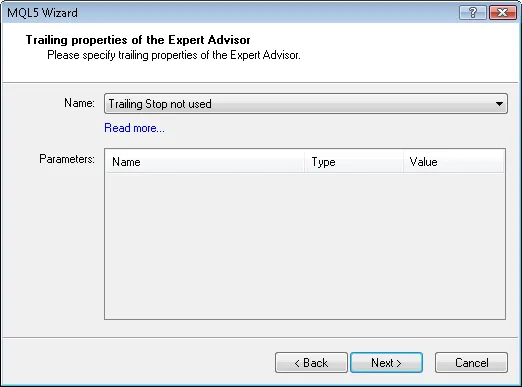
Fig. 9. Trailing properties of the Expert Advisor
Regarding money management, we will use "Trading with fixed trade volume":
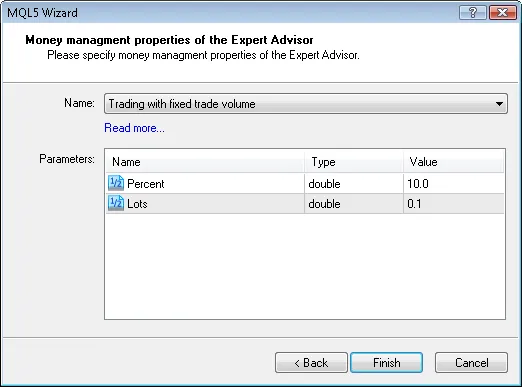
Fig. 10. Money management properties of the Expert Advisor
Once you hit the "Finish" button, the code for your generated Expert Advisor will be saved as Expert_AH_HM_RSI.mq5 in your terminal_data_folder\MQL5\Experts\.
The default input parameters of the generated Expert Advisor will be:
//--- inputs for main signal
input int Signal_ThresholdOpen = 10; // Signal threshold value to open [0...100]
input int Signal_ThresholdClose = 10; // Signal threshold value to close [0...100]
input double Signal_PriceLevel = 0.0; // Price level to execute a deal
input double Signal_StopLevel = 50.0; // Stop Loss level (in points)
input double Signal_TakeLevel = 50.0; // Take Profit level (in points)
These should be updated to:
//--- inputs for main signal
input int Signal_ThresholdOpen = 40; // Signal threshold value to open [0...100]
input int Signal_ThresholdClose = 20; // Signal threshold value to close [0...100]
input double Signal_PriceLevel = 0.0; // Price level to execute a deal
input double Signal_StopLevel = 0.0; // Stop Loss level (in points)
input double Signal_TakeLevel = 0.0; // Take Profit level (in points)
The Signal_ThresholdOpen and Signal_ThresholdClose parameters allow you to set threshold levels for opening and closing positions.
In the LongCondition() and ShortCondition() methods of the trade signals class, we specified fixed threshold values:
- Open position: 80;
- Close position: 40.
The Expert Advisor created by MQL5 Wizard opens and closes positions based on the




Comments 0