
Hey fellow traders! If you’re looking to streamline your trading experience, the Basket Viewer is your new best friend. This handy utility allows you to monitor multiple currency pairs and open positions all on one chart. You can easily categorize your symbols into two groups: long (buy) pairs and short (sell) pairs. By default, you’ll find seven symbol pairs in each group, but feel free to customize and add up to 50 symbols from your market watch.
Switching the current display chart is a breeze; just click on any of the symbols in the indicator display. You’ll instantly see key stats like ATR for the selected chart period, points gained or lost since the start of the week, and your position's gains or losses along with lot exposure. Plus, you can adjust the statistics week with just a couple of clicks, and the display can be repositioned anywhere on the chart. To keep things efficient, the load on quote processing is minimized. Instead of running updates inline, it simply triggers an event to refresh the display.
Let’s dive into the main controls and features!

Understanding the Control Panel
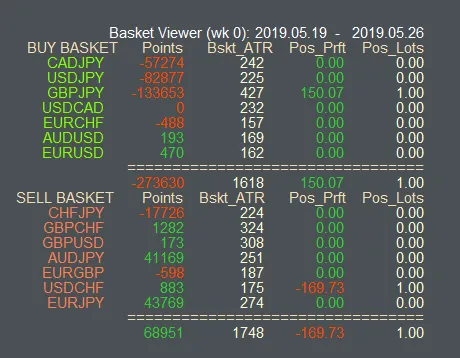
At the top, you’ll see the Basket Viewer header, which shows the current week’s range (e.g., 2019.05.19 - 2019.05.26).
To move the panel, just click on "Basket Viewer" and drag it to your desired spot on the chart. Want to change the week displayed? Click on the first date to move it forward and the second date to move it back.
BUY BASKET Details
Here’s what you’ll find under the BUY BASKET section:
Click on this line to highlight the selected week on the chart—an easy way to visualize your trades! Click again to remove the highlight.
The BUY BASKET lists pairs from your customizable "Buy Pairs String". By clicking on any of these pairs, you can switch the chart to that symbol.
Points: This shows the difference between the week’s open and close (close - open).
Bskt_ATR: This indicates the Average True Range for the symbol within the chosen time frame.
Pos_Prft: This reflects the profit or loss from any active trades on that symbol (e.g., $150.07 profit on GBPJPY).
Pos_Lots: This shows your exposure for the indicated symbol (e.g., 1 lot on GBPJPY).
Below this header, you’ll see total statistics for Points, ATR, Profit, and Lots.
SELL BASKET Insights
Now, let’s switch gears to the SELL BASKET:
This section mirrors the BUY BASKET but focuses on your sell pairs. There are no event actions for clicking this line; however, you’ll still see totals for Points, ATR, Profit, and Lots, just like with the buy side. Remember, profit points are calculated differently, using (open - current/close) for the week versus (current/close - open) for the buy basket.
Click on any of the Symbol Pairs to change the chart to that specific pair.
Taking advantage of the Basket Viewer can significantly enhance your trading strategy by providing crucial insights at a glance. Happy trading!




Comments 0