
SL+TP-CP Pip Distance Indicator v2 (Indicator)
Functionality Overview
- Calculates the pip difference between Current Price and SL & TP.
- Displays text labels at SL & TP lines, including Order Type, Ticket Number, SL & TP Prices, Pip Calculations, and Pip Labels.
- Shows text labels at Order Execution (OE) lines with Order Type, Ticket Number, and OE Price.
- Compatible with MT4 defaults and other MT4 applications like Sangmane’s Easy Order script.
User-Defined Labels
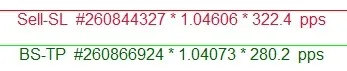
User Defined Examples
- Sell-SL #260844327 * 1.04606 * 322.4 pips
- Sell-SL #260844327 * 3224 f-pips *
- #260844327 * 3224
- Sell-SL * 322.4
- 1.04606 * 3224
- 322.4
- BS-OE #260866924 * 1.02015
* Non-digit symbols will default to pips, regardless of whether f-pips (fractional pips - points / 3 & 5 digit pricing) is set to [true].
Pip Calculation Test & Check: SL+TP-CP Pip Dist Indicator
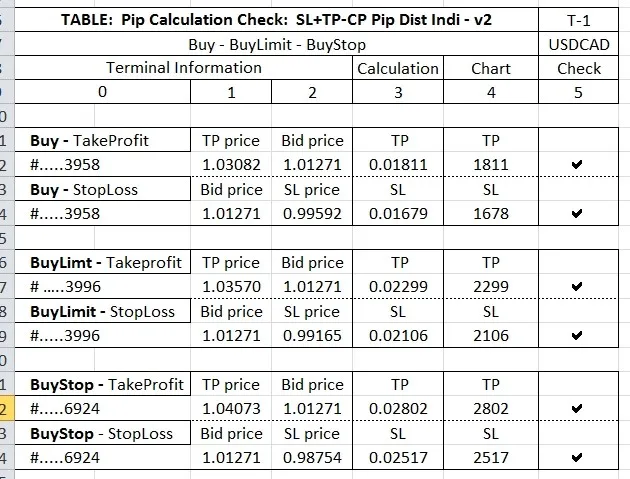
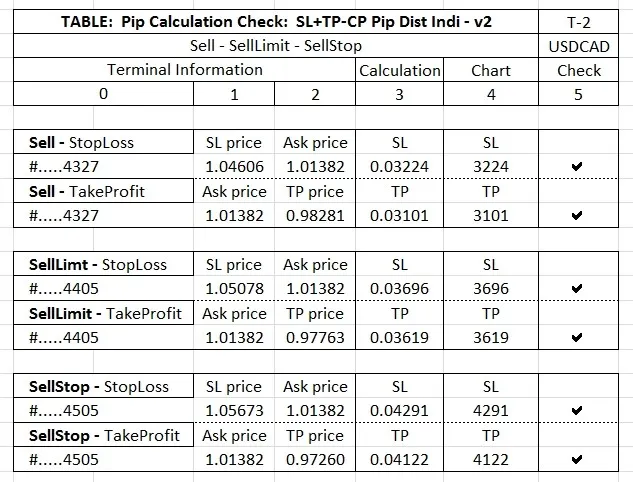
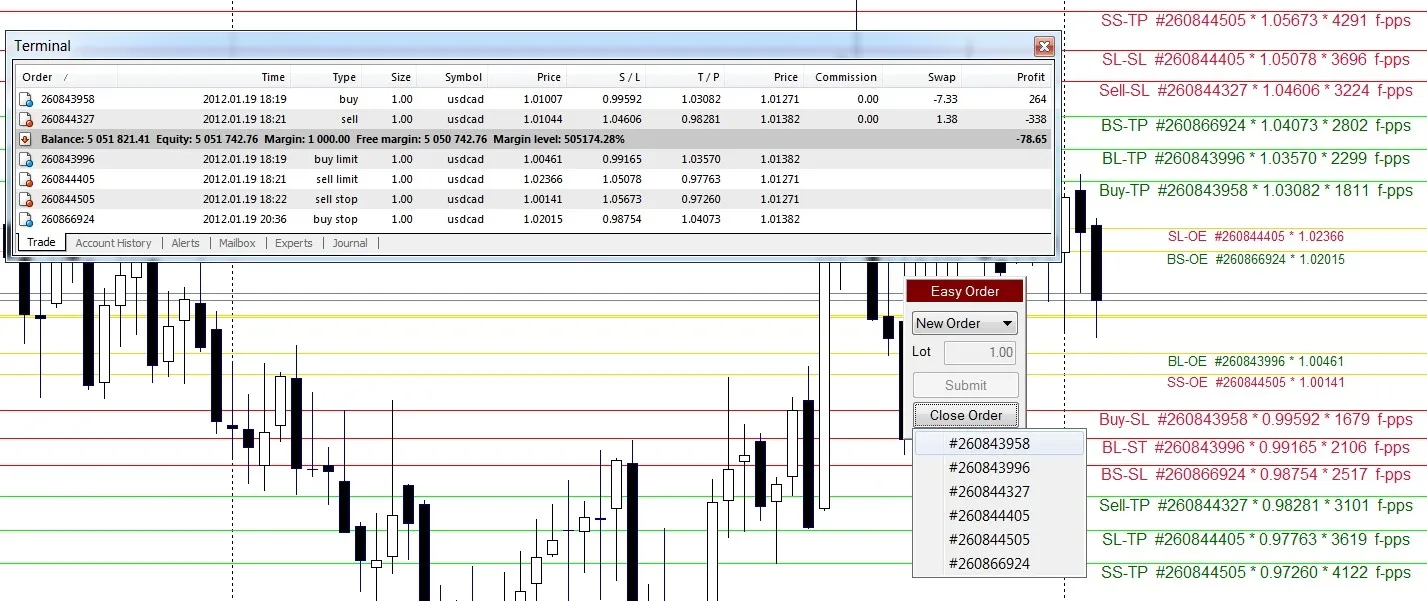
- 1. Cross-reference tables with Chart and Terminal.
- 2. Tables T-1 & T-2
- a) Terminal: Columns 0-2 contain values taken from the Terminal at the instant of the screenshot - these values can be validated in the Terminal image included on the chart.
- b) Calculation: Column 3 is an Excel calculation of the relevant values.
- c) Chart: Column 4 shows the values indicated on the chart.
- d) Check: Column 5 confirms a matching value.
- e) Current Bid and Ask at the instant of the screenshot is located in column 9 of the Terminal.
- f) All Buy orders are calculated as follows:
- I. TP pip calculation = TP price – Bid price.
- II. SL pip calculation = Bid price - SL price.
- g) All Sell orders are calculated as follows:
- I. SL pip calculation = SL price – Ask price.
- II. TP pip calculation = Ask price – TP price.
- 3. Column 9 of the Terminal indicates Ask price for Buy Limit and Buy Stop – when a future current Ask price equals the relevant Limit or Stop price, the order will fill and register in the terminal as a Buy. Column 9 will then reflect a Bid price for the order as is the case of the Buy in line 1.
- 4. Column 9 of the Terminal indicates Bid price for Sell Limit and Sell Stop – when a future current Bid price equals the relevant Limit or Stop price, the order will fill and register in the terminal as a Sell. Column 9 will then reflect an Ask price for the order as is the case of the Sell in line 2.
Notes
1: SL+TP-CP Pip Dist Indicator v2 is independent of Easy Order, and does not attach text to Easy Order SL & TP lines but to the default MT4 SL and TP values.
2: Easy Order is a FREE MT4 script and can be downloaded here - Easy Order
Avoid Repetitive Tasks - Change Defaults Permanently
If you haven’t edited before, it’s a piece of cake and saves you from time-consuming repetitions.
1. Open MT4, go to the top left menu, click on View, then click on Navigator.
2. The Navigator window will pop up on the left or right side of your screen.
3. Find Custom Indicators in the Navigator Window, and click the [+] to expand it if it’s not already.
4. Locate SL+TP-CP DIST INDI - v2, highlight it, and right-click to reveal the selection window.
5. Click Modify in the selection window.
6. You will now be in the MetaEditor with SL+TP-CP PIP DIST INDI – v2 loaded.
7. It’s best to unload any other indicators before you start editing – right-click on the relevant tab and select close.
8. Now you can begin editing – follow the instructions below.
9. After every edit or modification, run Compile and check for errors. An example can be found here - post 244
Note:
If you get stuck and can’t figure out why it won’t compile without error, use the undo arrow to go back to a point when it did compile successfully. Compile and check for errors after every modification, and you’ll be just fine.
Find this code at the top when you access the code editor:
// SL+TP-CP PIP DIST INDI - v2

// USERS CAN PERMANENTLY CHANGE THE DEFAULT SETTINGS BY MODIFYING THE BELOW CODE - EXAMPLES PROVIDED.// * * * * * REMEMBER TO COMPILE AND CHECK FOR ERRORS AFTER EVERY EDIT/MODIFICATION * * * * *externstring PIPS_or_FRACTIONAL_PIPS = "fractional pips = points / 3 & 5 digit pricing";
externbool   Fractional_Pips  = true; // edit examples: = false;externstring HIDE_OPTIONS;
externbool   Hide_Order_Text = false; // edit example: = true;
externbool   Hide_OrderTicket = false;
externbool   Hide_SL_TP_Price = false;
externbool   Hide_Pip_Text = false;
externbool   Hide_SL = false;
externbool   Hide_TP = false;
externbool   Hide_Limit_and_Stop_Orders = false;
externbool   Hide_OE_Price = false;
externbool   Hide_OE = false;
externstring COSMETICS;
externstring L_neg_100___to___R_pos_20; // = "- - neg left / pos right + +";externint Shift_Text_Left_or_Right = 13; // edit example: = 10; extern color  SL_Color =Magenta; // edit examples: = Red; extern color  TP_Color = LimeGreen;
externbool   Use_OE_Color = false;
extern color  OE_Color = Gold;
externint    SL_TP_Font_Size = 10;
externint    OE_Font_Size = 8;
externstring FontName = "Arial"; // edit example: = "Verdana"; // * * * * * DO NOT MODIFY BEYOND THIS POINT UNLESS YOU KNOW WHAT YOU ARE DOING * * * * *
Disclaimer: All downloads and documentation are offered AS IS for educational purposes.




Comments 0