
If you’re trading with MetaTrader 5, you’re probably always on the lookout for tools that can give you an edge. One such tool is the CandlesticksBW_x10 indicator, which provides a unique view of candlestick colors across ten different timeframes based on your settings.
How the CandlesticksBW_x10 Indicator Works
The CandlesticksBW_x10 indicator displays the candlestick colors from various timeframes, allowing you to quickly assess market trends and make informed trading decisions. Here’s a quick breakdown of how you can set it up:
//+----------------------------------------------+
//| Indicator input parameters                   |
//+----------------------------------------------+
input ENUM_TIMEFRAMES TimeFrame0=PERIOD_H1;           //chart 1 period
input ENUM_TIMEFRAMES TimeFrame1=PERIOD_H2;           //chart 2 period
input ENUM_TIMEFRAMES TimeFrame2=PERIOD_H3;           //chart 3 period
input ENUM_TIMEFRAMES TimeFrame3=PERIOD_H4;           //chart 4 period
input ENUM_TIMEFRAMES TimeFrame4=PERIOD_H6;           //chart 5 period
input ENUM_TIMEFRAMES TimeFrame5=PERIOD_H8;           //chart 6 period
input ENUM_TIMEFRAMES TimeFrame6=PERIOD_H12;          //chart 7 period
input ENUM_TIMEFRAMES TimeFrame7=PERIOD_D1;           //chart 8 period
input ENUM_TIMEFRAMES TimeFrame8=PERIOD_W1;           //chart 9 period
input ENUM_TIMEFRAMES TimeFrame9=PERIOD_MN1;          //chart 10 period
input uint SignalBar=1;                               //Bar number to receive a signal (0 - current bar)
//---- Indicator drawing parameters
input color  CpColor=clrBlueViolet;                   //indicator name color
input color  UpUpColor=clrDeepSkyBlue;                //color of growing trend and growing candlestick
input color  UpDnColor=clrBlue;                       //color of growing trend and falling candlestick
input color  NonUpColor=clrTeal;                      //color without trend and falling candlestick
input color  NonDnColor=clrRed;                       //color without trend and growing candlestick
input color  DnUpColor=clrPurple;                     //color of falling trend and growing candlestick
input color  DnDnColor=clrMagenta;                    //color of falling trend and falling candlestick
input int    FontSize=11;                             //font size
input type_font FontType=Font14;                      //font type
input ENUM_BASE_CORNER  WhatCorner=CORNER_LEFT_LOWER; //location corner
input uint Y_=20;                                     //vertical location
input uint X_=5;                                      //horizontal location
//+----------------------------------------------+
Setting Up the Indicator
To get the CandlesticksBW_x10 up and running, you’ll need to ensure that the CandlesticksBW.ex5 file is placed in the <terminal_data_directory>\MQL5\Indicators folder on your system. This will allow it to function properly.
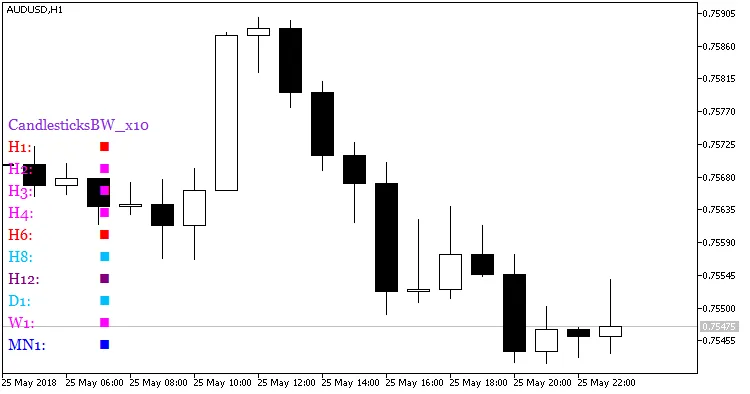
Fig.1. Indicator CandlesticksBW_x10
With the CandlesticksBW_x10 indicator in your toolkit, you’ll be well-equipped to analyze market trends more effectively. Happy trading!
Related Posts
- Unlocking the Power of Master Tools for MetaTrader 4
- Unlocking MetaCOT 2: Your Ultimate CFTC Indicator Toolkit for MT4
- Mastering the MACD Candle Indicator for MetaTrader 4
- Understanding the Welch Bollinger Band Width Indicator for MetaTrader 4
- Mastering the Fibonacci ZigZag Indicator for MetaTrader 5