
If you're trading with MetaTrader 4, you know how crucial it is to stay on top of market movements. The MA Cross Alert Once indicator is here to help you out. Let’s dive into what this tool can do for your trading strategy!
What is MA Cross Alert Once?
- This nifty indicator alerts you when two Moving Averages (MAs) cross each other. You’ll get a single alert for each cross, and it marks the cross point with arrows—up for bullish signals and down for bearish ones.
- With the MA_Cross_Alert_Once_1a, you can numerically input your preferred MA method and price.
- Want more flexibility? Use the MA_Cross_Alert_Once_1b dropdown list for easy selection of your MA method and price.
- This indicator is versatile and works on standard charts, offline period charts (like M2, M3, etc.), as well as other non-standard offline charts.
- Looking to enhance your trading experience? Consider integrating a second-by-second candle countdown timer—check it out here.
- Another great enhancement is the Period Converter indicator—find it here.
- And don't forget about the Close MA Cross option, which you can explore here.
Note: The indicator keeps track of alerts for various time frames, including M1, M2, M3, H1, D1, W1, and more!
- When you first attach the indicator to a chart, you might not see any historical arrows right away. The first arrow will pop up at the first cross after you’ve installed it.
- The default settings are optimized for quick testing on M1 charts using a 7 SMA, but feel free to adjust them to fit your strategy. The fast MA is set to Period=1, Method=0 (SMA), and Price=0 (Close), meaning it reflects the current price at close.
- Don’t forget to define your preferred settings! You can save and load different configurations via the Inputs tab.
Alert Options
- Popup Alert
- Sound Only
- Push Notification
- If you enable both Sound Only and Popup Alert, only the sound will trigger while the popup is canceled.
- All alerts are synced with your broker's time and date.
- Tip: If you use a candle countdown timer with the indicator, make sure your computer's time is synced with the internet time server for accurate alerts!
- Alerts work seamlessly with most Renko and Constant Range candles.
How to Set Up Push Notifications (iOS and Android)
- Push notifications are quick and easy to set up.
- Your internet connection speed will impact how fast you receive them.
- Start by installing MT4 on your mobile device.
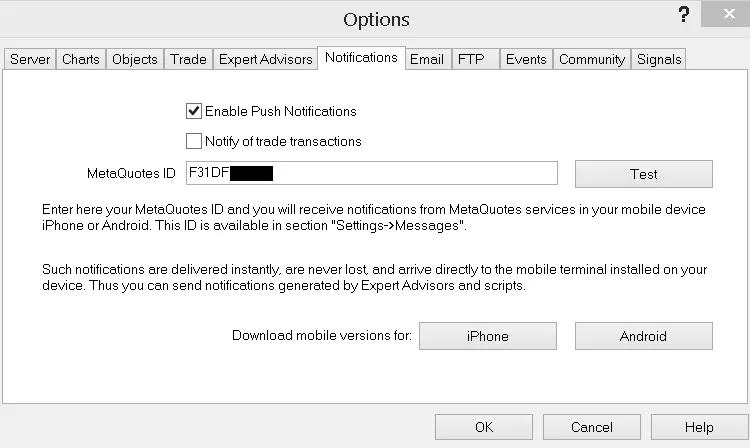
- Locate your MetaQuotes ID in the app—check under Messages or in Settings.
- Enter this ID into your MT4 client on your computer (Tools → Options → Notifications).
- Remember, this MetaQuotes ID can be used across multiple client terminals.
- Hit the Test button to ensure everything’s working.
- Open the MT4 Terminal (Ctrl + T) and check the Journal Tab under Messages to confirm the test was successful.
- After a successful test, you can set up Push Notification alerts in your indicator.
- Important: Make sure your mobile device has sound notifications enabled!
Email Alerts
The email function primarily works with the stunnel method. If you want to set this up, I recommend checking out the Alerts on New Bar indicator for guidance. For the best results, you might have to do some research online.
- There are several ways to set up MT4 email alerts, so feel free to explore.
- I’ve had success with stunnel and hMailServer, both of which are free!
- Here’s how to get stunnel working:
- Visit the forum for detailed instructions.
- Download the stunnel installation file.
- Install stunnel, and just press Enter during the prompts unless you have specific information to enter.
- After installation, locate the stunnel icon on your desktop and open the configuration file to edit it according to the forum instructions.
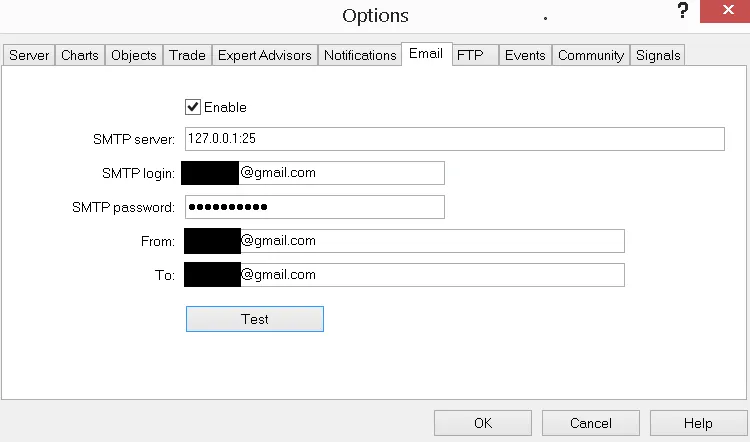
- Fill in your server and email info in the MT4 Terminal settings (Tools → Options → Email).
- Note: Ensure stunnel is running for the Email function to work; you can create a shortcut to automate it on startup.
- Click the Test button.
- Check the Journal Tab in MT4 to verify if the email test was successful.
Recommendations
The MA crossover code shared below comes from the MQL4 Book documentation, specifically focusing on the usage of technical indicators:
...... if((Fast_MA_Bar_1 Slow_MA_Bar_0)) // Cross up if((Fast_MA_Bar_1 > Slow_MA_Bar_1) && (Fast_MA_Bar_0For further reading, check out the MQL4 Book documentation on technical indicators.
Fig. 107. Concurrence of the main and the signal lines of Stochastic Oscillator.
Now that you’re equipped with the knowledge about the MA Cross Alert Once indicator, it’s time to put it to work in your trading strategy. Happy trading!





Comments 0