
Hey fellow traders! Today, let's dive into the exciting world of Unity Pro, an upgraded version of the renowned multi-asset indicator that you might already be familiar with. If you're into trading currencies, metals, or even other assets, this tool could be a game-changer for you.
So, what's new in Unity Pro? This version boasts an enhanced formula and additional features that make it stand out from its predecessor. To get a better grasp on how it works, let's break down the underlying algorithm.
Imagine we're looking at just one currency pair, say EUR/USD, and gold (XAU/USD). At any given moment, the market's state is represented by simple relationships:
EUR / USD = EURUSD
XAU / USD = XAUUSD
Here, the variables EUR, USD, and XAU represent the actual values of the assets, while EURUSD and XAUUSD are the constants (or exchange rates).
To uncover the variables, we add another equation, limiting the sum of these variables to one:
EUR + XAU + USD = 1
This is where the name 'Unity' comes into play! Unlike the original version, which used the sum of squares, Unity Pro opts for a straightforward sum (no squares involved). This means that when you select the AbsoluteValues mode (details below), any two lines on the indicator will correspond to the associated exchange rate for every bar. For instance, the values of EUR and USD will align perfectly with EURUSD.
Just a quick note: this ratio is accurate only when the moving average is turned off, meaning the PricePeriod is set to 1.
Let’s break it down further:
EURUSD * USD + XAUUSD * USD + USD = 1
From this, we can deduce:
USD = 1 / (1 + EURUSD + XAUUSD)
And you can calculate all other variables accordingly.
In general terms:
x0 = 1 / (1 + sum(C(xi, x0))), i = 1..n
xi = C(xi, x0) * x0, i = 1..n
Here, n represents the number of variables, and C(xi,x0) is the quote for the i-th pair, including the corresponding variables.
What’s really cool is that by eliminating squares and square roots, we've boosted the performance of this indicator compared to the original Unity.
The coefficients involved in these calculations are typically quite varied, so Unity Pro multiplies them by the contract sizes. This approach yields comparable values (at least within the same order of magnitude). If you want to see the values in their raw form within the indicator window, simply set the AbsoluteValues input parameter to true. By default, this is false, which means the indicator shows the changes in values instead:
yi = xi0 / xi1 - 1,
Where xi0 and xi1 are the values from the last and previous bars, respectively.
Check out this screenshot of a cluster featuring the pairs "EURUSD, GBPUSD, USDCHF, USDJPY, AUDUSD, USDCAD, NZDUSD, XAUUSD" in two instances of Unity Pro — one showing values and the other showing momentum:
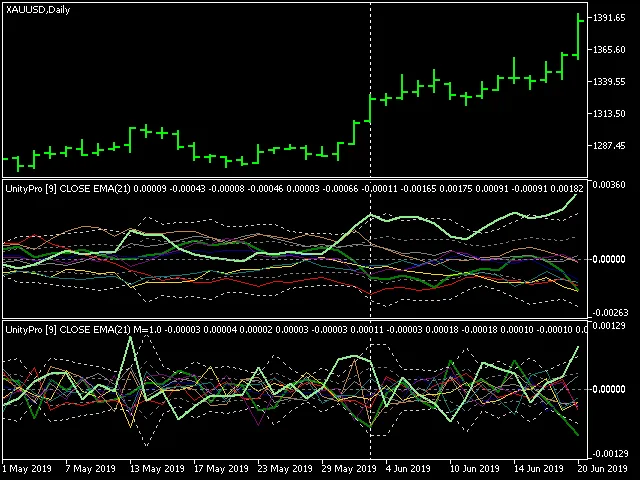
The thicker lines represent the assets that make up the working symbol of the current chart (in this case, XAU and USD), while the thinner lines represent the rest.
Now, let’s take a look at the main input parameters of the indicator:
- Instruments: A string listing the working symbols separated by commas. Make sure all instruments share a common currency, either as a base or a quote.
- BarLimit: The number of bars to calculate.
- Draw: The drawing style.
- PriceType: The price type used for calculations.
- PriceMethod: The moving average method.
- AbsoluteValues: A toggle: set to true to display values as they are, or false to view value changes.
- PricePeriod: (New in Unity Pro) The moving average period; set to 1 for no averaging, which corresponds to the original Unity.
- Momentum: (New in Unity Pro) This works only when AbsoluteValues is false. It’s a number ranging from 0 to 1 that indicates how much acceleration to add to the indicator readings. A value of 0 means no acceleration, while 1 means full acceleration, showing the "change of changes" of values.
- Sigma1, Sigma2: (New in Unity Pro) Two levels of dynamically adjusted market range, each represented as a number of standard deviations of all buffers on PricePeriod bars. For example, Sigma1=1 means that 68% of the time, all values stay within this range, while Sigma2=3 indicates a 99% time presence within this range.
So, how can you utilize this indicator in your trading strategies? Here are a few ideas:
- Watch for the crossing of two lines: buy the asset that’s moving up and sell the one that's going down — this indicates a trend.
- Look for zero crossings by the lines: buy assets that rise above zero and sell those that fall below; this suggests a potential trend.
- Consider buying (or selling) an asset that breaks out beyond 2-3 sigmas up (or down); this indicates a breakthrough.
- Buy (or sell) an asset that retraces back within a smaller sigma range after touching a higher sigma; this suggests a correction.
- Buy (or sell) when there’s high mutual speed between lines, which can also be detected as peaks on momentum.
Happy trading with Unity Pro!




Comments 0